
Want to automatically generate PDF documents from form submissions, spreadsheet rows, invoices, CRM records, or order data? With Zapier and APITemplate.io, you can create PDF files from reusable templates without writing code.
APITemplate.io supports PDF generation from reusable templates, HTML, Markdown, and URLs. It also integrates with no-code automation tools such as Zapier, Make.com, Airtable, n8n, and REST APIs.
If you’re looking for a flexible PDF generation API to create documents programmatically, APITemplate.io supports template-based, HTML, Markdown, and URL-to-PDF workflows.
Zapier can connect APITemplate.io with more than 7,000 apps, making it useful for automating invoices, reports, proposals, and other business documents.
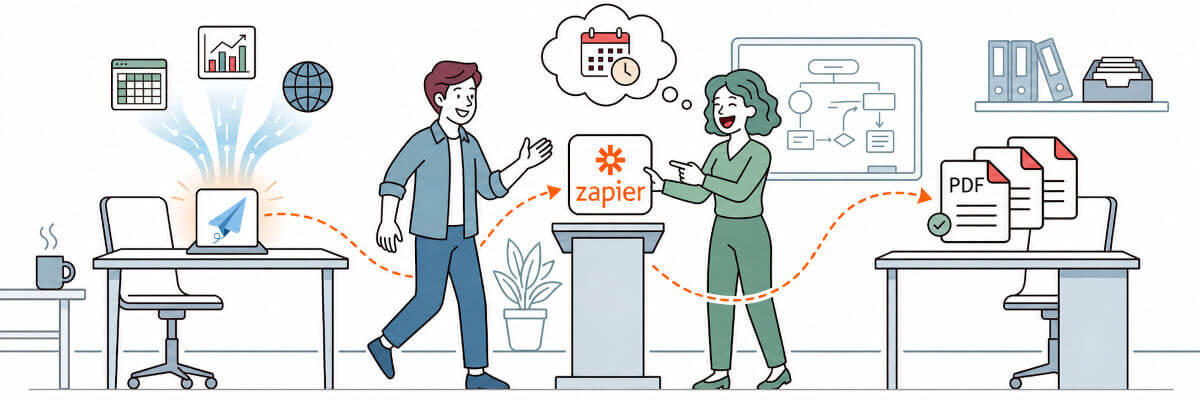
In this tutorial, you’ll learn how to build a Zap that sends data from any app to APITemplate.io, generates a PDF document, and returns a PDF URL that you can use in later Zapier steps. In short, this guide covers:
- How to use the PDF URL in later Zapier steps
- How to create a PDF template in APITemplate.io
- How to connect APITemplate.io with Zapier
- How to send data from Zapier to your PDF template
- How to generate a PDF and get a PDF URL
Let’s walk through how to set up the workflow step by step.
Prerequisites
Before you start, you need:
- An APITemplate.io account
- A Zapier account
- A service contract template in APITemplate.io
- A trigger app, such as Airtable, Google Sheets, Typeform, or HubSpot
- Sample contract data for testing
Step 1: Create a Service Contract Template
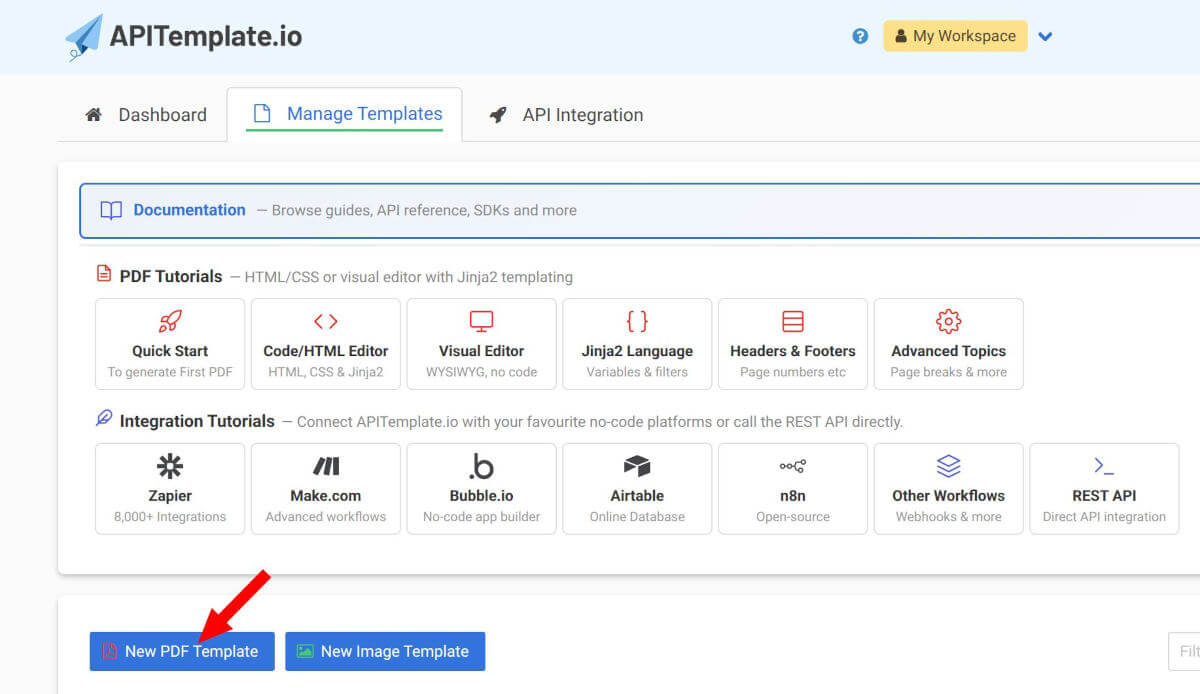
Log in to APITemplate.io, click on “New PDF Template” in the “Manage Templates” tab to create a new PDF template.
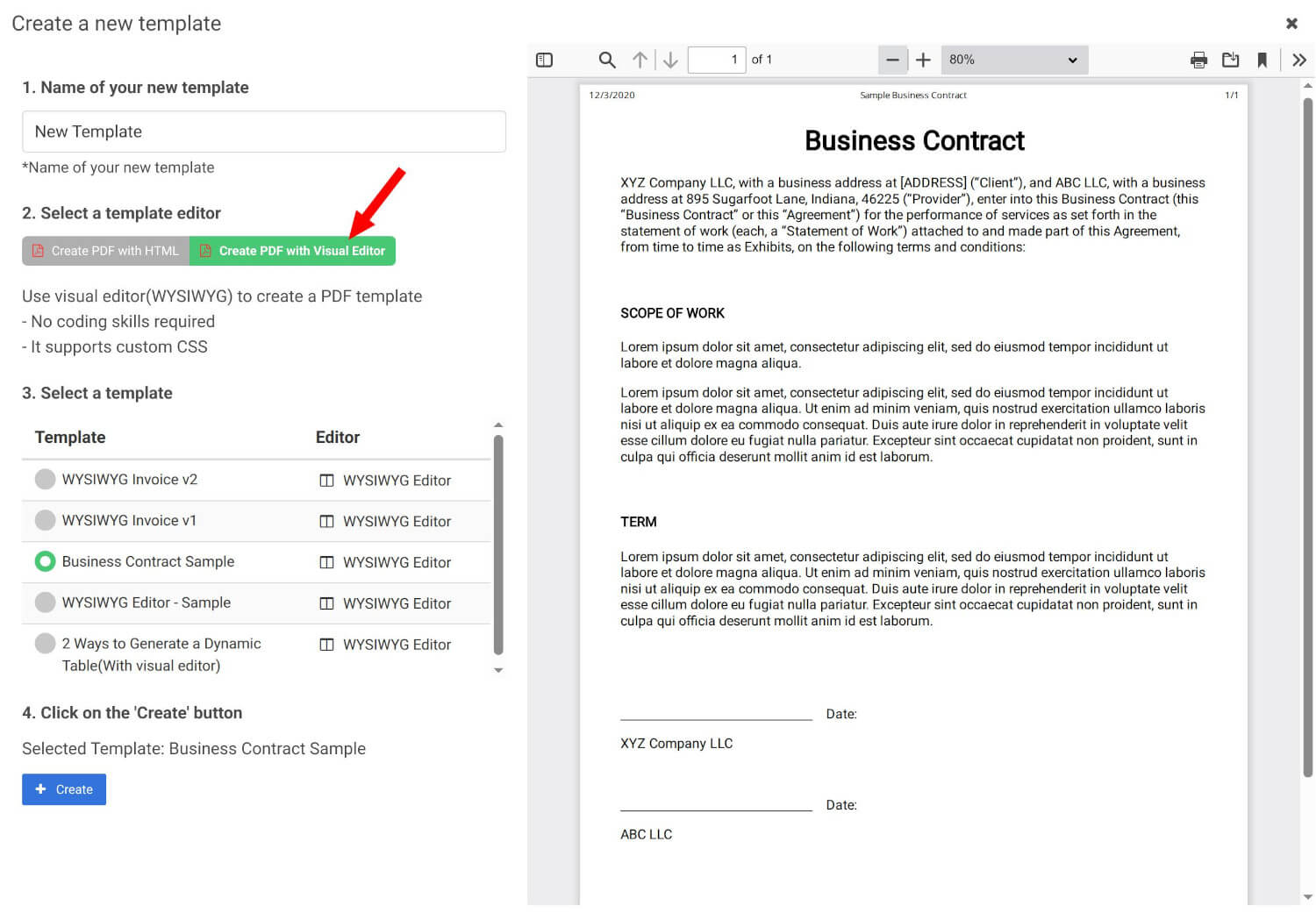
Then select Create PDF with Visual editor and select a sample template. You can use the WYSIWYG template editor to create your service contract layout.
In the template editor, add your contract content and include dynamic variables using double curly braces.
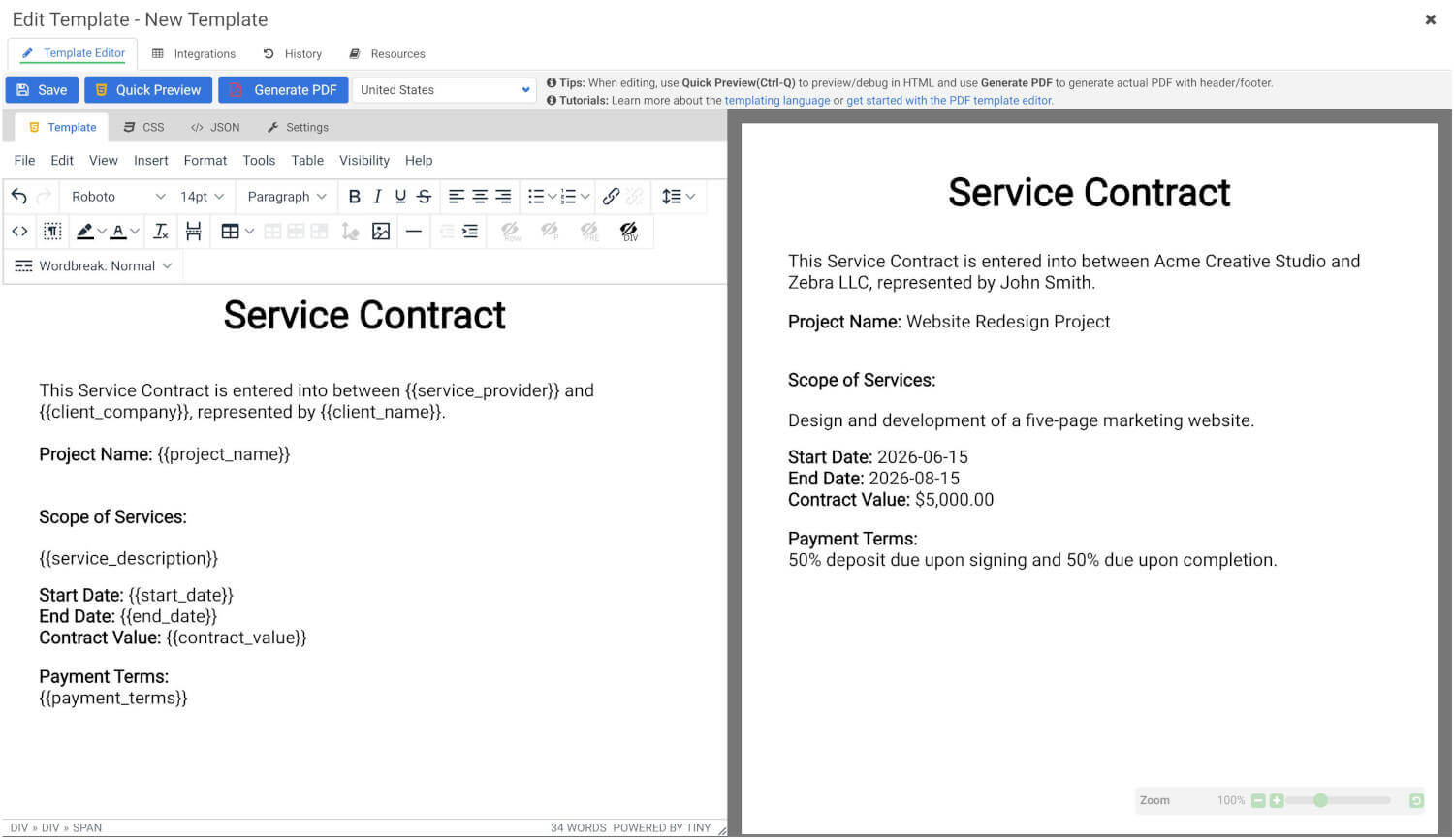
You may copy the service contract:
Service Contract

This Service Contract is entered into between {{service_provider}} and {{client_company}}, represented by {{client_name}}.

Project Name: {{project_name}}

Scope of Services:
{{service_description}}

Start Date: {{start_date}}
End Date: {{end_date}}

Contract Value: {{contract_value}}

Payment Terms:
{{payment_terms}}
Step 2: Add Sample Data
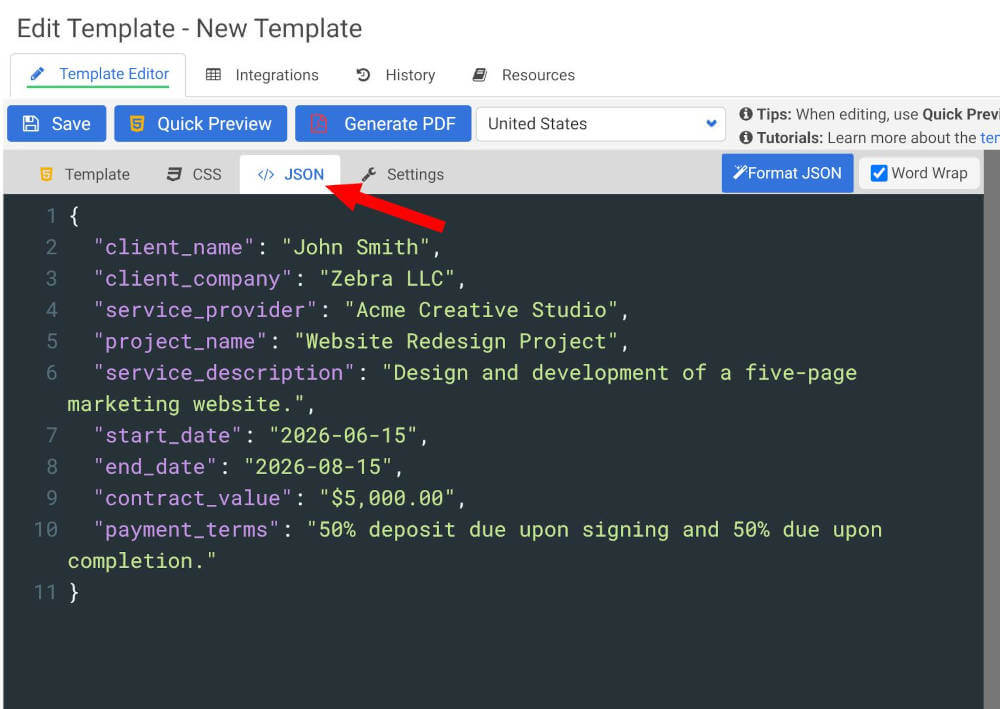
Add sample JSON data in APITemplate.io to preview your contract.
{
  "client_name": "John Smith",
  "client_company": "Zebra LLC",
  "service_provider": "Acme Creative Studio",
  "project_name": "Website Redesign Project",
  "service_description": "Design and development of a five-page marketing website.",
  "start_date": "2026-06-15",
  "end_date": "2026-08-15",
  "contract_value": "$5,000.00",
  "payment_terms": "50% deposit due upon signing and 50% due upon completion."
}
Make sure each JSON key matches the variable name in your template.
For example:
{{client_company}}matches:
"client_company": "Zebra LLC"Preview the template and confirm that the contract looks correct.
Step 3: Create a Zap
Log in to Zapier and create a new Zap.
Choose the app that will trigger your contract generation workflow. This could be Airtable, Google Sheets, Typeform, HubSpot, or another app.
For example:
New Airtable record → Generate service contract PDF
Test the trigger so Zapier can load sample data.
Step 4: Add APITemplate.io as the Action
Add a new action step in Zapier.
Search for APITemplate.io and choose Create PDF.
Connect your APITemplate.io account using your API key. After the account is connected, choose the service contract template you created earlier.
Step 5: Map Your Contract Data
Map the data from your trigger app to the template variables in APITemplate.io.
There are 3 different payload types:
Dictionary: Flat key-value data
- Use this for simple data with no nesting.
- Best for basic templates with variables like
{{client_name}},{{email}}, or{{total_amount}}.
Auto generate fields from your template’s sample data schema — Preferred
- Use this when you have already added sample JSON data to your APITemplate.io template.
- Zapier automatically creates input fields based on your sample data.
- Best option for most users because it is easier to map fields and reduces formatting mistakes.
JSON: Nested or complex data
- Use this for advanced data structures, such as arrays, line items, tables, or nested objects.
- Best for templates with repeating sections, such as invoice items, contract clauses, or product lists.
In this example, we are going to use “Auto generate fields from your template’s sample data” which is the easiest one.
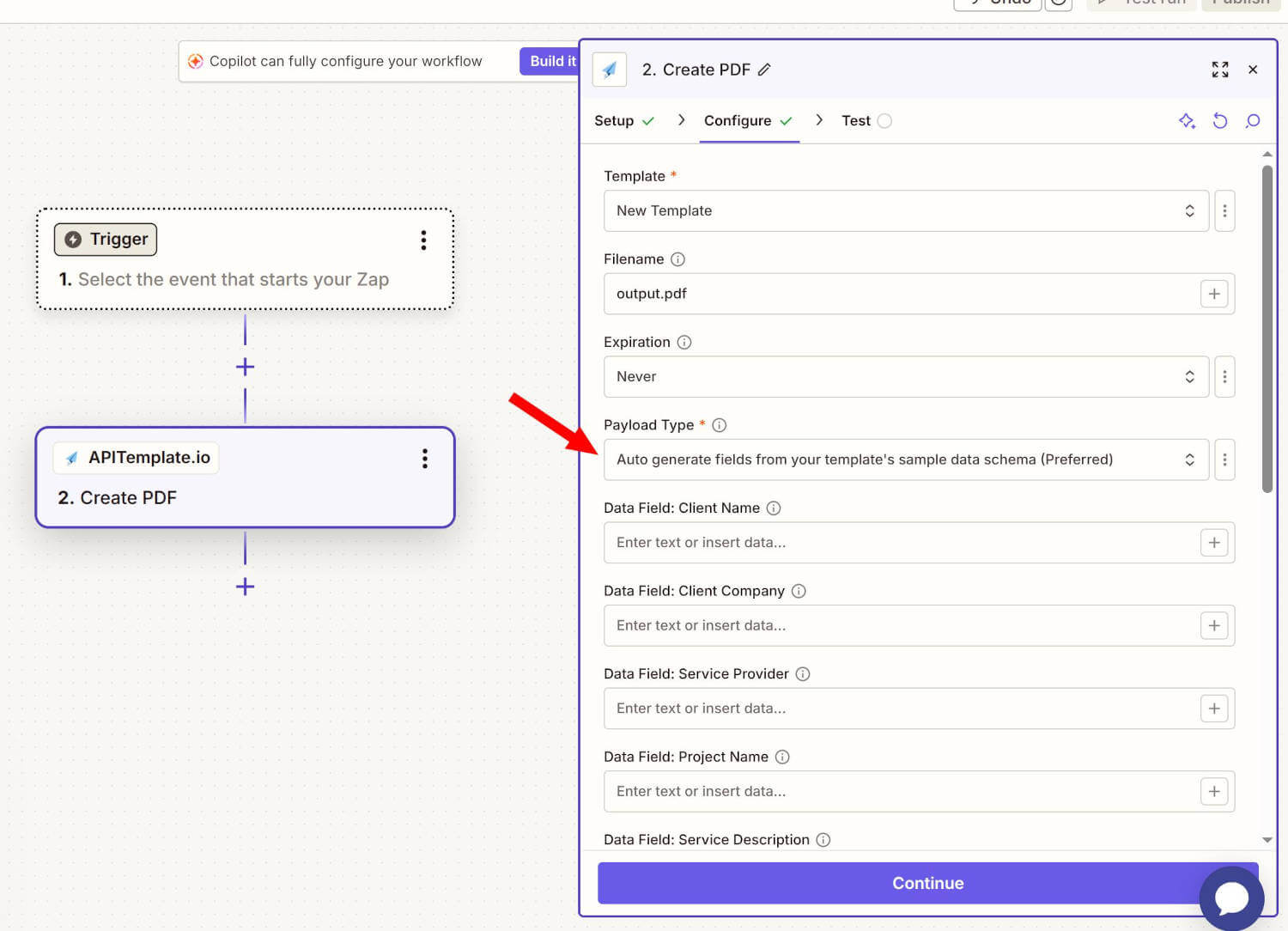
Map the following fields:
| Template variable | Zapier value |
|---|---|
client_name | Client Name |
client_company | Client Company |
project_name | Project Name |
service_description | Scope of Work |
contract_value | Contract Value |
payment_terms | Payment Terms |
Use dynamic fields from the trigger app so each contract is generated with the correct client and project details.
Step 6: Test the PDF Generation
Test the APITemplate.io action in Zapier.
If everything is set up correctly, APITemplate.io will generate a service contract PDF and return a PDF URL, usually available as a download_url.
You can use this URL in later Zapier steps.
Step 7: Use the Generated PDF
After the PDF is generated, add another Zapier step if needed.
For example, you can:
- Email the contract to the client
- Save the PDF to Google Drive
- Save the PDF URL back to Airtable or Google Sheets
- Send the contract to an e-signature tool
Which APITemplate.io Zapier Action Should You Use?
APITemplate.io supports different PDF generation workflows in Zapier. Choose the action based on how you want to create the PDF.
| Zapier action | Use it when |
|---|---|
| Create PDF | You already have a reusable APITemplate.io PDF template |
| Create PDF from HTML | You want to send raw HTML from Zapier |
| Create PDF from URL | You want to convert a webpage into a PDF |
For most no-code workflows, Create PDF is the best starting point because you can design the PDF once and reuse it many times.
Video Tutorial
If you would like to watch the workflow in action, here is a video walkthrough:
Conclusion
Zapier and APITemplate.io make it easy to automate PDF generation without writing code. You can design a reusable PDF template once, pass dynamic data from Zapier, and generate customized PDF documents automatically.
This workflow is useful for invoices, reports, receipts, certificates, contracts, proposals, onboarding documents, and many other business processes.
Once your PDF is generated, Zapier can send it by email, upload it to cloud storage, save the PDF URL in a spreadsheet or database, update a CRM record, or notify your team.
Ready to automate your document workflow? Signup and create your PDF template in APITemplate.io, connect it to Zapier, and start generating PDFs automatically.
Frequently Asked Questions
Can Zapier generate a service contract PDF automatically?
Yes. Zapier can trigger APITemplate.io to generate a service contract PDF whenever a new record, form submission, CRM deal, or webhook event is received.
Do I need to write code?
No. You can generate service contract PDFs using APITemplate.io templates and Zapier field mapping without writing code.
Which payload type should I use?
For most users, Auto generate fields from your template’s sample data schema is the recommended option. It creates Zapier input fields based on your sample JSON, making field mapping easier and less error-prone. Use Dictionary for simple flat key-value data, and use JSON for nested or complex data such as tables, line items, arrays, or grouped objects.
Can I use data from Airtable, Google Sheets, Typeform, or a CRM?
Yes. Any Zapier trigger app can pass data to APITemplate.io, as long as the data can be mapped to your template variables.
Can I email the generated contract PDF?
Yes. After the APITemplate.io step, add an email step using Gmail, Outlook, or Email by Zapier. Use the generated PDF URL in the email body or as the file source if your email action supports attachments.
Can I save the contract PDF to Google Drive?
Yes. Add a Google Drive step after the APITemplate.io action and use the generated PDF URL as the file source.
Can I send the generated contract for e-signature?
Yes. After generating the PDF, you can add another Zapier step to send the contract to an e-signature app or share the PDF URL with the client.