Make.com Integration
Make.com (formerly Integromat) is a powerful automation platform that connects APITemplate.io with hundreds of apps. It offers more advanced workflow capabilities than Zapier, including branching, error handling, and complex data transformations.
With the APITemplate.io Make.com module, you can:
- Create PDFs from templates with dynamic data
- Create images from templates with dynamic data
- Chain the output into any other Make.com module (email, cloud storage, CRM, etc.)
Section 1: Automate PDF Generation
This section walks through generating PDFs automatically using Make.com and APITemplate.io.
Watch the video below for a quick walkthrough of connecting Make.com with APITemplate.io to automate PDF generation end-to-end:
Step 1 — Create a PDF template on APITemplate.io
- Log in to app.apitemplate.io and navigate to Manage Templates
- Click New Template to create a new PDF template (or select an existing one)
- Use the format
{{variable_name}}for dynamic values — for example,{{company_name}},{{amount}},{{date}} - Preview your template with Quick Preview (Ctrl-Q) or Generate PDF
Step 2 — Create a scenario in Make.com
- Log in to Make.com
- Create a new scenario
- Add a trigger module (e.g., Watch New Rows in Google Sheets, HTTP Webhook, etc.)
Step 3 — Add the APITemplate.io module
- Click the + button to add a new module
- Search for APITemplate.io
- Select Create a PDF
Step 4 — Connect your account
- Click Create a connection
- Enter your API key (find it at API Integration)
- Click Save
Step 5 — Configure the module
- Select your PDF template from the Template ID dropdown
- Choose the Payload Type:
- Key Value Pairs — a flat set of simple key-value pairs, suitable for most use cases
- JSON — hierarchical data for more complex templates
- Add the key-value pairs that correspond to the
{{variable_name}}placeholders in your template. For example:- Key:
company_name→ Value: mapped from your trigger - Key:
invoice_total→ Value: mapped from your trigger
- Key:
Step 6 — Run and extend
- Run the scenario to generate a test PDF
- The output includes a Download URL you can use in subsequent modules
- Add more modules to email the PDF, save it to Google Drive, update a CRM record, etc.
Section 2: Automate Image Generation
This section covers creating images automatically using Make.com and APITemplate.io.
Step 1 — Create an image template on APITemplate.io
- Log in to app.apitemplate.io and navigate to Manage Templates
- Click New Image Template
- Choose a name, select a template editor, pick a base template, and click Create
- Click Launch Image Editor to customize the template — adjust texts, fonts, colors, and images as needed
- Click Save to save your changes
Step 2 — Create a scenario in Make.com
- Log in to Make.com
- Create a new scenario
- Add a trigger module (e.g., Watch New Rows in Google Sheets, HTTP Webhook, etc.)
Step 3 — Add the APITemplate.io module
- Click the + button to add a new module
- Search for APITemplate.io
- Select Create an Image
Step 4 — Connect your account
- Click Create a connection
- Enter your API key (find it at API Integration)
- Click Save
Step 5 — Configure the module
-
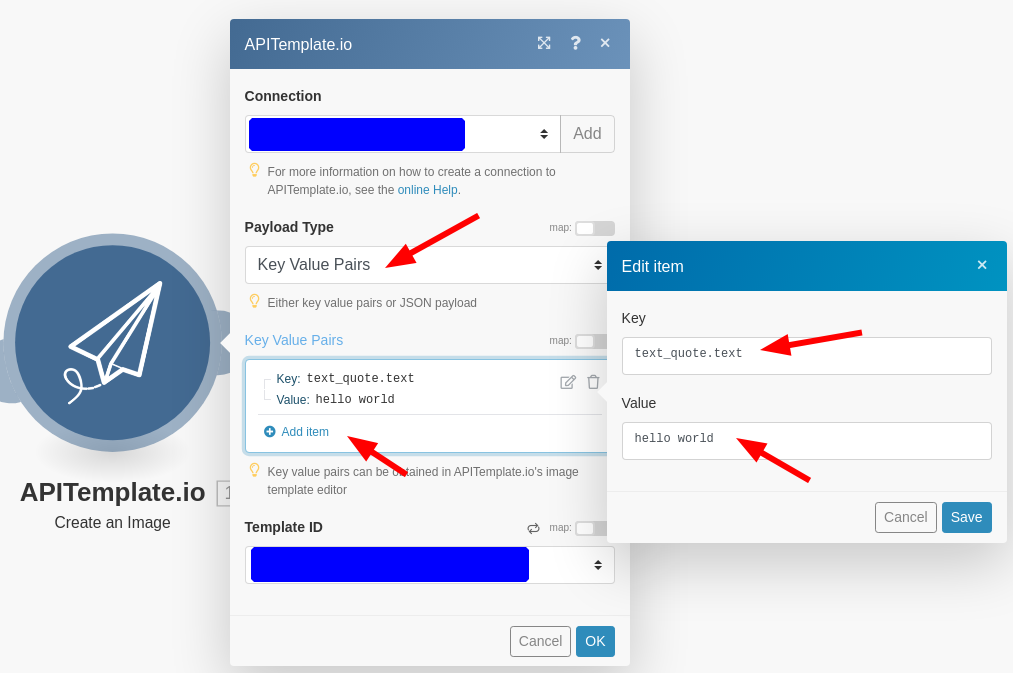
Select New Image Template for the Template ID
-
In Payload Type, select Key Value Pairs
-
Click on Add item
-
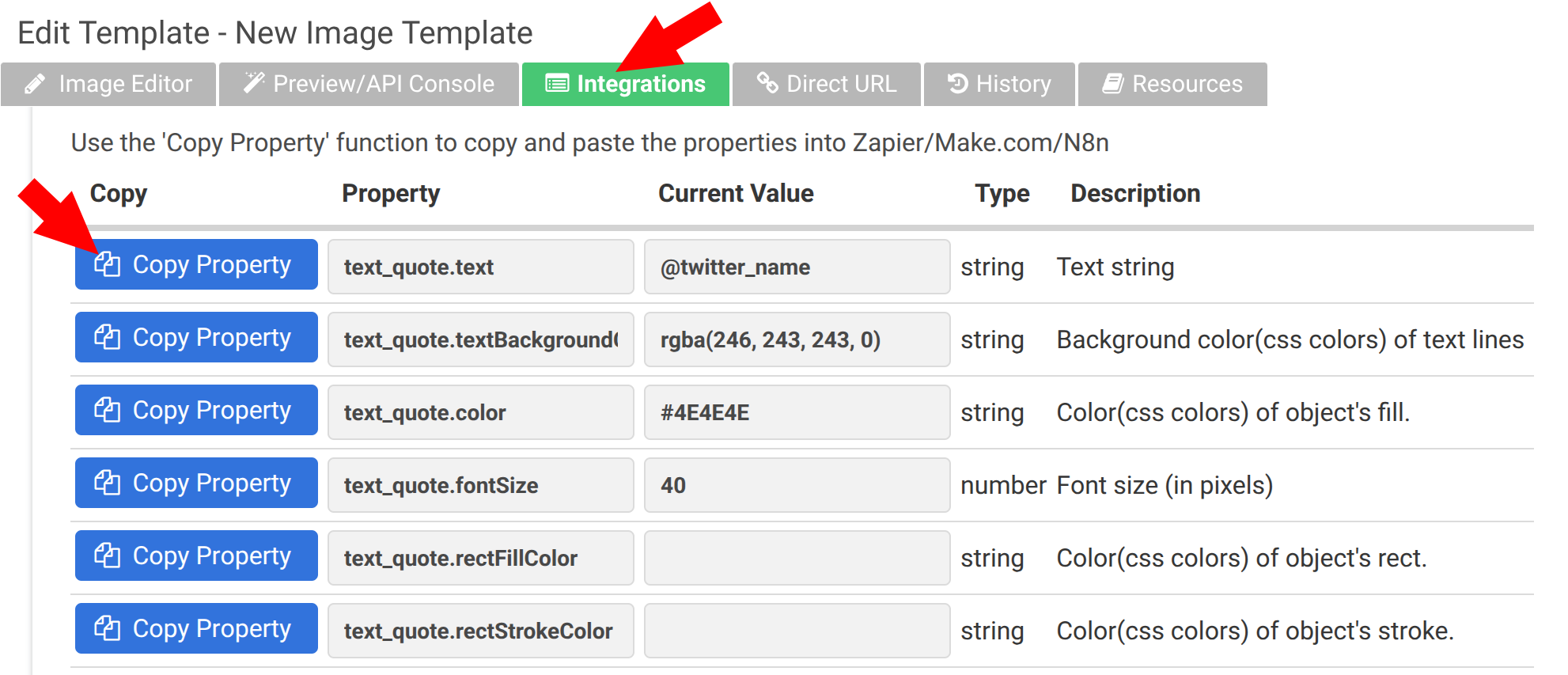
Copy and paste a property into the key that you want to override from Integrations of from your template. The format is as follows:
[element's name].[property]For example, to set the text of an element named
text_quote:Key Value text_quote.texthello world
- Specify the Value to be replaced — you can map values from your trigger data
To get the correct property keys for your image template, open the Image Editor in APITemplate.io, navigate to the Zapier/Integromat/N8n tab, and copy the property names of the elements you want to override.
Step 6 — Run and extend
- Run the scenario to generate a test image
- The output includes a Download URL you can use in subsequent modules
- Add more modules to post the image to social media, save it to cloud storage, send it via email, etc.
Example workflows
- Google Sheets → PDF report — new data triggers automated report generation
- Webhook → Dynamic image — incoming data generates branded social images
- CRM update → Invoice PDF — deal closed triggers invoice creation and email delivery
- Scheduled run → Infographic — daily stock charts or metrics visualizations
- Airtable → Social media image — new record creates a branded social media graphic
Tips
- Use Make.com's JSON module to build complex data structures before passing them to APITemplate.io
- Use Router modules to generate both a PDF and an image from the same trigger
- Set up error handlers to manage failures gracefully
- For image templates, always copy the property keys from the Zapier/Integromat/N8n tab in the Image Editor to ensure the correct key names
- Use the
download_urlfrom the APITemplate.io step in an email or file upload step