
Automate PDF Documents and Images at Scale
Generate business documents, certificates, and social visuals from templates, HTML, or URLs. Built for developers and automation teams.
- Auto-Generate PDF documents & images.
- Integration with Zapier, Make.com, N8n, or REST API
- Both drag-and-drop and HTML template editing
- SOC 2 Type II audited for security and trust
- Trusted to generate millions of PDFs and images
Trusted by Companies, Developers and Builders


Two Powerful APIs in One Place
APITemplate.io gives you two powerful APIs for media content generation: PDFs and Images.
PDF Generation API
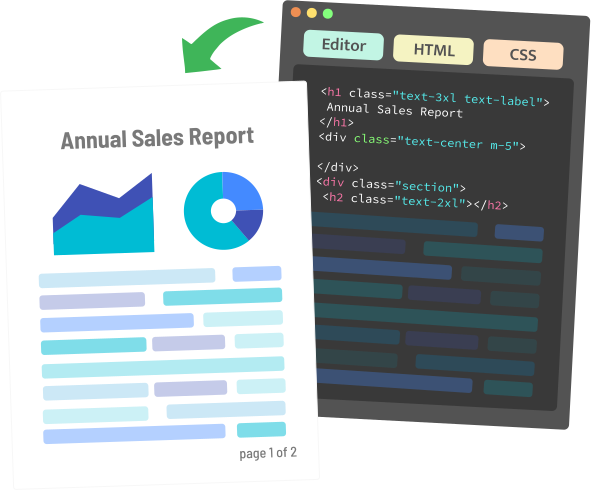
Generate invoices, reports, certificates, and documents from HTML or templates.
Image Generation API
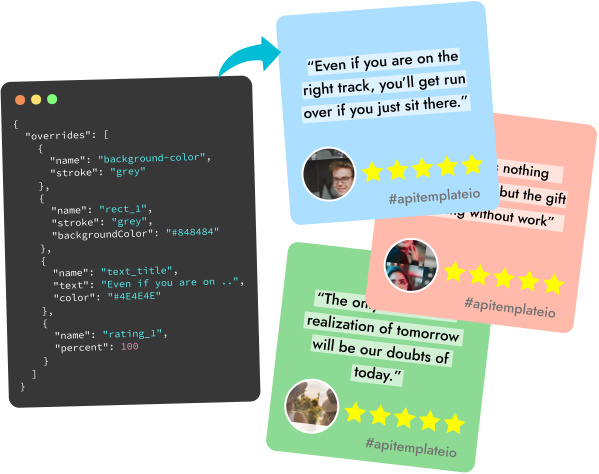
Create banners, social graphics, and personalized images at scale.
Build automated workflows for documents, reports, certificates, social visuals, and branded assets from a single platform.
API for PDF Generation
Auto-Generate PDFs with Visual Editor or HTML — from Reusable Templates, Raw Markup, or a Live URL
- Generate PDF documents from reusable templates
- Support Zapier, Airtable, Make.com, n8n or REST API
- Visual editor for WYSIWYG
- Support HTML To PDF generation
- Support Custom CSS and Javascript
- Powerful template engine
- Preview with API Console instantly
- Support custom footer and header with page number, total pages

API for Image Generation
Auto-Generate Banners, Social Images, QR codes and Infographics from Reusable Templates
- Generate images from reusable templates
- Easy-to-use drag and drop editor
- No HTML or CSS knowledge required
- Auto-Position to create responsive image
- Smart Crop to find a good crop for your image
- Templates for Facebook posts, Instagram posts, Pinterest, and other social media
- Add text to image via API
- Support dynamic components such as QR code
- Preview instantly
- Infographics and banner generation

Design Once, Reuse Many Times
Seamlessly create images and PDFs from highly reusable templates
Create PDFs from Reusable Templates, HTML, or URLs
Generate professional PDFs from reusable templates, raw HTML, or live web pages. Build polished documents quickly with a flexible PDF API designed for automation at scale.
No-Code Automation & Integrations
Connect your PDF workflows with Zapier, Make, n8n, and our REST API. Automate document generation without complex setup or manual work.
4 Regional API Endpoints
Improve performance and support data residency requirements with regional processing and storage. Available regions include the US, EU, Singapore, and Australia.
Synchronous or Asynchronous Generation
Process multiple PDF generation requests at once with synchronous or asynchronous workflows. Use webhooks to get notified automatically when async jobs are complete.
Custom CSS and JavaScript Support
Fully control the design, layout, and behavior of your PDFs with custom CSS and JavaScript. Create documents that match your branding and workflow requirements.
Advanced PDF Generation Controls
Go beyond basic PDF creation with support for headers, footers, page numbers, custom styling, JavaScript rendering, and quality optimization options.
Real-Time Side-by-Side Preview
Edit and preview your templates in real time with an interactive side-by-side editor. Build faster with instant feedback for HTML, CSS, and JavaScript changes.
30+ Million PDFs and Images Generated
Trusted by businesses worldwide to generate millions of PDFs and images reliably. Scale document and image automation with confidence.
A Simple Workflow for Scalable PDF and Image Generation
Design reusable templates, send dynamic data, and generate files reliably through a developer-friendly API.
Design Your Template
Use HTML, CSS, or a visual editor to create reusable templates for documents and images.
Send Dynamic Data
Pass JSON through our REST API or automate workflows with Zapier, Make, Airtable, and n8n.
Generate at Scale
Render files in seconds with sync or async APIs, webhooks, regional endpoints, and reliable infrastructure.
Automation and Integrations
Automate PDFs and images from Zapier, Make.com or n8n — or call the REST API from Python, C#, Java, PHP and UiPath.
curl -X POST \
  "https://rest.apitemplate.io/v2/create-pdf?template_id=6b277b234d395eca" \
  --header "Content-Type: application/json" \
  --header "X-API-KEY: YOUR_API_KEY" \
  --data '{"invoice_no": "INV38379", "total_amount": 82542.56}'

# {"status": "success", "download_url": "https://pdf.apitemplate.io/..."}
const url =
"https://rest.apitemplate.io/v2/create-pdf?template_id=6b277b234d395eca";
const res = await fetch(url, {
method: "POST",
headers: {
"Content-Type": "application/json",
"X-API-KEY": "YOUR_API_KEY",
},
body: JSON.stringify({ invoice_no: "INV38379", total_amount: 82542.56 }),
});
const { download_url } = await res.json();import requests
res = requests.post(
"https://rest.apitemplate.io/v2/create-pdf",
params={"template_id": "6b277b234d395eca"},
headers={"X-API-KEY": "YOUR_API_KEY"},
json={"invoice_no": "INV38379", "total_amount": 82542.56},
)
download_url = res.json()["download_url"]var url = "https://rest.apitemplate.io/v2/create-pdf"
+ "?template_id=6b277b234d395eca";
var json = "{\"invoice_no\": \"INV38379\", \"total_amount\": 82542.56}";
var request = HttpRequest.newBuilder().uri(URI.create(url))
.header("Content-Type", "application/json")
.header("X-API-KEY", "YOUR_API_KEY")
.POST(HttpRequest.BodyPublishers.ofString(json))
.build();
var res = HttpClient.newHttpClient()
.send(request, HttpResponse.BodyHandlers.ofString());Automate PDF and image generation with no-code platforms or the REST API
One reusable template, one JSON payload. Send data from a Zapier zap, a Make.com scenario, an n8n workflow or your own backend — every integration calls the same endpoint and returns a ready-to-share file URL.
Generate synchronously for on-screen downloads or asynchronously with webhooks for batches, and keep processing and storage in your chosen region: US, EU, Singapore or Australia.
Browse all integrationsNative integrations for the tools your team already runs, plus a REST API for everything else.













Operational Metrics for Enterprise PDF Document Automation
APITemplate.io gives technical teams clear signals on performance, reliability, infrastructure, and support for production document workflows.
~2s
Fast rendering
Typical PDFs and images render in around 2 seconds for common workflows.
99.99%
Uptime target
Built for stable document generation across scheduled and customer-facing workflows.
30M+
Files generated
Demonstrates platform maturity and real-world usage across production workloads.
24/7
Support coverage
Responsive help for onboarding, production issues, and higher-volume workflows.
Need higher limits, SLA support, or a tailored setup?
Talk to us about volume pricing, regional deployment, and support for large-scale document automation.
Customer Reviews
Trusted by businesses worldwide to generate millions of PDFs and images reliably. See what our customers have to say.
 Jamie DearFounder
We are very grateful to Jacky and the team at APITemplate - their software has helped us to auto-generate high quality images for our student reports. It has been the perfect fit for us as we grow our Oxford summer school.
 Alex DowdingVice Secretary
The Wheelchair Football Association
We've successfully automated YouTube thumbnails and match event creation for our Powerchair Football league using your templates. It integrates with our Postgres database on retool.com, is expanding to include league table graphics and match results. Thanks to an AWS Inclusion and Diversity grant, we're enhancing our live-streaming workflow, further boosted by your product's automation capabilities. We're grateful for your excellent service and wanted to share our positive experience.
 Nishitha DhanekulaCofounder /CTO
At askreferral.io, We are building referral networking platform for people to pitch and generate leads for different kinds of referrals, including, but not limited to job referrals, product referrals, funding referrals, realtor referrals etc. Having a vibrant social media community is crucial for our growth and APITemplate.io played crucial role in automating generation of digital posters for job postings, profile pitches, funding requests etc, to help us grow from 0 to 200K+ followers in LinkedIn in less than one year.
 Danaé NicolasCTO
We've been using APITemplate.io to generate social images for our karting races and it's been a huge time-saver. The support team is super responsive and helpful - they quickly resolved an issue we encountered. We highly recommend this tool to anyone who needs a similar solution.
 Ryan TurnbullIT Manager
APITemplate.io is such an easy application to use. Simple, intuititive, and code free. At simplehuman, we render all our commercial invoices, dispatch notes, and multiple other templates. The ability to create multiple layouts, and group them into a logical container - makes our lives much simpler. This is a great tool to use, both affordable, and the support service turnaround time is second to none! Defintely worth the subscription!
 Ron P.Product Manager
Had an issue with template implementation via Make and reached out for support. Within minutes, I got a response and was soon on a Zoom call resolving it. Despite the issue not being directly related to APITemplate.io, their team efficiently guided me to the right formatting. Many thanks!
 Nicholas GertzProduct Owner
We have been using the service daily in our application for a year and are very satisfied with the reliability. It meets all our requirements and requests for changes/improvements can be discussed directly with Jacky 1:1. Thanks and greetings from Germany
 Lucas FridmanChief Product Officer
We use APITemplate to generate key documentation we need to work with our industry partners. We are building a digital solution in an antiquated industry, which means we need to communicate data to our partners in the format that they are accustomed to (pdf forms). APITempate makes it easy for us to do this!
 Jean-Paul HornPublisher
We love APITemplate.io for its simplicity and ease of use. Just setup once and "forget" about it due to its fabulous 3rd party integration. New features are regularly added, and reasonable custom requests are honoured within days.
 Kevin Frickē
APITemplate.io is one of the best services I have worked with in a very, very long time. They are super responsive and a joy to work with. If you are struggling with PDF's, like I was, check 'em out!
 Jacob MonashAutomation Specialist
We run conferences with a number of speakers, each requiring an individual speaker profile. We used to create all of these profiles manually, but by incorporating APItemplate into our Zapier workflow, our team can generate a complete image with all of the speakers information in one click. Using the template editor is a bit of a learning curve, but the support team is very responsive and helpful.
 George Cooper
APITemplate.io is great. I love being able to quickly use HTML and CSS templates with dynamic variables to create documents. Support is also fast and responsive. Great vendor!
Free, No Creditcard required
Start generating PDFs and images from reusable templates today. No credit card, no commitment.