
TL;DR
This guide shows you how to automate PDF generation by connecting Make.com with APITemplate. You design a template once, send JSON data through a Make.com scenario, and get a ready-to-use PDF back without manual formatting.
- Create a reusable PDF template on APITemplate
- Connect APITemplate to Make.com
- Build a Make.com scenario that generates PDFs automatically
- Extend the workflow to email, store, or route the finished document
Creating invoices, reports, certificates, and contracts by hand is slow and error prone. As the number of documents grows, manual PDF creation quickly becomes repetitive and hard to maintain.
Make.com is a no-code automation platform that lets you connect apps, triggers, and business logic in a visual workflow. You can use it to collect data from forms, spreadsheets, webhooks, CRMs, and other tools, then pass that data into the next step automatically.

APITemplate is a PDF generation API that creates documents from reusable templates. You can design templates with a WYSIWYG editor or HTML/CSS, then populate them with JSON data to generate polished PDFs on demand.
In this tutorial, you will build a simple Make.com PDF workflow that takes data, sends it to APITemplate, and returns a file URL that you can use in later steps.
Prerequisites
Before you begin, make sure you have:
- An APITemplate account — Sign up here
- A Make.com account — Create an account
- Your APITemplate API Key — Found on the API Integration page
No coding experience is required. APITemplate supports multiple template types including HTML to PDF and a built-in WYSIWYG editor, so you can choose whichever approach suits your skill level.
Step 1: Create a PDF Template in APITemplate
A template defines the layout and design of your PDF. Dynamic placeholders let you inject different data each time a PDF is generated.
1.1 Create a New Template
- Log in to your APITemplate dashboard.
- In the left sidebar, click Manage Templates.
- Click New Template and choose your preferred editor:
- WYSIWYG Editor – Drag-and-drop, no HTML knowledge needed
- HTML/CSS Editor – Full control over layout and styling
For this tutorial, we will use the WYSIWYG PDF editor.
1.2 Add Dynamic Placeholders
Use double-curly-brace syntax to mark fields that will be replaced with real data at generation time:
{{company_name}}For example, your template might contain something like:
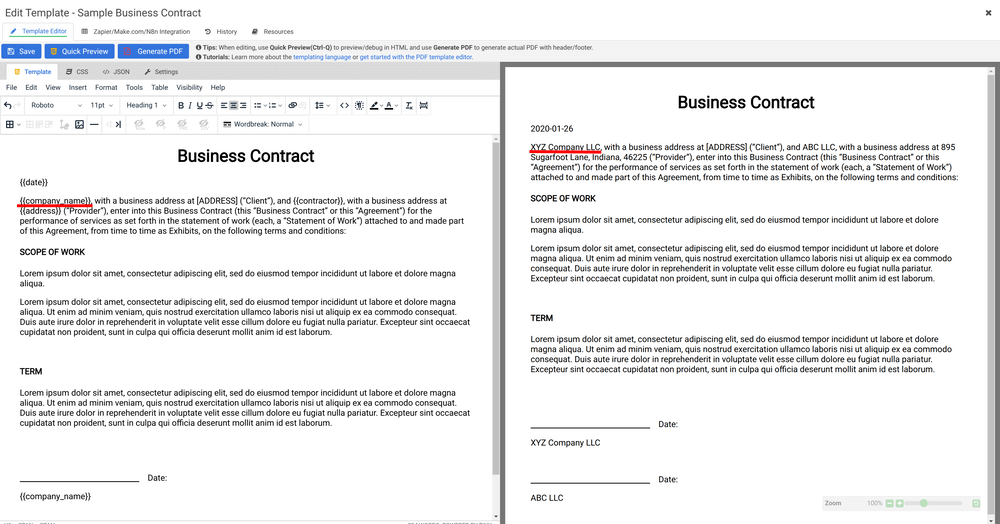
Every placeholder you add becomes a key in the JSON payload that Make.com will send.
1.3 Preview and Test Your Template
- Switch to the Sample JSON tab in the template editor.
- Fill in test values for each placeholder:
{
  "company_name": "Acme Corp",
  "invoice_number": "INV-2025-001",
  "invoice_date": "2025-01-30",
  "total_amount": "$1,250.00"
}- Click Quick Preview (Ctrl-Q) or Generate PDF to verify the output looks correct.
- Adjust the layout, fonts, and spacing until you are satisfied.
Tip: Copy the Template ID from the template settings. You will need it when configuring the Make.com module.
What just happened? You created a reusable PDF template. Each time Make.com sends JSON data with this template ID, APITemplate generates a new PDF with the data filled in.
Step 2: Set Up Make.com
Now that your template is ready, let’s wire it up in Make.com.
2.1 Create a New Scenario
- Log in to Make.com and click Create a new scenario.
- Search for APITemplate in the app search bar and select it.
- Choose the module that generates a PDF from a template.
2.2 Authenticate with Your API Key
- In the module settings, click Create a connection.
- Enter a descriptive name (e.g., “APITemplate Production”).
- Paste your API Key from the APITemplate API Integration page.
- Click Save. Make.com will verify the connection.
Step 3: Build the Workflow in Make.com
In Make.com, a scenario is a sequence of connected modules. Each module performs one task, such as receiving data, transforming data, generating a PDF, or sending the output somewhere else.
3.1 Configure the PDF Generation Module
- Template ID — Select the template you created in Step 1 (or paste the Template ID).
- Data / JSON — Map the key-value pairs that match your template placeholders. For our invoice example:
| Key | Value |
|---|---|
company_name | Zebra LLC (or a dynamic value from a previous module) |
invoice_number | INV-2025-042 |
invoice_date | {{formatDate(now; “YYYY-MM-DD”)}} |
total_amount | $3,500.00 |
You can hardcode values for testing or map them dynamically from a trigger module (e.g., a new row in Google Sheets, a form submission from Typeform, or a webhook).
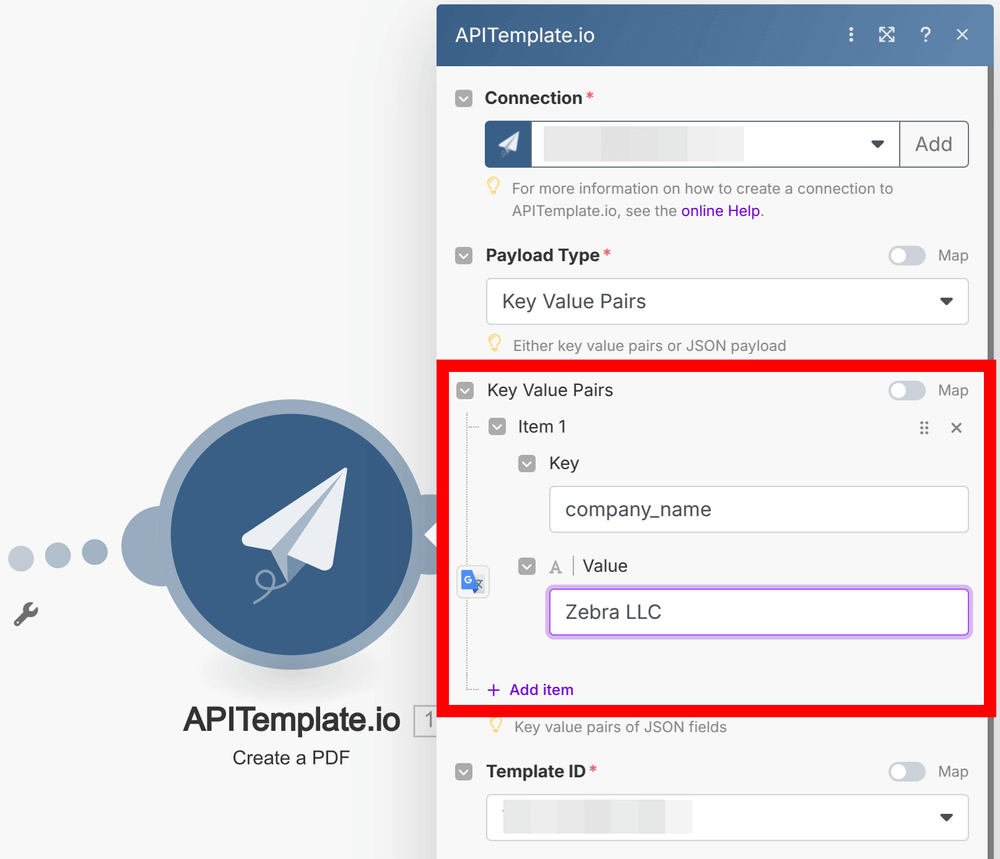
If you prefer, you can think of the payload like this:
{
  "company_name": "Zebra LLC",
  "invoice_number": "INV-2025-042",
  "invoice_date": "2025-01-30",
  "total_amount": "$3,500.00"
}
3.2 Run and Verify
- Click Run once to execute the scenario.
- Check the module output. You should see:
- Download URL — A direct link to the generated PDF
- Status — Success confirmation
- Open the Download URL to verify the PDF content and formatting.
Step 4: Extend Your Workflow
The real power of Make.com is chaining modules together. Here are popular ways to extend your PDF automation workflow:
- Email the PDF: Add a Gmail, Outlook, or SMTP module after the PDF generation step. Attach the PDF using the Download URL and send it to your client or team.
- Save to Cloud Storage: Route the generated PDF to Google Drive, Dropbox, OneDrive, or Amazon S3 for organized archival.
- Send to Your CRM: Push the document link into HubSpot, Salesforce, or Pipedrive as an activity or attachment on the relevant contact or deal.
Make.com supports a wide range of app integrations. Common triggers for automated PDF generation include:
- Google Sheets — New row added
- Webhooks — External system sends a POST request
- Typeform / Google Forms — New form submission
- Shopify / WooCommerce — New order placed
- Airtable — Record updated
If you would like to watch the workflow in action, here is a video walkthrough:
Common Use Cases
APITemplate works especially well for documents you create again and again with the same layout but different data. If you are deciding where to start, these are some of the most common PDF workflows to automate in Make.com:
- Invoices and receipts: A sales event, order, or payment can trigger a branded invoice automatically. If this is your main use case, the Invoice Automation page and the HTML to PDF API are both useful starting points.
- Contracts and proposals: When a deal moves forward in your CRM, you can generate a proposal or agreement from a reusable template. This is a good fit for teams that want a polished layout without rebuilding the document each time.
- Certificates: Course completions, registrations, or form submissions can trigger personalized certificates automatically, which saves time and keeps formatting consistent.
- Reports and dashboards: Weekly summaries, KPI updates, and client-facing reports are a strong fit for automation. For more ideas, see Automated Report Generation and the PDF Report Generator.
- Shipping labels and packing slips: If your workflow creates shipments in batches, Make.com can trigger label PDFs and route them to storage, email, or the next fulfillment step.
- Onboarding documents: Offer letters, welcome packs, and internal paperwork can be generated as soon as a new employee or customer record is created. If your content starts in text form, APITemplate also supports Markdown to PDF.
Conclusion
Automating PDF generation in Make.com with APITemplate helps you remove manual document work, reduce formatting mistakes, and deliver consistent PDFs every time. Once your template and scenario are in place, you can generate invoices, reports, certificates, contracts, and other business documents on demand with little ongoing effort.
If you want a fast way to build a no-code PDF workflow, start by creating your template in APITemplate, then connect it to Make.com and test your first scenario with sample data.
Frequently Asked Questions
Is Make.com the same as Integromat?
Yes. Integromat rebranded to Make.com in 2022. All Integromat features, integrations, and scenarios carried over to the Make.com platform. If you have existing Integromat workflows, they continue to work under Make.com.
How much does it cost to generate PDFs with APITemplate?
Pricing can change over time, so the best source is the official pricing page. Review both your APITemplate plan and your Make.com plan to make sure they support your expected PDF volume.
Can I generate PDFs in bulk with Make.com?
Yes. Use Make.com’s Iterator module to loop over an array of data (e.g., multiple rows from a spreadsheet) and generate a separate PDF for each item. You can also use the Array Aggregator to batch process results.
What PDF template formats does APITemplate support?
APITemplate supports three template types: HTML to PDF (full CSS control), WYSIWYG editor (drag-and-drop), and Markdown to PDF (lightweight content). You can also customize headers, footers, page size, and margins.
Can I use this with Zapier instead of Make.com?
Yes. APITemplate also integrates with Zapier and offers a direct REST API for custom integrations. The template setup process is the same; only the automation platform differs.