Extract Images from PDF Online
Extract images from your PDF, preview them, and download them. Easy.
Frequently asked questions
What is this tool about?
Extract Images from PDF Online helps you pull out embedded images from a PDF document directly in your browser. It’s useful when you want to reuse visuals, save images separately, or quickly review what images are inside a PDF.
This tool extracts images from PDFs and typically provides:
- All embedded raster images (e.g., JPEG, PNG-like streams) found in the file
- Image previews and the ability to download images individually or in a batch
- Basic metadata such as image pixel dimensions and file type (when detectable)
- Per-page grouping, so you can see where images came from
Is the tool free?
Yes. You can extract images from PDF files for free with no subscription required.
How do I extract images from a PDF online?
Follow these steps:
- Drag and drop your PDF into the upload area (or click to choose a file).
- Wait for the extraction to finish. The tool will scan the PDF and locate embedded images.
- Preview the images, then download the ones you need (or download all as a batch if available).
What types of images can be extracted?
Most PDFs contain raster images stored as image objects (for example JPEG / JPEG2000 and other image streams). Those are usually extractable. Some PDFs also contain vector artwork (logos, icons, diagrams) which are not “images” in the same sense and may not extract as PNG/JPG.
Why are some images missing after extraction?
A few common reasons:
- The “image” is actually vector graphics (shapes/paths), not an embedded bitmap.
- The page is a scanned page stored as one big image, so you may only get one image per page.
- The PDF uses masks / layers (soft masks, transparency groups) that may export as separate parts.
- The content is rendered text (fonts), not images.
- The file is encrypted or restricted, which can block extraction.
Does extracting change the image quality?
Extraction usually keeps the original embedded image data (lossless with respect to what’s inside the PDF). That means the output quality is the same as the image stored in the PDF. If the PDF already contains low-resolution images, extraction won’t magically increase resolution.
Will I get the exact image as I see it on the PDF page?
Sometimes yes, sometimes not exactly. PDFs can scale, rotate, crop, or mask images during rendering. Extraction retrieves the underlying image object, which might be:
- Larger than what you visually see (the page only shows a cropped portion)
- Unrotated (rotation is applied at render time, not stored in the image pixels)
- Split into parts (base image + mask) depending on how the PDF was built
If you specifically need “what you see is what you get”, you may prefer a render-to-image approach (export the page as PNG) rather than raw extraction.
Can I extract images from password-protected PDFs?
If the PDF is encrypted, you’ll typically need to unlock it first (by providing the password) before extraction can work. If the PDF has permissions that disallow copying/extraction, some tools will refuse extraction.
Is it safe to upload my PDF?
If the tool runs fully in your browser, your PDF stays on your device while extraction happens locally. If the tool uses a server, the PDF must be uploaded for processing. For sensitive documents, prefer in-browser processing when available.
How can I reduce file size after extracting images?
After extraction, you can optimize images by resizing (downscaling pixel dimensions), converting formats (e.g., PNG to JPG for photos), or compressing them. For PDFs, image downsampling to a target DPI is a common approach to reduce overall PDF size.
DPI and Use Cases
| DPI | Use Case |
|---|---|
| 72 DPI | Web usage: Suitable for online viewing as it matches most screen resolutions and minimizes file size for faster loading. |
| 150 DPI | Presentations: Ideal for slideshows on large screens, balancing quality and file size. |
| 200 DPI | Archiving: Ensures readable text and decent image quality for long-term digital storage. |
| 300 DPI | Printing: Standard for high-quality print materials like brochures, flyers, and books, ensuring sharp text and detailed images. |
| 400+ DPI | Marketing materials: Required for high-end content like posters and banners to achieve superior quality and vibrant details. |
| 600+ DPI | Specialized industries: Used in fields like architecture, engineering, or medical imaging for preserving intricate details in technical drawings or diagnostic images. |
Choosing the right DPI is essential for ensuring the intended balance between quality and file size. Each use case has specific requirements, so tailoring DPI settings to the purpose of the PDF ensures the best results for both visual appeal and practical usability.
What is APITemplate.io?
APITemplate.io is designed for generating PDF documents from reusable templates. It can be easily integrated with popular tools like Zapier, Airtable, Make.com, Bubble.io, n8n, UiPath, or directly via REST API, making it highly adaptable to various workflows.
There are three main ways to generate PDF documents using APITemplate.io:
- Template-based PDF generation: Create PDFs from predefined templates.
- HTML to PDF generation: Convert HTML content directly into PDF format.
- URL to PDF generation: Convert entire web pages to PDFs by simply providing their URLs.
The platform also supports custom CSS and JavaScript, allowing for advanced styling and customization. Its powerful template engine ensures that you can create complex documents efficiently, while the API Console enables you to preview and customize JSON data instantly.
In addition, APITemplate.io offers support for adding custom headers and footers, including page numbers and total page counts, making it an excellent choice for creating polished, professional PDF documents.
Get started for FREE, No Creditcard required
Build Document Automation That Scales With APITemplate
APITemplate is an API-first platform that generates professional PDFs and images at scale from reusable templates, raw HTML, or URLs. Integrate via REST API, SDKs, or no-code tools like Zapier, Make, and n8n.
Create Document Templates with Visual Editor
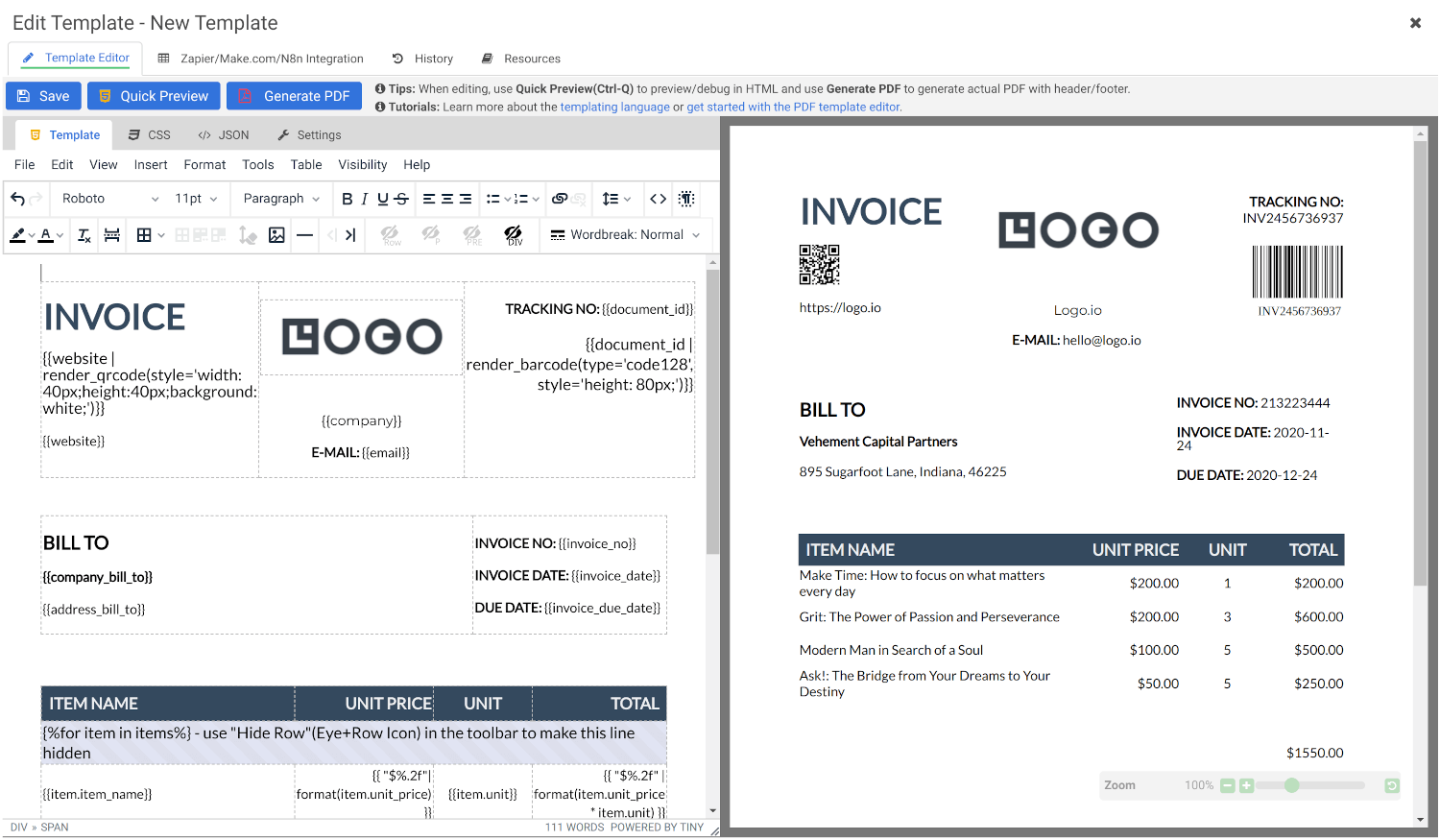
Create stunning PDFs using our WYSIWYG Template Editor. With its user-friendly interface, you can design templates visually — no coding required.
Combine your designs with JSON data to generate dynamic, fully-customized PDFs tailored to your needs. Perfect for invoices, reports, certificates, and more.
Convert HTML to PDF
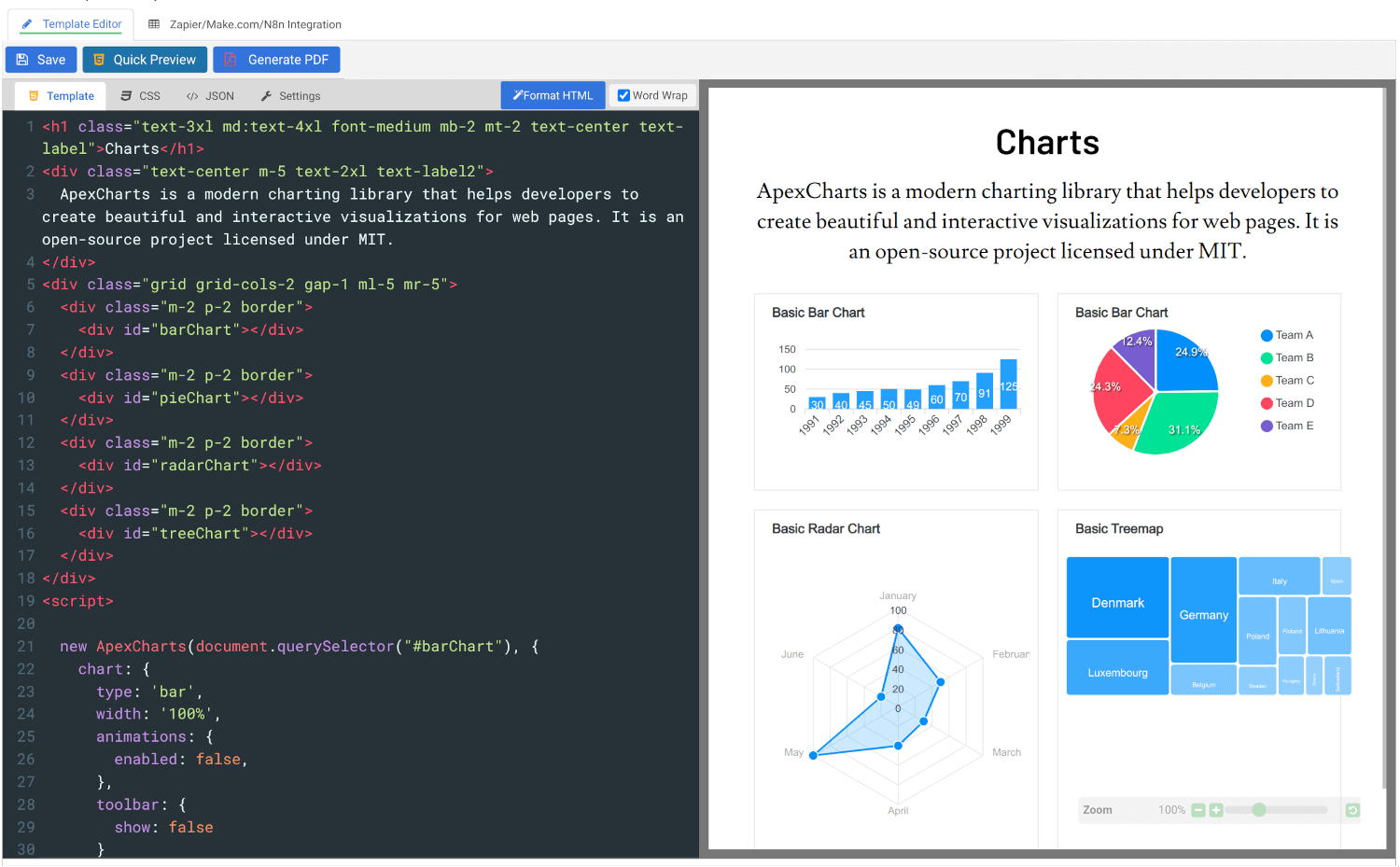
Convert HTML to PDF using APITemplate.io’s powerful HTML Template Editor. Combine your HTML, CSS, and JavaScript skills with dynamic JSON data to create custom templates that deliver pixel-perfect PDFs.
Our PDF generation solution supports modern web technologies, enabling seamless integration for your automated workflows, reports, and more.
- All Tools
- Convert HTML to PDF
- PDF DPI Analyzer
- JSON to PDF Converter
- CSV to PDF Converter
- Compress PDF
- Extract Images from PDF
- Convert Markdown to PDF
- Extract Text From PDF
- Add Watermark to PDF
- Extract/Edit PDF Metadata
- Add Page Numbers to PDF
- Merge Multiple PDFs
- Split PDF
- Convert PDF to HTML
- Convert PDF to PNG
- Convert PDF to JPEG
- Convert PNG to PDF
- JSON Validator/Formatter