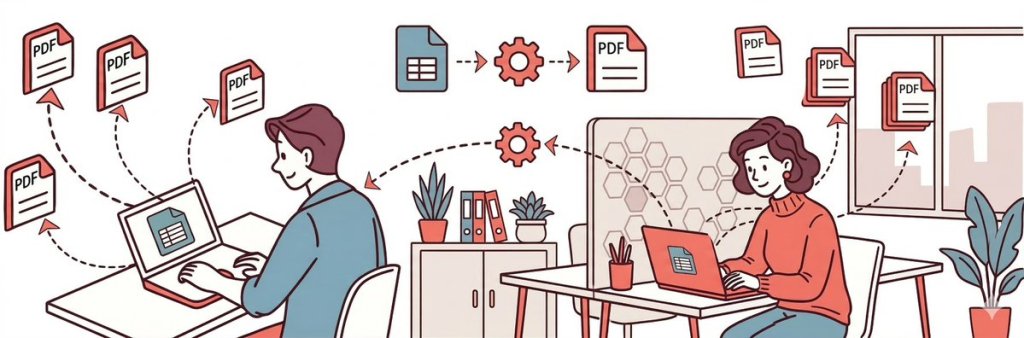
What you’ll build: An automation that watches your Google Sheet, pulls new data, generates a professionally formatted PDF, and saves it to Google Drive (or emails it directly).
Time required: About 30-45 minutes for initial setup.
Cost: Free tiers available for all three tools. You can generate up to 50 PDFs/month on APITemplate.io’s free plan.
Technical skill needed: None. This is a completely no-code solution.
Best for: Sales reports, client summaries, invoices, project updates, inventory reports, and any recurring document you currently create manually from spreadsheet data.
Key takeaway: If you spend more than 10 minutes each week copying data from a spreadsheet into a report template, this automation will pay for itself immediately.
1. Why Use a PDF Generation API for Google Sheets?
Most businesses run on spreadsheets. Sales numbers, project timelines, inventory counts, expense logs-it all lives in Google Sheets. However, the problem starts when you need to share that data with someone who doesn’t want to stare at rows and columns.
Clients want polished reports. Executives want dashboards. Partners want summaries. Consequently, what do you do? You copy data from the spreadsheet, paste it into a Word doc or Google Doc, format it to look decent, export it as a PDF, and send it off. Then you do it again next week. And the week after that.
This manual process creates three problems:
First, it wastes time. A report that should take 2 minutes to generate ends up taking 60 minutes because of all the copying, formatting, and exporting. Multiply that by the number of reports you create each month, and you’re looking at hours of lost productivity.
Second, it introduces errors. Every time you manually copy data, there’s a chance you’ll grab the wrong cell, miss a row, or paste outdated numbers. I’ve seen companies send reports with last month’s figures more times than I can count.
Third, it doesn’t scale. One weekly report is manageable. However, ten weekly reports for ten different clients? That becomes a part-time job.
Fortunately, automation solves all three problems. When your spreadsheet updates, your PDF generates itself. As a result, the data is always current, the formatting is always consistent, and you don’t lift a finger.
What does “automated PDF generation” actually mean?
Automated PDF generation is the process of creating PDF documents programmatically based on data from another source-in this case, Google Sheets. Instead of manually formatting documents, you set up a system that:
Checks your spreadsheet at scheduled intervals for new data
Pulls that data when found
Inserts it into a pre-designed template
Renders a PDF file
Delivers it wherever you need it (email, cloud storage, Slack, etc.)
The entire process happens without human intervention. In other words, you set it up once, and it runs indefinitely.
2. Best Reports for PDF Generation API Automation
Not every document benefits from automation. However, if you’re creating the same type of document repeatedly with different data, automation is a game-changer.
Ideal report types for PDF generation API automation:
Sales Reports: Weekly performance summaries, revenue breakdowns, team leaderboards
The beauty of this setup is that each tool does one thing well. Google Sheets manages data. Make.com handles automation logic. APITemplate.io renders PDFs. You don’t need to compromise on any part of the workflow.
4. How PDF Generation API Automation Works
Let me walk through a concrete example so you can visualize the entire process.
PDF Generation API Scenario: Weekly Sales Performance Report
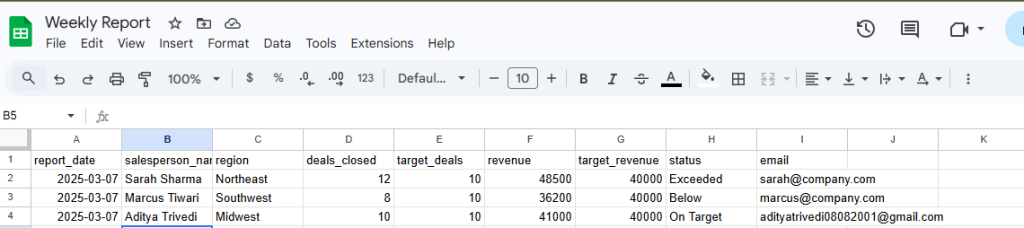
Imagine you’re a sales manager. Every Friday, you need to send each salesperson a PDF summarizing their weekly performance. The data lives in a Google Sheet that looks like this:
report_date
salesperson_name
region
deals_closed
target_deals
revenue
target_revenue
status
email
2025-03-07
Sarah Sharma
Northeast
12
10
48500
40000
Exceeded
sarah@company.com
2025-03-07
Marcus Tiwari
Southwest
8
10
36200
40000
Below
marcus@company.com
2025-03-07
Aditya Trivedi
Midwest
10
10
41000
40000
On Target
adityatrivedi08082001@gmail.com
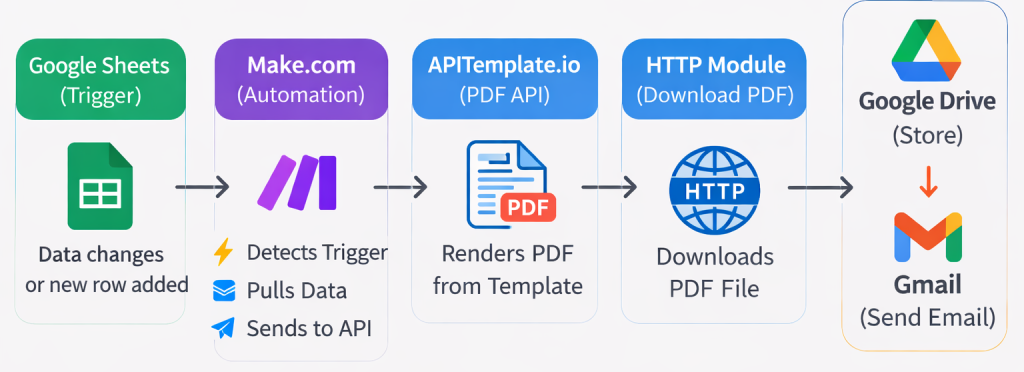
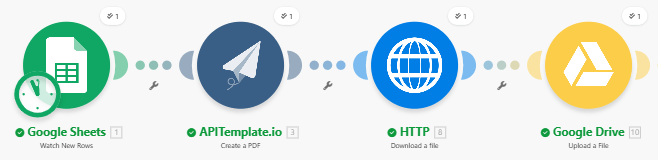
The automation flow:
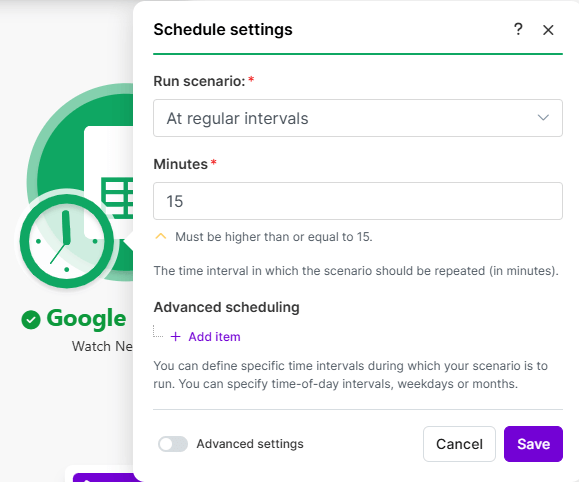
Trigger: Make.com detects new rows in your Google Sheet
Extract: Pulls data from the row (name, region, revenue, etc.)
Generate: Sends data to PDF generation API with your template ID
Render: APITemplate.io creates the PDF in 1-2 seconds
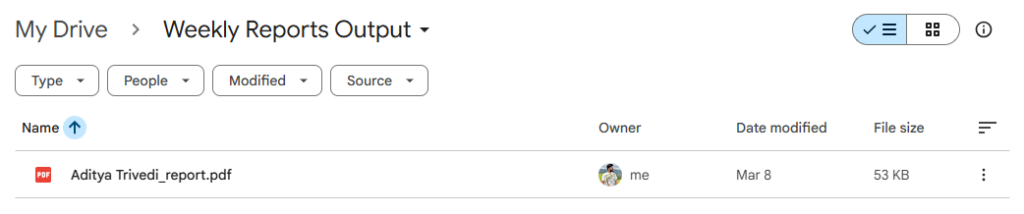
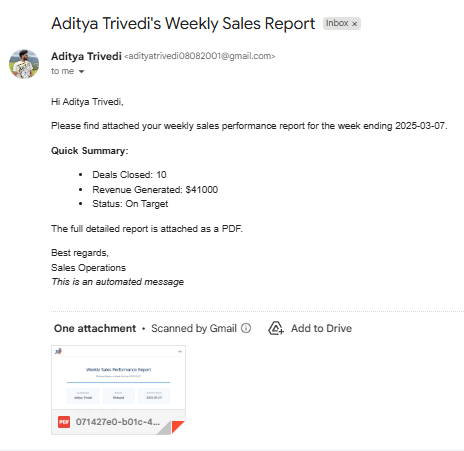
Deliver: HTTP module downloads PDF, saves to Google Drive or emails it
Total time: ~10-15 seconds for multiple reports vs. 60+ minutes manually.
Available Triggers
Trigger Type
Best For
Watch Rows
Real-time processing (order confirmations, form submissions)
Before you start building, first make sure you have the following:
Account Checklist
Service
What You Need
Free Tier?
Google Account
For Google Sheets and Drive access
Yes
Make.com
For automation workflows
Yes (1,000 ops/month)
APITemplate.io
For PDF generation
Yes (50 PDFs/month)
Prepare Your Google Sheet
Create a Google Sheet with clear column headers (e.g., salesperson_name, region, revenue, email). These headers map directly to your PDF template variables.
Your Google Sheet showing sample data.
Get Your API Keys
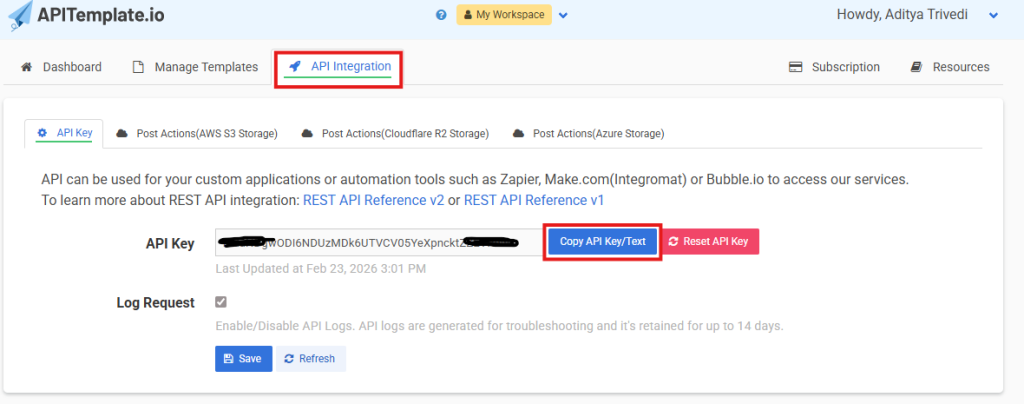
APITemplate.io: Go to apitemplate.io -> API Integration -> Copy your API key
Copy your API key from the API Integration page. Keep this secure-it authenticates all your PDF requests.
2. Make.com: Create account at make.com and verify email
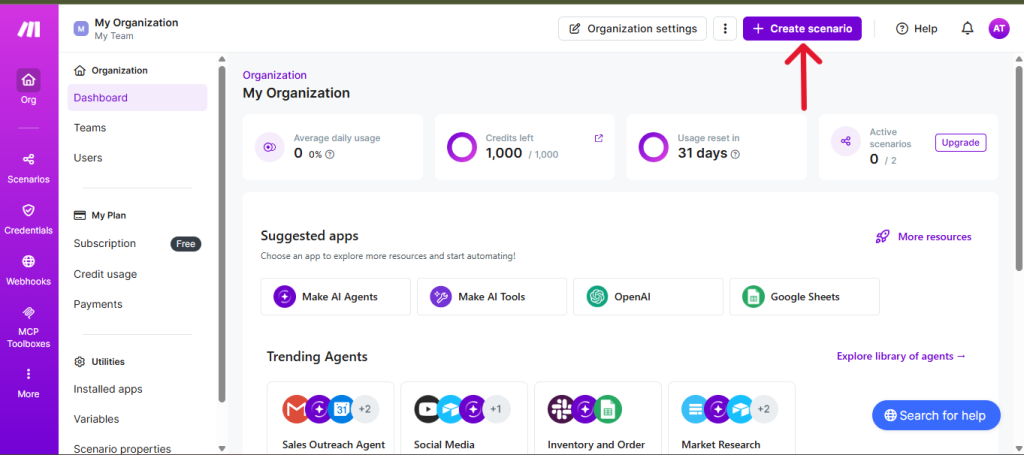
The Make.com dashboard is where you’ll build your automation. Click ‘Create a new scenario’ to get started.
6. Creating Your PDF Generation API Template
The PDF generation API uses HTML/CSS templates with Jinja2 syntax for dynamic content.
Step 6.1: Create a New Template
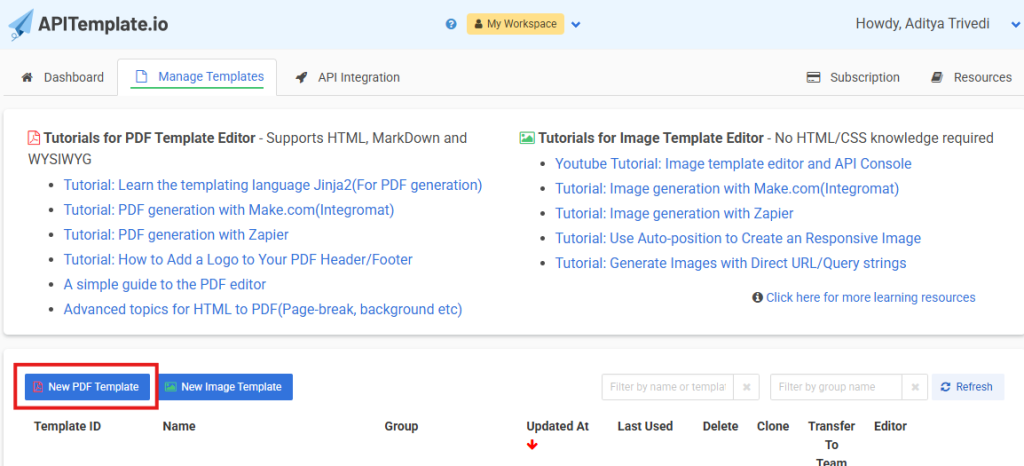
Log in to APITemplate.io -> Manage Templates -> New PDF template
Name it (e.g., “Weekly Sales Report”) -> Click Create
Go to the manage templates tab and click on “New PDF Template”
Step 6.2: Design the Template with HTML and CSS
Click the HTML/Template tab and paste your HTML code. Here’s a simplified example:
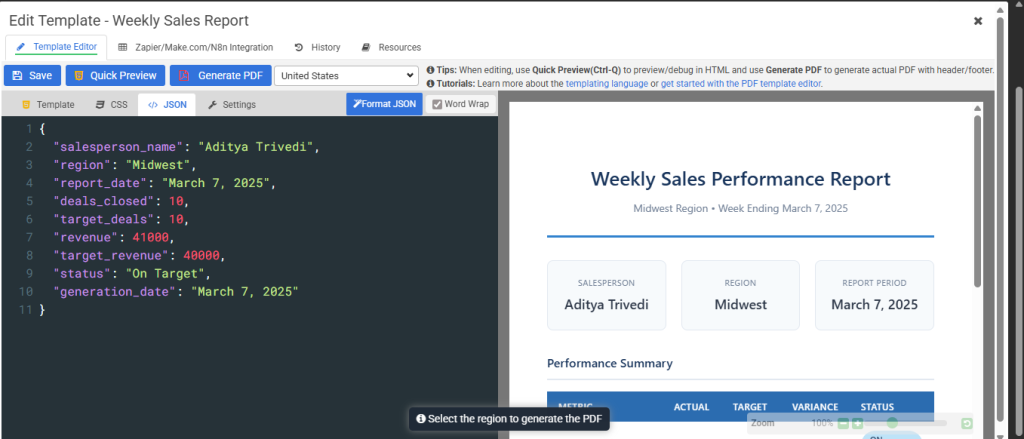
Click Data tab -> Enter test JSON -> Click Preview
The preview shows exactly how your PDF will look. Check that all variables populate correctly before moving on.
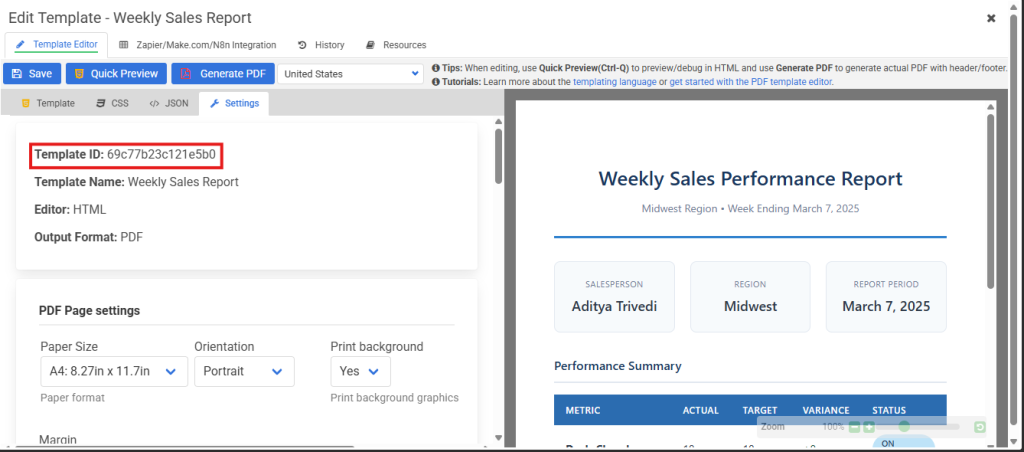
2. Click Save -> Note your Template ID from the Settings tab
Copy your template ID from the URL or Settings tab. You’ll paste this into Make.com in the next section.
7. Building the PDF Generation API Automation
Now that your template is ready, it’s time to connect everything in Make.com. This section walks you through building the complete PDF generation API workflow.
Step 7.1: Create a New Scenario
Log in to Make.com → Click Create a new scenario
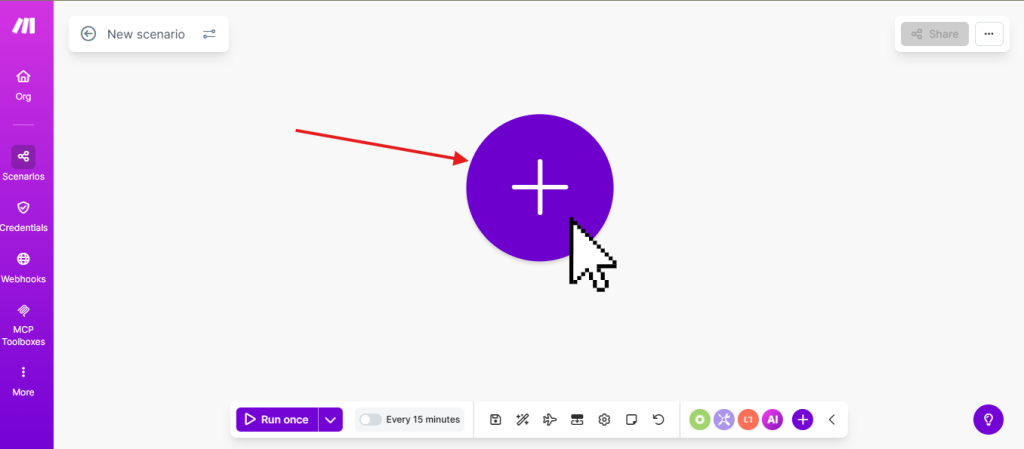
The scenario canvas is where you’ll build your automation. Click on the circle+ to create a module.
Step 7.2: Add the Google Sheets Trigger
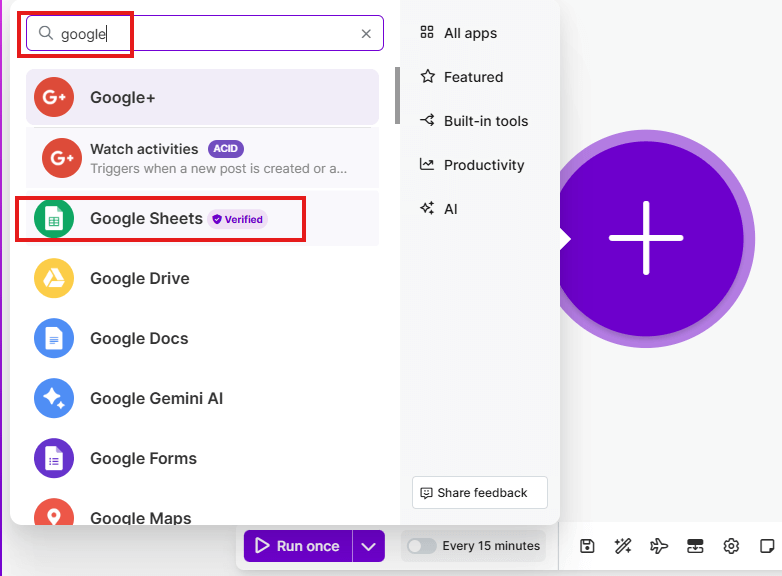
Click the empty circle -> Search “Google Sheets” -> Select Watch Rows
Connect your Google account and configure:
Search for ‘Google Sheets’ and select it to add the trigger module.
Click Add next to Connection to link your Google account
Follow the OAuth prompts to authorize Make.com
Once connected, configure the trigger as follows:
Field
Value
Connection
Your Google account
Search Method
Search by path
Drive
My Drive
Spreadsheet ID
Select your spreadsheet from the dropdown
Sheet Name
Select the specific sheet tab (e.g., Sheet1)
Table contains headers
Yes
Row with headers
A1:Z1
Limit
10 (or however many rows to process per run)
Click Save to save the module
Step 7.3: Add the PDF Generation API Module
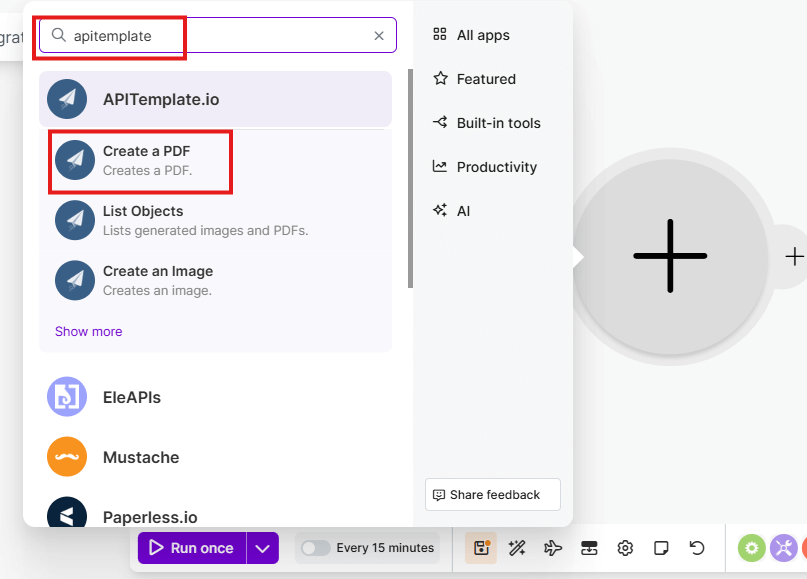
Click + -> Search “APITemplate” -> Select Create a PDF
Click the plus icon to add another module, then search for APITemplate.io.
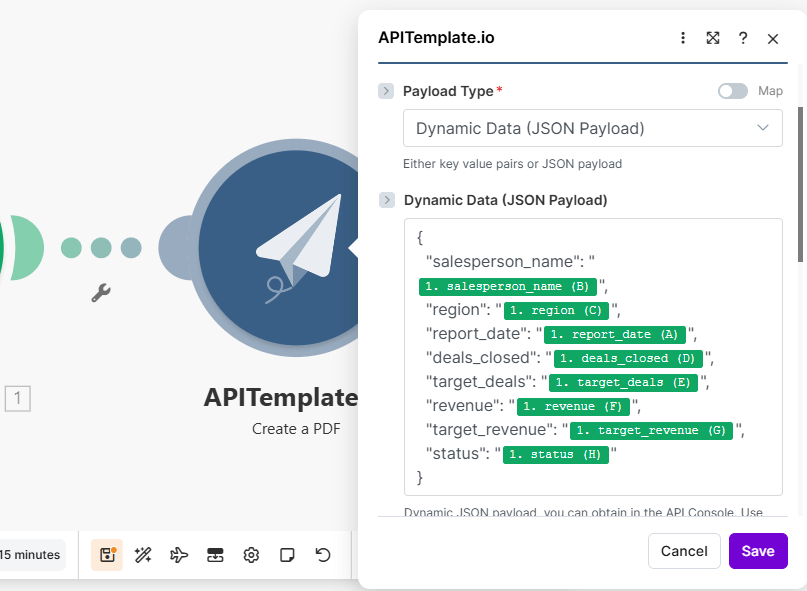
Enter your API key and select Dynamic data (JSON Payload)
Select your template from the Template ID dropdown
Map your data in the Dynamic Data field:
Map each template variable to the corresponding Google Sheets column. The numbers (like 1.revenue) refer to the module number.
Click Save to save the module
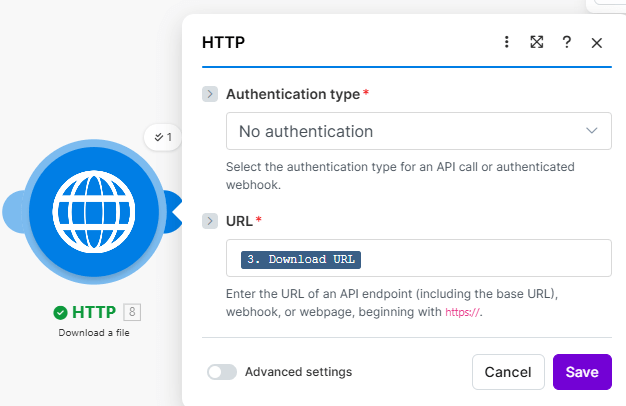
Step 7.4: Add HTTP Module to Download the PDF
The APITemplate.io module returns a download URL, not the actual file. Therefore, we need an HTTP module to fetch the PDF before saving it to Google Drive.
Click the + after the APITemplate.io module
Search for HTTP and select HTTP – Download a File
Configure it:
Field
Value
Authentication type
No authentication
URL
Click Download URL from APITemplate.io in the left panel
Click Save
Configure the HTTP module with Auth type, URL, etc.
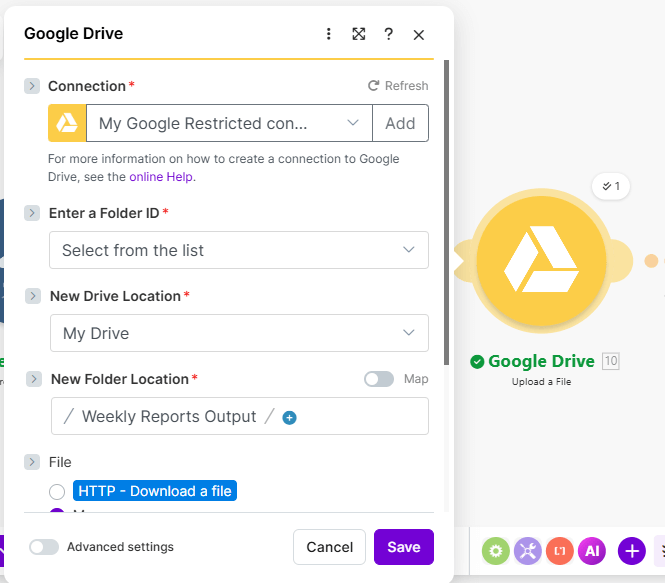
Step 7.5: Save PDF Generation API Output to Google Drive
Click + -> Search Google Drive -> Select Upload a File
Connect your Google account
⚠️ Gmail Users: If you see “restricted scopes” error, you need a custom OAuth client. Go to Google Cloud Console -> Create project -> Enable Google Drive API -> Create OAuth credentials -> Add redirect URIs for Make.com -> Use Client ID/Secret in Make.com’s advanced settings.
Completing the Google Drive Module Setup
After completing the OAuth setup, continue with the Google Drive module configuration.
More templates: Sales reports, invoices, project updates, different brands
More triggers: Form submissions, CRM updates, e-commerce orders
Error handling: Add Slack/email alerts for failures
Batch processing: For high volume, use scheduled runs instead of instant triggers
12. Summary
In conclusion, automating PDF reports from Google Sheets eliminates the tedious, error-prone work of manual document creation. With Make.com orchestrating the workflow and the PDF generation API handling document creation, you can turn any spreadsheet data into professional documents-automatically.
What we covered:
Why automation saves time and reduces errors
Which report types benefit most from this approach
How Google Sheets, Make.com, HTTP, APITemplate.io, and Google Drive work together
Step-by-step template creation in APITemplate.io
Building the complete automation in Make.com
Advanced feature: Email delivery
Troubleshooting common issues
Alternative tools for different needs
Your next action: Create your first template in APITemplate.io using the code provided in Section 6, then connect it to Make.com following Section 7. Most people have their first automated PDF generating within an hour.
This guide was created to help businesses automate their document workflows. If you have questions or want to share what you’ve built, reach out to the APITemplate.io team.
Aditya Trivedi
Technical Content Writer with experience building LLM-powered applications and scalable AI systems. I enjoy breaking down complex technical concepts into clear, practical content and write across a wide range of topics in software development, AI, cloud, and emerging technologies.
We use cookies on our website to give you the most relevant experience by remembering your preferences and repeat visits. By clicking “Accept All”, you consent to the use of ALL the cookies
To get more information about these cookies and the processing of your personal data, check our Privacy Policy
This website uses cookies to improve your experience while you navigate through the website. Out of these, the cookies that are categorized as necessary are stored on your browser as they are essential for the working of basic functionalities of the website. We also use third-party cookies that help us analyze and understand how you use this website. These cookies will be stored in your browser only with your consent. You also have the option to opt-out of these cookies. But opting out of some of these cookies may affect your browsing experience.
Necessary cookies are absolutely essential for the website to function properly. These cookies ensure basic functionalities and security features of the website, anonymously.
Cookie
Duration
Description
cookielawinfo-checkbox-analytics
11 months
This cookie is set by GDPR Cookie Consent plugin. The cookie is used to store the user consent for the cookies in the category "Analytics".
cookielawinfo-checkbox-functional
11 months
The cookie is set by GDPR cookie consent to record the user consent for the cookies in the category "Functional".
cookielawinfo-checkbox-necessary
11 months
This cookie is set by GDPR Cookie Consent plugin. The cookies is used to store the user consent for the cookies in the category "Necessary".
cookielawinfo-checkbox-others
11 months
This cookie is set by GDPR Cookie Consent plugin. The cookie is used to store the user consent for the cookies in the category "Other.
cookielawinfo-checkbox-performance
11 months
This cookie is set by GDPR Cookie Consent plugin. The cookie is used to store the user consent for the cookies in the category "Performance".
viewed_cookie_policy
11 months
The cookie is set by the GDPR Cookie Consent plugin and is used to store whether or not user has consented to the use of cookies. It does not store any personal data.
Functional cookies help to perform certain functionalities like sharing the content of the website on social media platforms, collect feedbacks, and other third-party features.
Performance cookies are used to understand and analyze the key performance indexes of the website which helps in delivering a better user experience for the visitors.
Analytical cookies are used to understand how visitors interact with the website. These cookies help provide information on metrics the number of visitors, bounce rate, traffic source, etc.
Advertisement cookies are used to provide visitors with relevant ads and marketing campaigns. These cookies track visitors across websites and collect information to provide customized ads.