

Mobile users expect apps to do more than display data and they often need documents they can save, share, email, or print. PDF generation is a common requirement for invoices, reports, tickets, receipts, and summaries.
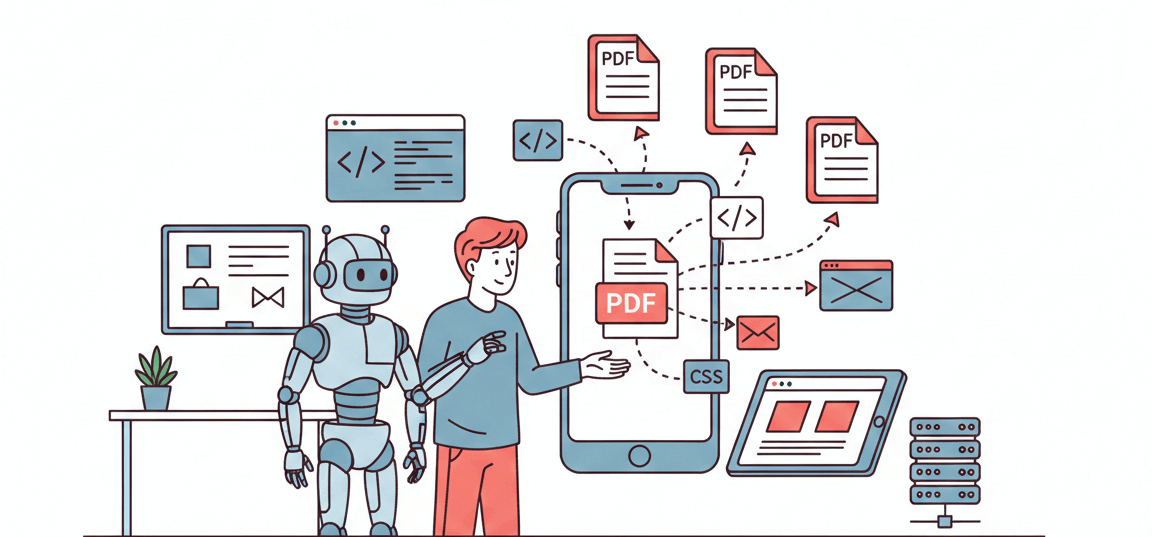
This guide shows how to generate PDFs in React Native by converting HTML/CSS content into a PDF file directly on the device (no server required). You’ll also see an Expo-friendly alternative and when a server-side renderer makes more sense.
Understanding React Native HTML to PDF
React Native HTML to PDF refers to converting HTML and CSS based layouts into PDF files directly on a mobile device using JavaScript. Instead of relying on servers or external APIs, developers can provide HTML templates on the device, generate a PDF, and save it locally or share it with users.
HTML and CSS give you complete control over layout and design, which allows you to create branded invoices, certificates, and reports using familiar front-end techniques.
The basic workflow looks like this:
- Create or fetch HTML content.
- Convert it to a PDF file using a native bridge.
- Save or display the resulting file.
Using local generation is faster and keeps user data private, as no external server is required.
When to Use HTML to PDF Conversion in React Native
HTML-to-PDF generation is used across many app categories, including:
- E-commerce apps: Generating order receipts, shipping labels, or invoices.
- Travel apps: Producing tickets, itineraries or booking confirmations.
- Business tools: Exporting reports, summaries or performance charts.
- Healthcare apps: Sharing prescriptions or visiting summaries.
- Education platforms: Generating course completion certificates or grade sheets.
Adding this feature improves the user experience by producing printable, shareable, professional documents—and it often increases trust in your app.
React Native HTML to PDF
react-native-html-to-pdf is a popular open-source library for generating PDFs from HTML strings (or URLs) on both iOS and Android.
Key Features
- Converts static or dynamic HTML to PDF.
- Supports Base64 output, file naming, and directory selection.
- Works entirely offline.
- Compatible with modern React Native versions (auto-linking supported).
Installation
To get started, install the library:
npm install react-native-html-to-pdfThen import it into your project:
import RNHTMLtoPDF from 'react-native-html-to-pdf';For React Native 0.60 and above, auto-linking is enabled by default, so no manual linking is required.
Setting Up the Environment
Before generating PDFs, make sure your app has proper file storage permissions and is set up correctly.
1. Install the library
npm install react-native-html-to-pdf2. Link for older projects
react-native link react-native-html-to-pdf3. Add storage permissions
For Android, open your AndroidManifest.xml and add:
<uses-permission android:name="android.permission.WRITE_EXTERNAL_STORAGE" />
<uses-permission android:name="android.permission.READ_EXTERNAL_STORAGE" />
For iOS, ensure file sharing is enabled in your project settings.
4. For Expo projects
If you’re using Expo (managed workflow), react-native-html-to-pdf requires the bare workflow. For Expo-managed apps, use expo-print (and optionally expo-sharing) instead.
Once installed, you can generate PDFs directly inside your app.
Converting HTML to PDF in React Native
Generating your first PDF is the most important part. Here’s an example of how to do that:
Example: Basic HTML to PDF
import RNHTMLtoPDF from 'react-native-html-to-pdf';

async function createPDF() {
  const options = {
    html: '<h1>Invoice #1234</h1><p>Thank you for your purchase!</p>',
    fileName: 'invoice',
    directory: 'Documents',
  };

  const file = await RNHTMLtoPDF.convert(options);
  console.log('PDF saved at:', file.filePath);
}
Add a button to trigger the function:
<Button title="Generate PDF" onPress={createPDF} />When tapped, this will create a PDF document and save it in your app’s documents directory. You can also preview or share it using libraries like React Native File Viewer or React Native Share.
Expo Alternative (Managed Workflow): expo-print
If you’re building with Expo managed workflow, here’s the simplest approach:
npx expo install expo-print expo-sharingimport * as Print from 'expo-print';
import * as Sharing from 'expo-sharing';
async function createAndSharePDF() {
const html = '<h1>Invoice #1234</h1><p>Thank you for your purchase!</p>';
const { uri } = await Print.printToFileAsync({ html });
// Share sheet (AirDrop, email, Drive, etc.)
if (await Sharing.isAvailableAsync()) {
await Sharing.shareAsync(uri);
} else {
console.log('PDF saved at:', uri);
}
}Styling and Customizing Your PDFs
One of the biggest advantages of using HTML is the ability to fully control the look of your document with CSS.
Here’s a simple styled example:
<html>
  <body style="font-family: Arial; padding: 20px;">
    <h1 style="color: #4CAF50;">Order Summary</h1>
    <table border="1" cellpadding="10" cellspacing="0" width="100%">
      <tr><th>Item</th><th>Price</th></tr>
      <tr><td>Product A</td><td>$25</td></tr>
      <tr><td>Product B</td><td>$15</td></tr>
    </table>
  </body>
</html>
You can embed this HTML directly in your React Native code or load it from a template file.
There are also some tips to follow when styling your PDF:
- Use inline CSS for consistency across platforms.
- Keep layouts simple without complex animations or heavy styles because they may not render correctly.
- Test designs on both Android and iOS to avoid font or margin differences.
If you don’t want to reinvent the wheel, APITemplate provides a WYSIWYG + HTML template builder so you can design reusable, branded invoice or report templates with CSS and JavaScript.
Generating PDFs with Dynamic API Data
Static PDFs are great, but dynamic PDFs make your app truly powerful. You can pull live data from APIs and inject it into your HTML before conversion.
Here’s an example:
import RNHTMLtoPDF from 'react-native-html-to-pdf';

async function createOrderPDF(orderId) {
  const response = await fetch(`https://api.example.com/orders/${orderId}`);
  const order = await response.json();

  const html = `
    <h1>Order #${order.id}</h1>
    <p>Customer: ${order.customerName}</p>
    <p>Total: $${order.total}</p>
  `;

  const file = await RNHTMLtoPDF.convert({ html, fileName: `order-${order.id}` });
  console.log('Order PDF created at:', file.filePath);
}
You can also integrate templating libraries like Handlebars or Mustache to handle more complex layouts.
Tip for security: When working with user data, always sanitize inputs and avoid embedding untrusted HTML directly.
Common Issues and Troubleshooting
Even with the right setup, issues can happen. Here are frequent problems developers hit with React Native HTML to PDF and how to fix them:
- PDF not Saving: Check for missing write permissions or incorrect file paths.
- Images not showing: Use Base64-encoded images or absolute URLs.
- CSS not rendering correctly: Keep styles inline or simplify your layout.
- Different output on iOS and Android: Adjust margins, font sizes, and units (use
pxinstead of%). - Large files crashing the app: Optimize images and split long HTML files into multiple sections.
Use console logs to debug errors and always test your PDF output on both platforms.
Best Practices for Production
Here are some best practices to ensure performance and professional results:
- Cache HTML templates for faster generation.
- Optimize all embedded images.
- Clean up temporary files after saving.
- Keep CSS lightweight for quick rendering.
- Add loading indicators during PDF creation.
- Test on multiple devices and OS versions.
- Follow Android and iOS privacy policies for file storage.
These small optimizations make PDF generation faster, more reliable, and easier to maintain.
Limitations of React Native HTML to PDF
Limited CSS Support: It may not fully support all CSS properties and advanced styling, leading to inconsistencies between the rendered HTML and the final PDF output. Complex layouts, flexbox, or grid layouts might not translate perfectly.
JavaScript Execution: The library primarily converts static HTML and CSS. It generally does not execute JavaScript within the HTML content, meaning dynamic content generated by JavaScript will not be included in the PDF.
External Resources: Handling external resources like images, fonts, or stylesheets can sometimes be tricky. Proper pathing and local availability of these resources are crucial for them to be included in the generated PDF.
Performance on Complex HTML: Converting very large or complex HTML structures to PDF can be resource-intensive and might impact performance, especially on older or less powerful devices.
Platform-Specific Differences: While aiming for cross-platform compatibility, there might be subtle differences in rendering between iOS and Android due to underlying platform-specific PDF rendering engines.
Debugging Challenges: Debugging rendering issues or unexpected layout problems can be more challenging compared to debugging standard React Native UI components.
Using APITemplate.io for Advanced PDF Generation
While libraries like react-native-html-to-pdf are great for basic, offline PDF generation, they come with limitations, especially when you need advanced styling, dynamic data, or high-quality, professional documents. This is where APITemplate.io becomes a powerful alternative.
APITemplate.io is a cloud-based HTML-to-PDF generation service that lets you create pixel-perfect, fully dynamic, and highly designed PDF documents using modern HTML, CSS, and JavaScript. Instead of relying on device hardware or native modules, the rendering happens on the server, ensuring consistent output across platforms and seamless integration with any React Native app, including Expo.
Whether you’re creating invoices, certificates, reports, analytics dashboards, business documents, or multi-page layouts, APITemplate.io ensures consistent quality and performance.
Why Use APITemplate.io?
APITemplate.io stands out because it renders PDFs entirely on the server using a modern browser engine. This ensures stable performance, eliminates the risk of device crashes, and guarantees consistent output across iOS, Android, and web, even for long, multi-page documents. Since everything is generated in the cloud, there’s no need for native modules, filesystem access, or workarounds for Expo apps.
Full Support for HTML, CSS, and JavaScript
Because APITemplate.io uses full browser-based rendering, it supports advanced HTML/CSS features like flexbox, grid, shadows, animations, and custom fonts, along with modern JavaScript and external libraries such as Chart.js. This removes the rendering limitations you often face with local PDF libraries, allowing your final PDF to look exactly as designed.
Access to External Media and Assets
You can directly load external images, remote CSS and JS files, or cloud-hosted fonts without converting anything to base64. This makes it easy to include charts, diagrams, maps, or any dynamic visual content pulled from APIs or CDNs.
Professional Template Builder
Instead of manually writing complex layouts, APITemplate.io provides a full-featured template builder with drag-and-drop tools, a code editor, and real-time preview. Teams can design and update templates visually, and your app simply injects data through API calls. Templates become reusable, editable, and easy to maintain at scale.
Ideal for Dynamic, Data-Driven PDFs
Your React Native app can send JSON data to a template, and APITemplate.io automatically injects the values into placeholders. This makes it perfect for receipts, reports, certificates, analytics documents, and any PDF that needs to adapt to live data from your backend.
Scalable and Production-Ready
The platform is built for high-volume PDF creation with secure processing, enterprise-level performance, and reliable consistency. Whether you are generating documents for hundreds or millions of users, APITemplate.io ensures stable, predictable results that won’t break under load.
When to Choose APITemplate.io
APITemplate.io is the best choice when you need pixel-perfect design control, JavaScript-rendered content, Expo compatibility, or highly dynamic PDFs at scale. Whenever your documents must be visually polished, consistent across devices, and free from native integration issues, this service offers the most dependable solution.
Conclusion
Creating PDFs on mobile no longer requires complex backend systems or external services. With React Native HTML to PDF, you can transform any HTML or web content into beautifully formatted, shareable PDFs all within your React Native app.
This approach gives developers flexibility, speed, and total control over document design. Whether you’re generating invoices, certificates, or reports, React Native HTML to PDF provides a simple yet powerful way to deliver professional results directly on iOS and Android.
And if you’re looking for an even more scalable, API-driven solution for generating reusable, branded PDF templates, tools like APITemplate offer a seamless way to automate PDF creation with dynamic data at any volume.
Call to action: If you want pixel-perfect, server-rendered PDFs with reusable templates (great for long documents, charts, and consistent rendering across devices), try building a template in APITemplate.io and generate your first PDF from your React Native app.
- Next step (local): Start with
react-native-html-to-pdf(bare RN) orexpo-print(Expo managed), then add sharing/preview. - Next step (scale): Move rendering to APITemplate.io when you need advanced layouts, heavy documents, or consistent output at volume.
FAQ
What is React Native HTML to PDF?
It’s a method or library that lets React Native apps convert HTML and CSS content into downloadable or shareable PDF files directly on mobile devices.
Which library is best for creating PDFs in React Native?
The most widely used library is React Native HTML to PDF, which supports both Android and iOS for offline PDF generation.
Can I generate PDFs from API data in React Native?
Yes, you can fetch dynamic data from APIs, insert it into your HTML template and convert it to a PDF using React Native HTML to PDF.
Does the React Native HTML to PDF library support images and CSS?
Yes, it supports inline CSS and images. For best results, use Base64 encoding or absolute URLs to ensure images render properly.
Is React Native HTML to PDF compatible with Expo?
It requires the bare workflow, but Expo users can use the expo-print module as an alternative for generating PDFs.