
Compress PDF Online For Free
Compress your PDF to a target DPI to shrink file size. Fast, private, and runs entirely in your browser.
Frequently asked questions
What is this tool about?
The PDF Image Resampler is designed to help users reduce PDF file sizes by compressing embedded images to a target DPI (dots per inch). With this tool, you can efficiently optimize your PDFs for web uploads, email attachments, or storage while maintaining acceptable image quality.
Is the tool free?
Yes, the tool is completely free to use without any hidden charges or subscription requirements. Compress your PDFs anytime without limitations.
How to resample PDF images online for free?
Follow these simple steps to compress images in your PDFs:
- Drag and drop your PDF file into the upload area or click to select a file.
- Set your desired target DPI (10-600) and JPEG quality (10-100) using the sliders.
- Click "Resample PDF" and wait for the processing to complete.
- Download your optimized PDF with reduced file size.
Is my data safe?
Absolutely. All processing happens entirely in your browser using WebAssembly technology. Your PDF files are never uploaded to any server—they stay on your device throughout the entire process.
What is DPI?
DPI stands for Dots Per Inch and is a measure of the resolution of an image. It indicates how many individual dots of color can fit into a one-inch space, affecting the quality and clarity of the image. Read more about DPI here.
What does resampling mean?
Resampling is the process of changing the resolution of an image by reducing or increasing the number of pixels. When you resample to a lower DPI, the tool reduces the pixel count, which decreases file size but may reduce image sharpness. This is ideal when the original images have higher resolution than needed for your use case.
What is JPEG quality?
JPEG quality is a compression setting that ranges from 1 to 100. Higher values preserve more image detail but result in larger file sizes. Lower values create smaller files but may introduce visible compression artifacts. A setting of 75-85 typically offers a good balance between quality and file size.
How much can I reduce file size?
File size reduction depends on the original images in your PDF. Documents with high-resolution scans or photographs can often be reduced by 50-90%. PDFs with already-optimized images or vector graphics will see smaller reductions. The tool displays the exact percentage reduction after processing.
Will resampling affect text quality?
No. The PDF Image Resampler only processes raster images (photos, scans, etc.) embedded in the PDF. Vector elements like text, shapes, and paths remain completely unchanged and sharp at any zoom level.
What target DPI should I use?
The ideal target DPI depends on your intended use. See the table below for recommendations based on common use cases.
Recommended DPI Settings
| Target DPI | Best For |
|---|---|
| 72 DPI | Web and email: Maximum compression for online viewing, smallest file size. |
| 96-120 DPI | Screen viewing: Good for documents primarily viewed on monitors or tablets. |
| 150 DPI | General purpose: Balanced option for documents that may be printed occasionally. |
| 200 DPI | Office printing: Suitable for standard office documents and reports. |
| 300 DPI | Professional printing: Recommended for brochures, marketing materials, and high-quality output. |
| 400+ DPI | Archival quality: Use only when maximum detail preservation is required. |
For most web and email use cases, 150 DPI with 75% JPEG quality provides an excellent balance between file size and visual quality. If print quality is important, consider using 200-300 DPI.
What image formats are supported?
The tool processes common image formats embedded in PDFs including JPEG, PNG, and other raster formats. Images are resampled and re-encoded as optimized JPEGs for maximum compression efficiency.
What is APITemplate.io?
APITemplate.io is designed for generating PDF documents from reusable templates. It can be easily integrated with popular tools like Zapier, Airtable, Make.com, Bubble.io, n8n, UiPath, or directly via REST API, making it highly adaptable to various workflows.
There are three main ways to generate PDF documents using APITemplate.io:
- Template-based PDF generation: Create PDFs from predefined templates.
- HTML to PDF generation: Convert HTML content directly into PDF format.
- URL to PDF generation: Convert entire web pages to PDFs by simply providing their URLs.
The platform also supports custom CSS and JavaScript, allowing for advanced styling and customization. Its powerful template engine ensures that you can create complex documents efficiently, while the API Console enables you to preview and customize JSON data instantly.
In addition, APITemplate.io offers support for adding custom headers and footers, including page numbers and total page counts, making it an excellent choice for creating polished, professional PDF documents.
Get started for FREE, No Creditcard required
APITemplate.io Offers API for PDF Generation
Auto-generate PDFs with HTML and WYSIWYG
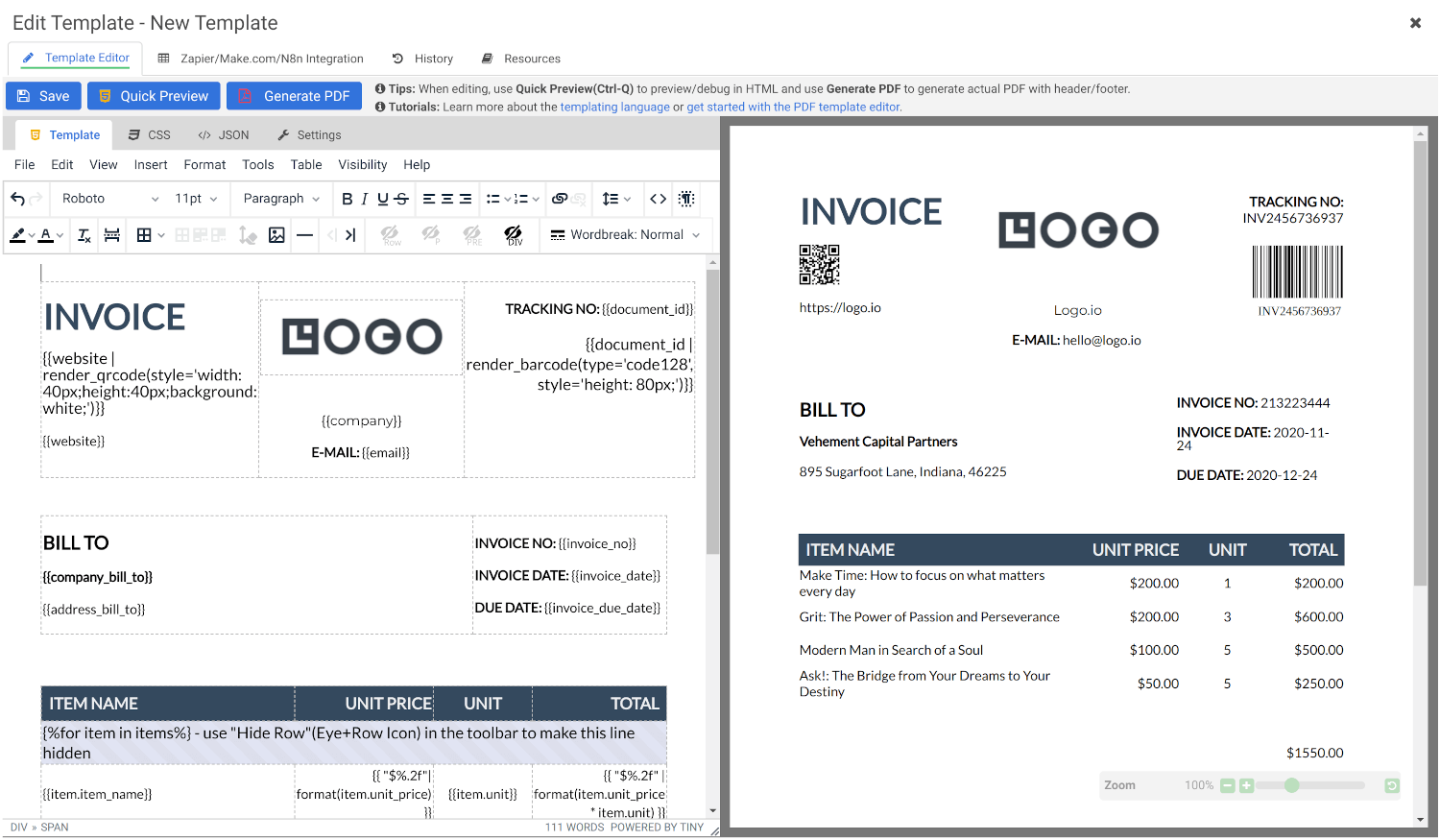
Create Document Templates with Visual Editor
Create stunning PDFs using our WYSIWYG Template Editor. With its user-friendly interface, you can design templates visually — no coding required.
Combine your designs with JSON data to generate dynamic, fully-customized PDFs tailored to your needs. Perfect for invoices, reports, certificates, and more.
Convert HTML to PDF
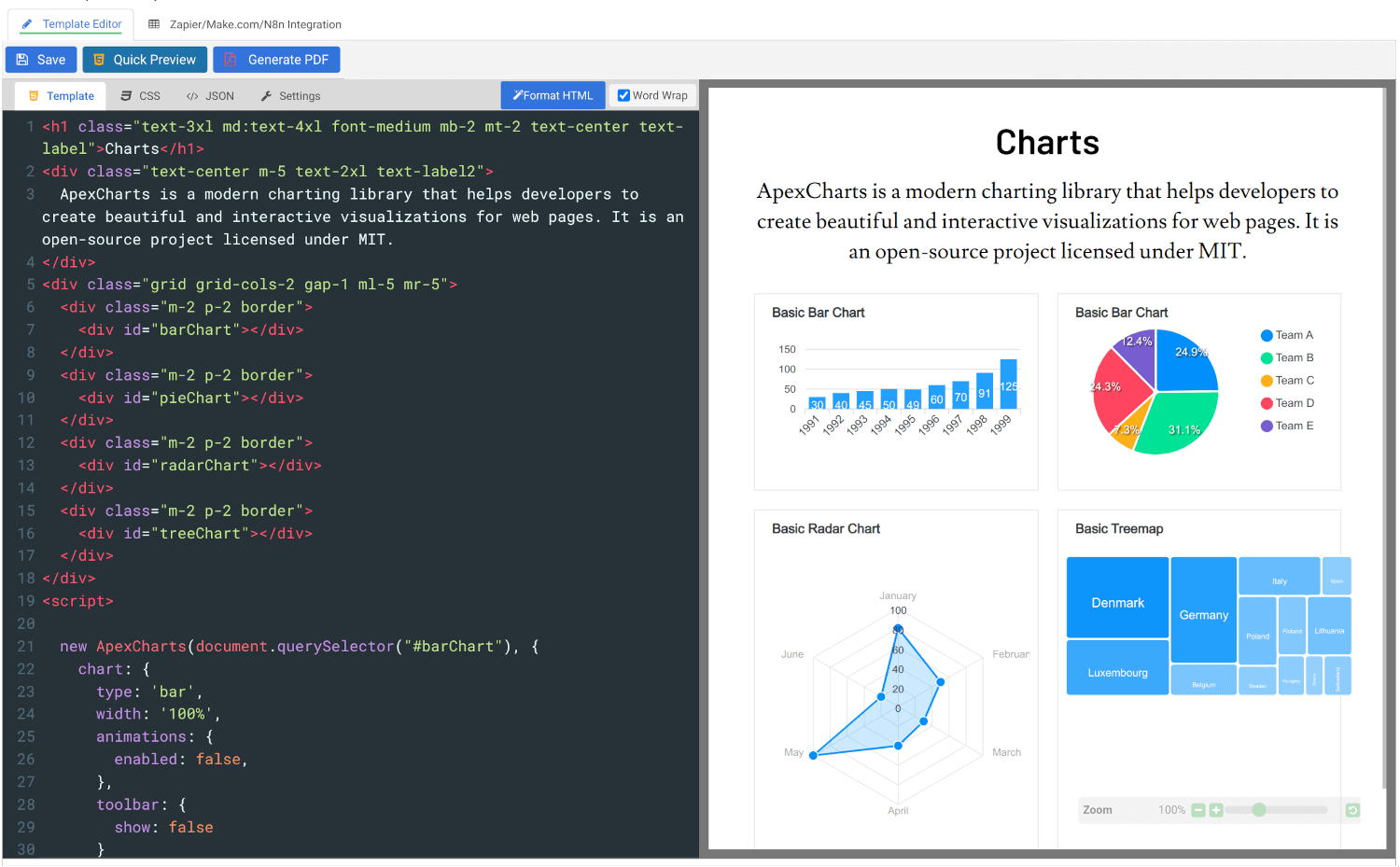
Effortlessly convert HTML to PDF using APITemplate.io’s powerful HTML Template Editor. Combine your HTML, CSS, and JavaScript skills with dynamic JSON data to create custom templates that deliver pixel-perfect PDFs.
Our PDF generation solution supports modern web technologies, enabling seamless integration for your automated workflows, reports, and more.
Get started for FREE, No Creditcard required
- All Tools
- Convert HTML to PDF
- PDF DPI Analyzer
- JSON to PDF Converter
- CSV to PDF Converter
- Compress PDF
- Extract Images from PDF
- Convert Markdown to PDF
- Extract Text From PDF
- Add Watermark to PDF
- Extract/Edit PDF Metadata
- Add Page Numbers to PDF
- Merge Multiple PDFs
- Split PDF
- Convert PDF to HTML
- Convert PDF to PNG
- Convert PDF to JPEG
- Convert PNG to PDF
- JSON Validator/Formatter