
How to Generate PDFs From JSON Data (Node.js, Python and API Examples)
 By APITemplate.io
Turn JSON data into PDF documents with code: fill an HTML template with Handlebars or Jinja2 and print it, build the PDF with pdfmake, turn any JSON file into tables, or send the JSON to an API.
TL;DR:
What This Blog Covers:
How to generate a PDF from JSON data in Node.js, in Python or with an API, and how to turn any JSON file into readable PDF tables.
Key Points:
- JSON holds data but no layout, so every method pairs it with a template or a document definition
- In Node.js, fill a Handlebars template and print it with Puppeteer, or build the PDF with pdfmake and no browser
- In Python, fill a Jinja2 template and print it with WeasyPrint, which needs no browser either
- One
@pageCSS rule sets A4, 20 mm margins and a “Page 1 of 1” footer in both Chrome and WeasyPrint - To convert a JSON file once without code, a free online converter turns arrays into tables in your browser
Best For:
Developers who turn API responses, database records or form data into invoices, reports and other PDFs.
To generate a PDF from JSON, you need a layout as well as the data, because JSON says what an invoice contains but not how it should look. In code, you either fill an HTML template with the JSON and print it to PDF, or build the PDF from a document definition.
If you only want to read a JSON file as a PDF once, our free JSON to PDF converter does that in your browser. This guide is for generating PDFs from JSON in your own code.
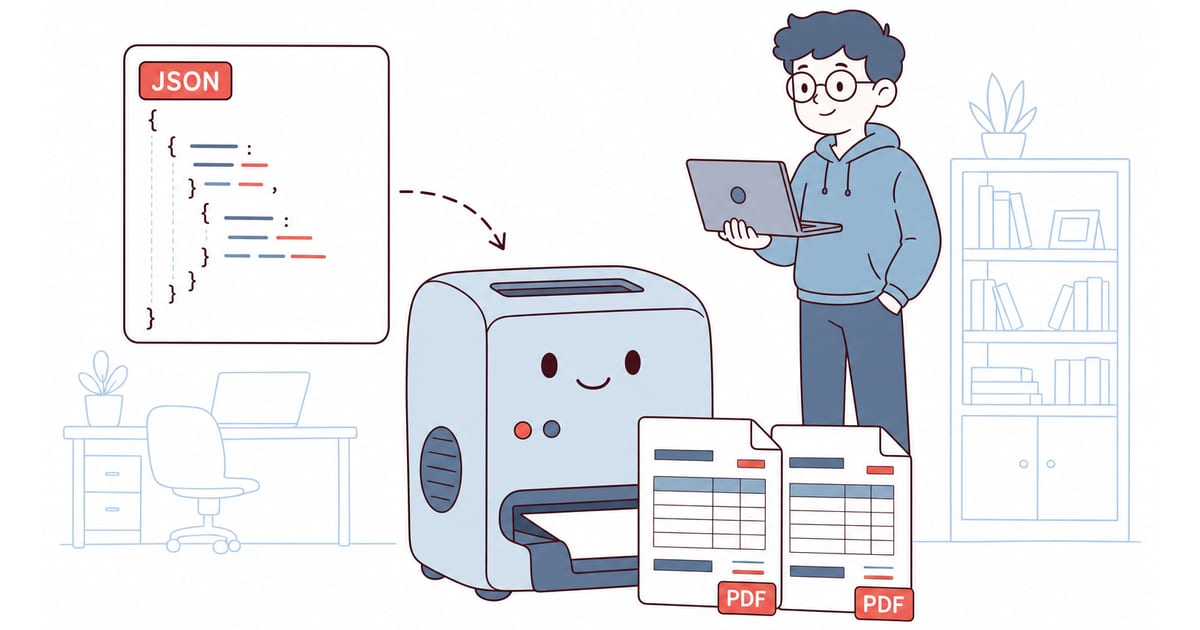
Every example uses the same JSON invoice: Node.js with Handlebars and Puppeteer, Node.js with pdfmake, Python with Jinja2 and WeasyPrint, a script that turns any JSON into tables, and the same data sent to an API.
Every example was run in November 2026 with Node.js 24, Puppeteer 25.18, Handlebars 4.7.10, pdfmake 0.3.15, Python 3.14, Jinja2 3.1.6 and WeasyPrint 70.
The JSON Data
Save this as invoice.json. The amounts are already calculated, as most order and billing systems send them, so the templates only format the data:
{
  "invoice_number": "INV-1001",
  "issued": "2026-11-21",
  "due": "2026-12-21",
  "seller": {
    "name": "Northwind Studio",
    "address": ["80 Robinson Road", "Singapore 068898"]
  },
  "bill_to": {
    "name": "Acme Corp",
    "address": ["100 Main Street", "Springfield, IL 62701"]
  },
  "items": [
    { "description": "Design work",
      "quantity": 10, "unit_price": 85.00, "amount": 850.00 },
    { "description": "Hosting (12 months)",
      "quantity": 1, "unit_price": 240.00, "amount": 240.00 }
  ],
  "total": 1090.00
}Here’s where we’re going: the same data in, a finished A4 invoice out.
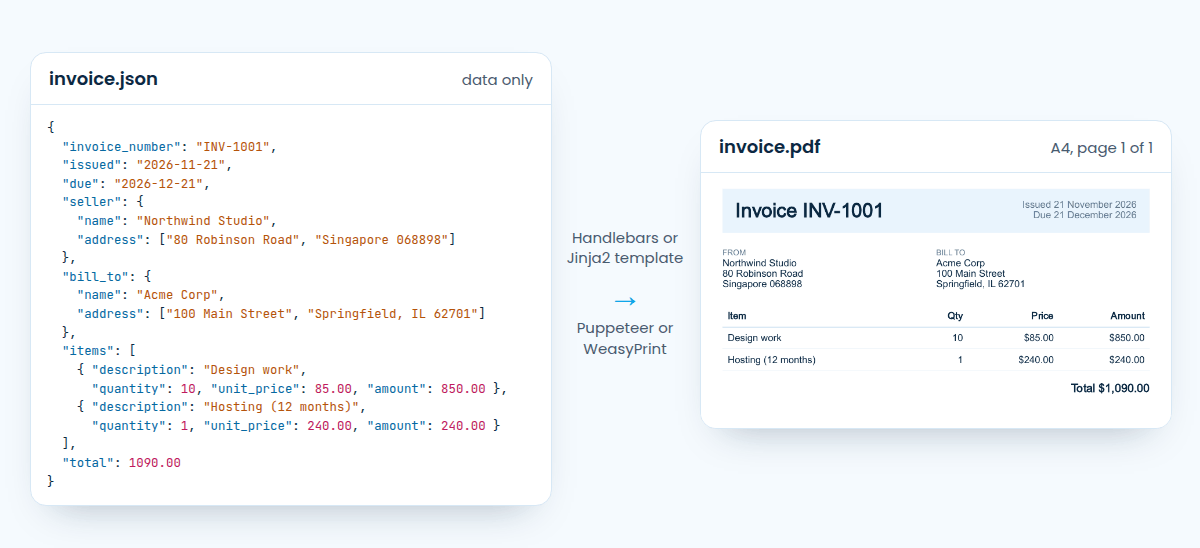
1. Generate a PDF From JSON in Node.js (Handlebars and Puppeteer)
This is the usual route in Node.js: Handlebars fills an HTML template with the JSON, and Puppeteer prints the HTML with headless Chrome (Chrome running without a window). Install both:
npm install handlebars puppeteerSave the template as invoice.hbs. The @page rule at the top sets the paper size, the margins and the page-number footer:
<!doctype html>
<html>
<head>
  <meta charset="utf-8">
  <style>
    @page {
      size: A4;
      margin: 20mm;
      @bottom-center { content: "Page " counter(page) " of " counter(pages); font: 9pt Helvetica, Arial, sans-serif; color: #607890; }
    }
    body { font: 11pt Helvetica, Arial, sans-serif; color: #0b2942; margin: 0; }
    .header { display: flex; justify-content: space-between; background: #e9f4fd; padding: 16px 20px; }
    .header h1 { margin: 0; font-size: 22pt; }
    .meta, .label { color: #607890; }
    .meta { text-align: right; }
    .label { font-size: 9pt; }
    .parties { display: flex; margin: 24px 0; }
    .parties > div { flex: 1; }
    table { width: 100%; border-collapse: collapse; }
    th, td { padding: 8px; border-bottom: 1px solid #d7e8f5; text-align: left; }
    .num { text-align: right; }
    .total { text-align: right; font-size: 13pt; font-weight: bold; margin-top: 16px; }
  </style>
</head>
<body>
  <div class="header">
    <h1>Invoice {{invoice_number}}</h1>
    <div class="meta">Issued {{date issued}}<br>Due {{date due}}</div>
  </div>
  <div class="parties">
    <div><div class="label">FROM</div>{{seller.name}}{{#each seller.address}}<br>{{this}}{{/each}}</div>
    <div><div class="label">BILL TO</div>{{bill_to.name}}{{#each bill_to.address}}<br>{{this}}{{/each}}</div>
  </div>
  <table>
    <tr><th>Item</th><th class="num">Qty</th><th class="num">Price</th><th class="num">Amount</th></tr>
    {{#each items}}
    <tr>
      <td>{{description}}</td>
      <td class="num">{{quantity}}</td>
      <td class="num">{{money unit_price}}</td>
      <td class="num">{{money amount}}</td>
    </tr>
    {{/each}}
  </table>
  <div class="total">Total {{money total}}</div>
</body>
</html>Then generate.mjs loads the JSON, fills the template and prints it:
import { readFile } from 'node:fs/promises';
import Handlebars from 'handlebars';
import puppeteer from 'puppeteer';

const data = JSON.parse(await readFile('invoice.json', 'utf8'));

const usd = new Intl.NumberFormat('en-US', { style: 'currency', currency: 'USD' });
Handlebars.registerHelper('money', (value) => usd.format(value));
Handlebars.registerHelper('date', (iso) =>
  new Date(iso).toLocaleDateString('en-GB', { day: 'numeric', month: 'long', year: 'numeric', timeZone: 'UTC' }));

const template = Handlebars.compile(await readFile('invoice.hbs', 'utf8'));
const html = template(data); // {{...}} escapes HTML in the data

const browser = await puppeteer.launch();
const page = await browser.newPage();
await page.setContent(html);
await page.pdf({ path: 'invoice.pdf', preferCSSPageSize: true, printBackground: true });
await browser.close();Run it with node generate.mjs, and you get the one-page invoice.pdf shown above. To see how a page of HTML prints before writing any code, paste it into our free HTML to PDF converter.
- Handlebars escapes the data. A customer named
Smith & Sons <b>Ltd</b>came out as text, not bold, because{{...}}escapes HTML. Use the triple-stash,{{{...}}}, only for HTML you trust. preferCSSPageSize: trueis required. Without it, Puppeteer ignoredsize: A4and printed US Letter. Chrome prints@pagefooters like this one since Chrome 131.printBackground: truekeeps the header band. Without it, the band came out white.- Helpers do the formatting.
moneyanddatekeepIntlformatting out of the template, so it shows “$1,090.00” and “21 November 2026” on any server.
For more Puppeteer options, such as waiting for web fonts and images, see our Puppeteer PDF tips.
2. Node.js Without a Browser: pdfmake
pdfmake skips HTML entirely. You describe the document as a JavaScript object, with text, columns and tables, and it writes the PDF itself, so there’s no Chrome to install or run. Install it:
npm install pdfmakeThen map the JSON onto a document definition in pdfmake.mjs:
import { readFile } from 'node:fs/promises';
import pdfmake from 'pdfmake';
import Roboto from 'pdfmake/fonts/Roboto.js';

const data = JSON.parse(await readFile('invoice.json', 'utf8'));
const usd = new Intl.NumberFormat('en-US', { style: 'currency', currency: 'USD' });
const right = (text) => ({ text, alignment: 'right' });

pdfmake.addFonts(Roboto);
// Don't let data from the JSON make pdfmake fetch URLs or read files other than fonts
pdfmake.setUrlAccessPolicy(() => false);
pdfmake.setLocalAccessPolicy((file) => file.endsWith('.ttf'));

const docDefinition = {
  pageSize: 'A4',
  pageMargins: [57, 57, 57, 57], // points: 20 mm
  footer: (page, pages) => ({ text: `Page ${page} of ${pages}`, alignment: 'center', fontSize: 9, color: '#607890' }),
  defaultStyle: { fontSize: 11, color: '#0b2942' },
  content: [
    { text: `Invoice ${data.invoice_number}`, fontSize: 22, bold: true },
    { text: `Issued ${data.issued}, due ${data.due}`, color: '#607890', margin: [0, 4, 0, 20] },
    {
      columns: [
        { text: ['FROM\n', data.seller.name, '\n', data.seller.address.join('\n')] },
        { text: ['BILL TO\n', data.bill_to.name, '\n', data.bill_to.address.join('\n')] },
      ],
    },
    {
      margin: [0, 20, 0, 0],
      layout: 'lightHorizontalLines',
      table: {
        headerRows: 1,
        widths: ['*', 'auto', 'auto', 'auto'],
        body: [
          [{ text: 'Item', bold: true }, right({ text: 'Qty', bold: true }), right({ text: 'Price', bold: true }), right({ text: 'Amount', bold: true })],
          ...data.items.map((i) => [i.description, right(String(i.quantity)), right(usd.format(i.unit_price)), right(usd.format(i.amount))]),
        ],
      },
    },
    { text: `Total ${usd.format(data.total)}`, alignment: 'right', fontSize: 13, bold: true, margin: [0, 16, 0, 0] },
  ],
};

await pdfmake.createPdf(docDefinition).write('invoice-pdfmake.pdf');- There’s no CSS. Layout comes from
columns,tableandmarginvalues in points, so a design change means changing code. In return it runs anywhere Node.js does, and in the browser too. - Fonts are explicit. pdfmake ships Roboto, which
addFontsregisters, and embeds it in the PDF. - Set the two access policies. pdfmake 0.3.15 printed a warning until we did. They stop data in the document definition from making pdfmake download URLs or read files, and the local policy has to allow the
.ttffonts, or it refuses to load them.
3. Generate a PDF From JSON in Python (Jinja2 and WeasyPrint)
In Python, Jinja2 fills the template and WeasyPrint prints the HTML to PDF without a browser. WeasyPrint 70 needs Python 3.10 or later and the Pango library, which most Linux distributions package. Install both:
pip install jinja2 weasyprintCopy invoice.hbs to invoice.html, keep everything above <body>, including the same CSS, and replace the body with Jinja2 tags:
<body>
  <div class="header">
    <h1>Invoice {{ invoice_number }}</h1>
    <div class="meta">
      Issued {{ strftime(strptime(issued, "%Y-%m-%d"), "%d %B %Y") }}<br>
      Due {{ strftime(strptime(due, "%Y-%m-%d"), "%d %B %Y") }}
    </div>
  </div>
  <div class="parties">
    <div><div class="label">FROM</div>{{ seller.name }}{% for line in seller.address %}<br>{{ line }}{% endfor %}</div>
    <div><div class="label">BILL TO</div>{{ bill_to.name }}{% for line in bill_to.address %}<br>{{ line }}{% endfor %}</div>
  </div>
  <table>
    <tr><th>Item</th><th class="num">Qty</th><th class="num">Price</th><th class="num">Amount</th></tr>
    {% for item in items %}
    <tr>
      <td>{{ item.description }}</td>
      <td class="num">{{ item.quantity }}</td>
      <td class="num">{{ "${:,.2f}".format(item.unit_price) }}</td>
      <td class="num">{{ "${:,.2f}".format(item.amount) }}</td>
    </tr>
    {% endfor %}
  </table>
  <div class="total">Total {{ "${:,.2f}".format(total) }}</div>
</body>
</html>Then generate.py renders the template and writes the PDF:
import json
from datetime import datetime

from jinja2 import Environment, FileSystemLoader, select_autoescape
from weasyprint import HTML

with open("invoice.json") as f:
    data = json.load(f)

env = Environment(loader=FileSystemLoader("."), autoescape=select_autoescape())
# The same date functions APITemplate.io's templates provide
env.globals["strptime"] = datetime.strptime
env.globals["strftime"] = datetime.strftime

html = env.get_template("invoice.html").render(**data)
HTML(string=html).write_pdf("invoice.pdf")- Turn autoescaping on. Jinja2 doesn’t escape HTML unless you ask. With
select_autoescape(),Smith & Sons <b>Ltd</b>printed as text here too. - WeasyPrint reads the same
@pagerule. The PDF came out A4 with the same footer, and no page options in the Python code. - The template only uses APITemplate.io syntax. The
strptimeandstrftimefunctions and the"${:,.2f}".format()pattern are the ones its template docs list, so the same template works there, as step 5 shows.
Our Python HTML to PDF guide compares WeasyPrint with Playwright and the other Python options.
4. Turn Any JSON File Into PDF Tables
Sometimes there’s no template, because you only need to read or share a JSON file: an API response, an export or a log. This script lays out any JSON as tables. Objects become two-column tables, lists of objects become tables with headers, and nesting becomes tables inside tables:
import html
import json
import sys

from weasyprint import HTML


def render(value):
    """Objects become two-column tables, lists of objects become tables with headers."""
    if isinstance(value, dict):
        rows = "".join(f"<tr><th>{html.escape(str(k))}</th><td>{render(v)}</td></tr>" for k, v in value.items())
        return f"<table>{rows}</table>"
    if isinstance(value, list) and value and all(isinstance(v, dict) for v in value):
        columns = list(dict.fromkeys(k for row in value for k in row))
        head = "".join(f"<th>{html.escape(c)}</th>" for c in columns)
        body = "".join(
            "<tr>" + "".join(f"<td>{render(row.get(c, ''))}</td>" for c in columns) + "</tr>" for row in value
        )
        return f"<table><thead><tr>{head}</tr></thead>{body}</table>"
    if isinstance(value, list):
        return "<ul>" + "".join(f"<li>{render(v)}</li>" for v in value) + "</ul>"
    return html.escape(value if isinstance(value, str) else json.dumps(value))


source, target = sys.argv[1], sys.argv[2]
with open(source) as f:
    data = json.load(f, parse_float=str)  # keep decimals as written: 85.00, not 85.0

page = f"""<!doctype html><meta charset="utf-8"><style>
  @page {{ size: A4; margin: 15mm; @bottom-center {{ content: counter(page) " / " counter(pages); font: 8pt sans-serif; }} }}
  body {{ font: 10pt sans-serif; color: #0b2942; }}
  table {{ border-collapse: collapse; width: 100%; margin: 2px 0; }}
  th, td {{ border: 1px solid #d7e8f5; padding: 4px 6px; text-align: left; vertical-align: top; }}
  th {{ background: #e9f4fd; }}
  ul {{ margin: 0; padding-left: 16px; }}
</style><h1>{html.escape(source)}</h1>{render(data)}"""
HTML(string=page).write_pdf(target)Run it with python json2pdf.py invoice.json invoice-table.pdf:
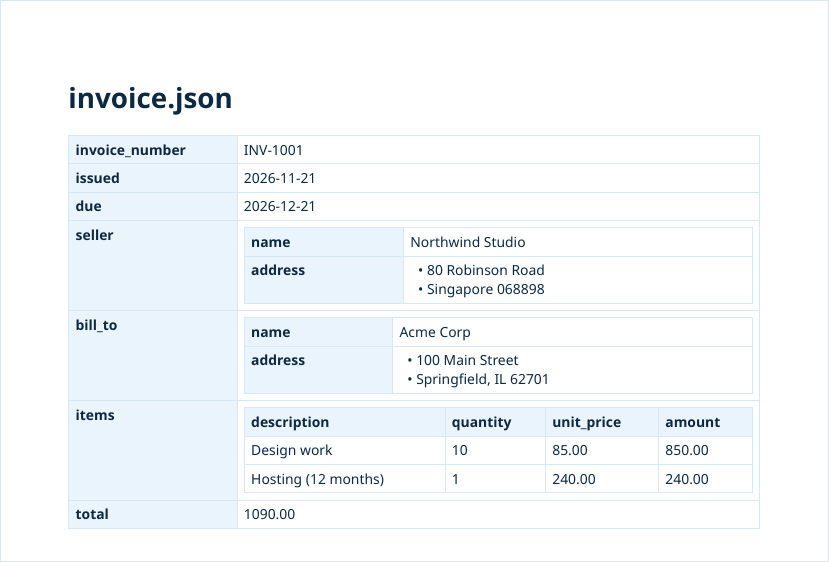
parse_float=str keeps numbers as they’re written in the file, so “85.00” doesn’t become “85.0”, and html.escape keeps keys and values from being read as HTML. Our free JSON to PDF converter works the same way in the browser, with themes, page sizes and page numbers, and without uploading the file.
5. Generate PDFs From JSON With an API
Every method above runs in your own app, so the browser, fonts and PDF library are yours to install and update. With APITemplate.io’s PDF generation API, the template from step 3 is stored in your account, and you send the same invoice.json unchanged:
curl -s "https://rest.apitemplate.io/v2/create-pdf?template_id=YOUR_TEMPLATE_ID" \
  -H "X-API-KEY: YOUR_API_KEY" \
  -H "Content-Type: application/json" \
--data @invoice.jsonThe response is JSON with a download_url for the PDF. We sent this request to a mock of /v2/create-pdf that checked the path, template_id, X-API-KEY header and body, and rendered the step 3 template with the posted JSON using the same date functions. Add export_type=file to the URL to get the PDF itself instead of JSON.
Our invoice guide walks through creating the template in the app and calling the API from Node.js and Python. The Free plan includes 50 PDFs a month, and PDF Basic is $24 a month ($19 billed yearly) for 3,000.
Which Method Should You Use?
| Method | Runs on | Layout written in | Best for |
|---|---|---|---|
| Handlebars and Puppeteer | Node.js with Chrome | HTML and CSS | Designed documents, any CSS |
| pdfmake | Node.js or the browser, no Chrome | A JavaScript object | Simple layouts, no browser to run |
| Jinja2 and WeasyPrint | Python, no browser | HTML and CSS | Reports and invoices from Python |
json2pdf.py |
Python | Generated tables | Reading or sharing any JSON file |
| APITemplate.io | Any language that can send HTTP | A stored template | No PDF software to run |
FAQ
How can I open a JSON file as a PDF?
A PDF reader can’t open a .json file, because JSON is plain-text data, not a document. Convert it first, with the free JSON to PDF converter or a script like json2pdf.py above.
What is the difference between JSON and PDF?
JSON is a text format for structured data that programs read, such as an API response. PDF is a fixed-layout document for people to read and print. Generating a PDF from JSON means adding a layout to the data.
Can I convert JSON to PDF without code?
Yes. Paste the JSON or drop the .json file into a browser-based converter, and it turns arrays into tables and objects into labeled sections. Ours runs in the browser, so the data isn’t uploaded.
How do I generate a PDF from JSON in C# or Java?
Use the same two steps: parse the JSON into objects, then lay them out. In C#, deserialize it with System.Text.Json and build the PDF with a library such as QuestPDF, as in our C# PDF generation guide. In Java, fill an HTML template and convert it, as in our Java HTML to PDF guide.
Is there an API that converts JSON to PDF?
Yes. APITemplate.io stores your template and generates a PDF from each JSON payload you send to /v2/create-pdf, as in step 5.
Conclusion
To generate a PDF from JSON, pair the data with a layout. Handlebars or Jinja2 templates printed by Puppeteer or WeasyPrint give you full CSS, pdfmake avoids a browser, and a short script turns any JSON file into readable tables. If you’d rather not run any of it, store the template once and send the JSON to an API.
Sign up for a free account and generate up to 50 PDFs or images a month for free.
Other Blog Articles
C# Generate PDF: Create, Save and Export PDFs in .NET (5 Libraries Compared)
Five ways to generate a PDF in C#, tested on .NET 10: QuestPDF, PDFsharp and MigraDoc, iText, PuppeteerSharp and IronPDF. Code that creates the same invoice, saves it and returns it from ASP.NET Core.
Best HTML to PDF APIs in 2026: Pricing, Rendering and Free Tiers Compared
The best HTML to PDF APIs in 2026, from PDFShift and DocRaptor to self-hosted Gotenberg, compared on rendering engine, free tier and what 1,000 PDFs a month cost.
wkhtmltopdf Is Archived: 7 Alternatives for HTML to PDF in 2026
wkhtmltopdf was archived in 2023 and renders with a WebKit from 2012. Here are 7 tested alternatives, each wkhtmltopdf option mapped to Chrome, and migration code for Node.js, Python and C#.