
C# Generate PDF: Create, Save and Export PDFs in .NET (5 Libraries Compared)
 By APITemplate.io
Five ways to generate a PDF in C#, tested on .NET 10: QuestPDF, PDFsharp and MigraDoc, iText, PuppeteerSharp and IronPDF. Code that creates the same invoice, saves it and returns it from ASP.NET Core.
TL;DR:
What This Blog Covers:
How to generate a PDF in C# in 2026: which .NET library to choose, what its license costs, and tested code that creates, saves and exports the same invoice.
Key Points:
- .NET has no built-in way to write PDFs, so you pick a library that either builds the page in C# code or prints HTML with Chrome
- QuestPDF is the easiest code-first library, and it’s free for companies under $1 million in annual revenue
- PDFsharp and MigraDoc moved from MIT to AGPL in version 6.5.0, like iText, so closed-source apps need a paid license for either
- PuppeteerSharp is MIT licensed and prints any HTML and CSS that Chrome can render
- Every library can write to a file, a byte array or a stream, so an ASP.NET Core endpoint returns the PDF with one
Results.Filecall
Best For:
.NET developers choosing a PDF library for invoices, reports or data exports, or checking that the one they use still fits its license.
To generate a PDF in C#, you need a library, because .NET has no API for writing PDF files. The real choice is how you describe the page. QuestPDF, MigraDoc and iText build it from C# code. PuppeteerSharp and IronPDF render HTML and CSS in headless Chrome (Chrome running without a window).
Licenses matter more than they used to. PDFsharp, with 85 million NuGet downloads, switched from MIT to AGPL in October 2026. QuestPDF is free only below $1 million in annual revenue. And IronPDF refuses to render in a container until you add a license key.
This guide compares the five libraries, creates the same invoice with each, then shows how to save the PDF, return it from an ASP.NET Core endpoint and export a DataTable.
Every example was run on .NET 10 in a Linux container with QuestPDF 2026.9.2, PDFsharp and MigraDoc 6.5.0, iText 9.8.1 and PuppeteerSharp 25.18.1. IronPDF 2026.11.1 needs a license key to render, as explained in its section. Prices and licenses were read on 21 November 2026.
Which Library Should You Use to Generate PDFs in C#?
| Library | How you build the PDF | Free when | Paid license | Best for |
|---|---|---|---|---|
| QuestPDF 2026.9 | Fluent C# layout | Annual revenue under $1M, or open source or nonprofit | $1,999 (Professional) or $4,999 (Enterprise), perpetual, whole company | New invoices and reports built in code |
| PDFsharp and MigraDoc 6.5 | Document object model, or drawing on a page | Your app is AGPL open source | €750, one-time | Simple documents, and changing existing PDFs |
| iText 9.8 | Layout API, plus forms, signing and PDF/A | Your app is AGPL open source | By quote | PDF features beyond layout |
| PuppeteerSharp 25.18 | HTML and CSS printed by Chrome | Always (MIT) | None | Teams with HTML templates |
| IronPDF 2026.11 | HTML printed by its own Chrome | 30-day trial key | From $999 (one developer) | Chrome rendering with vendor support |
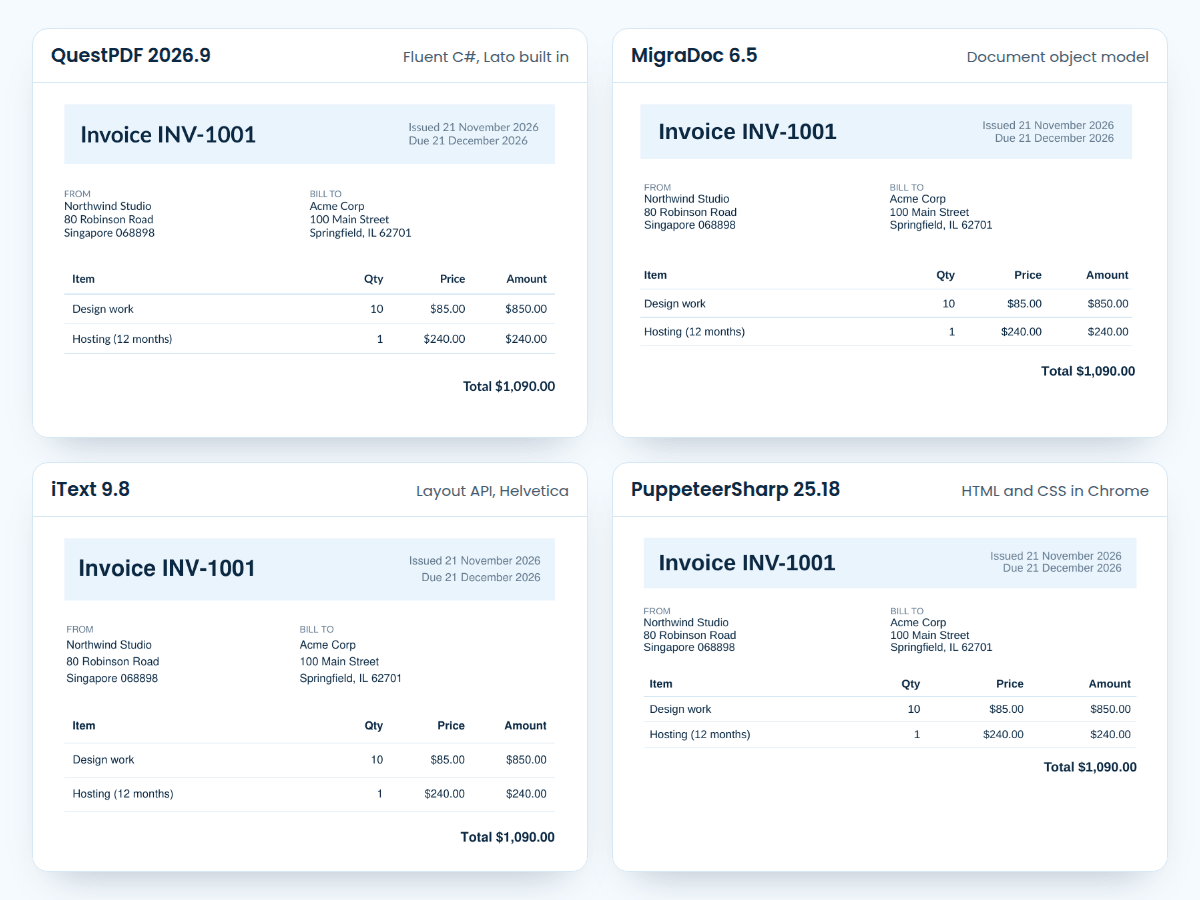
Here is invoice INV-1001 from the four libraries we could run without a license key. The code for each is below.
How to choose:
- QuestPDF: the default for new documents built in C#. Its fluent API handles page breaks, repeating table headers and page numbers for you.
- PuppeteerSharp: the pick if you already have HTML templates, or people who write CSS. It’s free for any use.
- iText: when you need more than layout, such as form filling, digital signatures or PDF/A archiving, and you’ll buy a license.
- PDFsharp and MigraDoc: for simple documents, and for opening and changing existing PDFs. Version 6.2.4, from January 2026, is the last MIT release.
- IronPDF: if you want Chrome rendering from a vendor with a support contract.
Commercial suites such as Aspose.PDF and Syncfusion also generate PDFs. Syncfusion has a free Community License for companies under $1 million in revenue with five or fewer developers and ten or fewer employees.
The Invoice Data
All the examples print the same invoice from the same C# records. Create a console app with dotnet new console, then add Invoice.cs:
using System.Globalization;

public record LineItem(string Description, int Quantity, decimal UnitPrice)
{
    public decimal Amount => Quantity * UnitPrice;
}

public record Invoice(string Number, DateOnly Issued, DateOnly Due,
    string[] From, string[] BillTo, LineItem[] Items)
{
    public decimal Total => Items.Sum(i => i.Amount);

    public static Invoice Sample => new(
        "INV-1001", new DateOnly(2026, 11, 21), new DateOnly(2026, 12, 21),
        ["Northwind Studio", "80 Robinson Road", "Singapore 068898"],
        ["Acme Corp", "100 Main Street", "Springfield, IL 62701"],
        [new("Design work", 10, 85.00m), new("Hosting (12 months)", 1, 240.00m)]);
}

public static class Fmt
{
    static readonly CultureInfo Us = CultureInfo.GetCultureInfo("en-US");
    public static string Money(decimal value) => value.ToString("C", Us);
    public static string Date(DateOnly date) => date.ToString("d MMMM yyyy", Us);
}Fmt formats money and dates the same way on every machine, so a server set to another culture still prints “$1,090.00” and “21 November 2026”.
1. QuestPDF: Build the Layout in C#
QuestPDF describes a page as nested containers: a header, content and a footer, each holding rows, columns, tables and text. Install it:
dotnet add package QuestPDFPut the layout in InvoiceDocument.cs, so the console app and the web endpoint later can share it:
using QuestPDF.Fluent;
using QuestPDF.Helpers;
using QuestPDF.Infrastructure;

public static class InvoiceDocument
{
    public static IDocument Create(Invoice invoice) => Document.Create(container =>
    {
        container.Page(page =>
        {
            page.Size(PageSizes.A4);
            page.Margin(20, Unit.Millimetre);
            page.DefaultTextStyle(x => x.FontSize(11).FontColor("#0b2942"));

            page.Header().Background("#e9f4fd").Padding(16).Row(row =>
            {
                row.RelativeItem().Text($"Invoice {invoice.Number}").FontSize(22).Bold();
                row.RelativeItem().AlignRight().Column(col =>
                {
                    col.Item().Text($"Issued {Fmt.Date(invoice.Issued)}").FontColor("#607890");
                    col.Item().Text($"Due {Fmt.Date(invoice.Due)}").FontColor("#607890");
                });
            });

            page.Content().PaddingVertical(24).Column(col =>
            {
                col.Spacing(24);

                col.Item().Row(row =>
                {
                    row.RelativeItem().Element(c => Address(c, "From", invoice.From));
                    row.RelativeItem().Element(c => Address(c, "Bill to", invoice.BillTo));
                });

                col.Item().Table(table =>
                {
                    table.ColumnsDefinition(columns =>
                    {
                        columns.RelativeColumn(3);
                        columns.RelativeColumn();
                        columns.RelativeColumn();
                        columns.RelativeColumn();
                    });

                    table.Header(header =>
                    {
                        header.Cell().Element(Cell).Text("Item").Bold();
                        header.Cell().Element(Cell).AlignRight().Text("Qty").Bold();
                        header.Cell().Element(Cell).AlignRight().Text("Price").Bold();
                        header.Cell().Element(Cell).AlignRight().Text("Amount").Bold();
                    });

                    foreach (var item in invoice.Items)
                    {
                        table.Cell().Element(Cell).Text(item.Description);
                        table.Cell().Element(Cell).AlignRight().Text(item.Quantity.ToString());
                        table.Cell().Element(Cell).AlignRight().Text(Fmt.Money(item.UnitPrice));
                        table.Cell().Element(Cell).AlignRight().Text(Fmt.Money(item.Amount));
                    }
                });

                col.Item().AlignRight().Text($"Total {Fmt.Money(invoice.Total)}").FontSize(13).Bold();
            });

            page.Footer().AlignCenter().DefaultTextStyle(x => x.FontSize(9).FontColor("#607890")).Text(text =>
            {
                text.Span("Page ");
                text.CurrentPageNumber();
                text.Span(" of ");
                text.TotalPages();
            });
        });
    });

    static void Address(IContainer container, string label, string[] lines) =>
        container.Column(col =>
        {
            col.Item().Text(label.ToUpperInvariant()).FontSize(9).FontColor("#607890");
            foreach (var line in lines)
                col.Item().Text(line);
        });

    static IContainer Cell(IContainer container) =>
        container.BorderBottom(1).BorderColor("#d7e8f5").Padding(8);
}Then generate the file in Program.cs:
using QuestPDF.Fluent;
using QuestPDF.Infrastructure;

QuestPDF.Settings.License = LicenseType.Community;

InvoiceDocument.Create(Invoice.Sample).GeneratePdf("invoice.pdf");A few things worth knowing:
- The license line is required. Without it, QuestPDF throws an exception that lists the tiers, and leaves an empty
invoice.pdfbehind. The setting is a self-declaration with no key. The Community license is free for organizations under $1 million in annual gross revenue, nonprofits and open-source projects. Government bodies and publicly traded companies need a paid tier. - Fonts come with it. Our container had no Lato font installed, and QuestPDF still embedded Lato in the PDF. You don’t need to install fonts to get started on Linux.
- Layout is handled for you. A table longer than a page continues on the next one with its header repeated, and
CurrentPageNumber()andTotalPages()fill in the footer.
2. PDFsharp and MigraDoc: A Document Object Model
PDFsharp draws on PDF pages, and MigraDoc, which ships with it, adds a document model of sections, paragraphs and tables that it lays out for you. Install both with one package:
dotnet add package PDFsharp-MigraDocOn Linux, PDFsharp needs two things before it renders anything: a license choice and a font resolver. This Program.cs has both:
using MigraDoc.DocumentObjectModel;
using MigraDoc.DocumentObjectModel.Tables;
using MigraDoc.Rendering;
using PdfSharp;
using PdfSharp.Fonts;

PdfSharpLicense.SetAgplLicense(); // or LoadLicense(key) with a commercial license
GlobalFontSettings.FontResolver = new AppFontResolver();

var invoice = Invoice.Sample;
var ink = Color.Parse("#0b2942");
var muted = Color.Parse("#607890");
var line = Color.Parse("#d7e8f5");

var document = new Document();
var style = document.Styles[StyleNames.Normal]!;
style.Font.Name = "Liberation Sans";
style.Font.Size = 11;
style.Font.Color = ink;

var section = document.AddSection();
section.PageSetup = document.DefaultPageSetup.Clone();
section.PageSetup.PageFormat = PageFormat.A4;
section.PageSetup.TopMargin = section.PageSetup.BottomMargin = Unit.FromMillimeter(20);
section.PageSetup.LeftMargin = section.PageSetup.RightMargin = Unit.FromMillimeter(20);

// Header band: invoice number on the left, dates on the right
var header = section.AddTable();
header.Shading.Color = Color.Parse("#e9f4fd");
header.AddColumn(Unit.FromMillimeter(100));
header.AddColumn(Unit.FromMillimeter(70));
var top = header.AddRow();
top.TopPadding = top.BottomPadding = Unit.FromMillimeter(5);
top.Cells[0].AddParagraph($"Invoice {invoice.Number}").Format.Font.Size = 22;
top.Cells[0].Format.Font.Bold = true;
top.Cells[0].Format.LeftIndent = Unit.FromMillimeter(5);
var dates = top.Cells[1].AddParagraph($"Issued {Fmt.Date(invoice.Issued)}\nDue {Fmt.Date(invoice.Due)}");
dates.Format.Alignment = ParagraphAlignment.Right;
dates.Format.RightIndent = Unit.FromMillimeter(5);
dates.Format.Font.Color = muted;

// From and Bill to
var parties = section.AddTable();
parties.TopPadding = Unit.FromMillimeter(8);
parties.AddColumn(Unit.FromMillimeter(85));
parties.AddColumn(Unit.FromMillimeter(85));
var row = parties.AddRow();
Address(row.Cells[0], "FROM", invoice.From);
Address(row.Cells[1], "BILL TO", invoice.BillTo);

// Line items
section.AddParagraph().Format.SpaceAfter = Unit.FromMillimeter(6);
var items = section.AddTable();
items.Borders.Bottom.Color = line;
foreach (var width in new[] { 85, 25, 30, 30 })
    items.AddColumn(Unit.FromMillimeter(width));
AddRow(items, true, "Item", "Qty", "Price", "Amount");
foreach (var item in invoice.Items)
    AddRow(items, false, item.Description, item.Quantity.ToString(),
        Fmt.Money(item.UnitPrice), Fmt.Money(item.Amount));

var total = section.AddParagraph($"Total {Fmt.Money(invoice.Total)}");
total.Format.Alignment = ParagraphAlignment.Right;
total.Format.SpaceBefore = Unit.FromMillimeter(6);
total.Format.Font.Size = 13;
total.Format.Font.Bold = true;

// Footer with page numbers
var footer = section.Footers.Primary.AddParagraph();
footer.Format.Alignment = ParagraphAlignment.Center;
footer.Format.Font.Size = 9;
footer.Format.Font.Color = muted;
footer.AddText("Page ");
footer.AddPageField();
footer.AddText(" of ");
footer.AddNumPagesField();

var renderer = new PdfDocumentRenderer { Document = document };
renderer.RenderDocument();
renderer.PdfDocument.Save("invoice.pdf");

static void Address(Cell cell, string label, string[] lines)
{
    var heading = cell.AddParagraph(label);
    heading.Format.Font.Size = 9;
    heading.Format.Font.Color = Color.Parse("#607890");
    cell.AddParagraph(string.Join("\n", lines));
}

static void AddRow(Table table, bool bold, params string[] values)
{
    var row = table.AddRow();
    row.TopPadding = row.BottomPadding = Unit.FromMillimeter(2.5);
    row.Borders.Bottom.Width = 0.75;
    for (var i = 0; i < values.Length; i++)
    {
        var paragraph = row.Cells[i].AddParagraph(values[i]);
        paragraph.Format.Font.Bold = bold;
        if (i > 0) paragraph.Format.Alignment = ParagraphAlignment.Right;
    }
}

// PDFsharp can't use system fonts on Linux, so load TTF files shipped with the app
class AppFontResolver : IFontResolver
{
    public FontResolverInfo? ResolveTypeface(string familyName, bool bold, bool italic) =>
        new(bold ? "LiberationSans-Bold" : "LiberationSans-Regular");

    public byte[]? GetFont(string faceName) =>
        File.ReadAllBytes(Path.Combine(AppContext.BaseDirectory, "fonts", faceName + ".ttf"));
}
Copy the two Liberation Sans TTF files (or any fonts you’re allowed to ship) into a fonts folder, and copy them to the output folder from the .csproj:
<ItemGroup>
  <None Include="fonts/*.ttf" CopyToOutputDirectory="PreserveNewest" />
</ItemGroup>What we hit on the way:
- Version 6.5.0 asks you to pick a license. Without
PdfSharpLicense.SetAgplLicense(), rendering stopped withPdfSharpLicenseException: The loaded license is not valid.PDFsharp and MigraDoc 6.5 are dual-licensed under AGPL and a commercial license. The AGPL requires your own project to be open source under the AGPL, and the commercial license costs €750 once, for unlimited developers. The PDF’s metadata also records the choice: “PDFsharp 6.5.0 (AGPL license)”. - There’s no system font lookup on Linux. Without a font resolver, MigraDoc failed with “No appropriate font found for family name ‘Courier New’. Implement IFontResolver and assign to ‘GlobalFontSettings.FontResolver’ to use fonts.” It asks for Courier New even when your styles never use it, so the resolver above maps every family to the files you ship. The font resolving docs cover resolvers that pick by family name.
Tip: On .NET 10, adding PDFsharp 6.5.0 prints NU1903 warnings about its dependency System.Security.Cryptography.Pkcs 8.0.1. Running
dotnet add package System.Security.Cryptography.Pkcs(11.0.0 when we tested) cleared them.
3. iText: Layout Plus PDF Features
iText has a layout API much like MigraDoc’s, and modules for forms, signatures and PDF/A. Install the main package:
dotnet add package itextusing iText.IO.Font.Constants;
using iText.Kernel.Colors;
using iText.Kernel.Font;
using iText.Kernel.Geom;
using iText.Kernel.Pdf;
using iText.Layout;
using iText.Layout.Borders;
using iText.Layout.Element;
using iText.Layout.Properties;
var invoice = Invoice.Sample;
var ink = new DeviceRgb(0x0b, 0x29, 0x42);
var muted = new DeviceRgb(0x60, 0x78, 0x90);
var line = new DeviceRgb(0xd7, 0xe8, 0xf5);
var bold = PdfFontFactory.CreateFont(StandardFonts.HELVETICA_BOLD);
using var pdf = new PdfDocument(new PdfWriter("invoice.pdf"));
// immediateFlush: false keeps pages open so the footer can say "of N" at the end
using var document = new Document(pdf, PageSize.A4, false);
document.SetMargins(57, 57, 57, 57); // points: 20 mm
document.SetFontSize(11).SetFontColor(ink);
// Header band
var header = new Table(UnitValue.CreatePercentArray([3f, 2f])).UseAllAvailableWidth()
.SetBackgroundColor(new DeviceRgb(0xe9, 0xf4, 0xfd));
header.AddCell(new Cell().SetBorder(Border.NO_BORDER).SetPadding(14)
.Add(new Paragraph($"Invoice {invoice.Number}").SetFontSize(22).SetFont(bold)));
header.AddCell(new Cell().SetBorder(Border.NO_BORDER).SetPadding(14)
.SetTextAlignment(TextAlignment.RIGHT).SetFontColor(muted)
.Add(new Paragraph($"Issued {Fmt.Date(invoice.Issued)}\nDue {Fmt.Date(invoice.Due)}")));
document.Add(header);
// From and Bill to
var parties = new Table(2).UseAllAvailableWidth().SetMarginTop(20);
parties.AddCell(Address("FROM", invoice.From));
parties.AddCell(Address("BILL TO", invoice.BillTo));
document.Add(parties);
// Line items
var items = new Table(UnitValue.CreatePercentArray([3f, 1f, 1f, 1f])).UseAllAvailableWidth()
.SetMarginTop(20);
foreach (var title in new[] { "Item", "Qty", "Price", "Amount" })
items.AddHeaderCell(ItemCell(title, title != "Item").SetFont(bold));
foreach (var item in invoice.Items)
{
items.AddCell(ItemCell(item.Description, false));
items.AddCell(ItemCell(item.Quantity.ToString(), true));
items.AddCell(ItemCell(Fmt.Money(item.UnitPrice), true));
items.AddCell(ItemCell(Fmt.Money(item.Amount), true));
}
document.Add(items);
document.Add(new Paragraph($"Total {Fmt.Money(invoice.Total)}").SetFontSize(13).SetFont(bold)
.SetTextAlignment(TextAlignment.RIGHT).SetMarginTop(16));
// Footer on every page, now that the page count is known
var pages = pdf.GetNumberOfPages();
for (var i = 1; i <= pages; i++)
{
document.ShowTextAligned(new Paragraph($"Page {i} of {pages}").SetFontSize(9).SetFontColor(muted),
297.5f, 30, i, TextAlignment.CENTER, VerticalAlignment.BOTTOM, 0);
}
Cell Address(string label, string[] lines) =>
new Cell().SetBorder(Border.NO_BORDER)
.Add(new Paragraph(label).SetFontSize(9).SetFontColor(muted))
.Add(new Paragraph(string.Join("\n", lines)).SetMarginTop(0));
Cell ItemCell(string text, bool right) =>
new Cell().SetBorder(Border.NO_BORDER).SetBorderBottom(new SolidBorder(line, 0.75f)).SetPadding(8)
.SetTextAlignment(right ? TextAlignment.RIGHT : TextAlignment.LEFT)
.Add(new Paragraph(text));- “Page X of Y” needs two passes. iText doesn’t know the page count until the content is laid out, so the document is created with
immediateFlushset tofalseand the footers are stamped on at the end. - No font setup is needed for Helvetica, one of the 14 standard PDF fonts that viewers supply. They aren’t embedded, so for PDF/A or exact rendering, load a TTF with
PdfFontFactory.CreateFont(path). - The AGPL is strict. iText’s AGPL page says “You may not deploy it on a network without disclosing the full source code of your own applications under the AGPL license.” It also says you must keep its producer line in every PDF, which in ours reads “iText® Core 9.8.1 (AGPL version)”. Commercial licenses are priced by quote.
4. PuppeteerSharp: Print an HTML Template With Chrome
PuppeteerSharp drives headless Chrome from C#, so your template is plain HTML and CSS, with flexbox and grid. Install it:
dotnet add package PuppeteerSharpBuild the HTML from the invoice in InvoiceHtml.cs. WebUtility.HtmlEncode keeps a customer name like “Smith & Sons” from breaking the markup:
using System.Net;

public static class InvoiceHtml
{
    public static string Render(Invoice invoice)
    {
        var rows = string.Join("\n", invoice.Items.Select(i => $"""
            <tr><td>{WebUtility.HtmlEncode(i.Description)}</td><td class="num">{i.Quantity}</td>
                <td class="num">{Fmt.Money(i.UnitPrice)}</td><td class="num">{Fmt.Money(i.Amount)}</td></tr>
            """));

        return $$"""
            <!doctype html>
            <html><head><meta charset="utf-8"><style>
              body { font: 11pt Helvetica, Arial, sans-serif; color: #0b2942; margin: 0; }
              .header { display: flex; justify-content: space-between; background: #e9f4fd; padding: 16px 20px; }
              .header h1 { margin: 0; font-size: 22pt; }
              .meta { text-align: right; color: #607890; }
              .parties { display: grid; grid-template-columns: 1fr 1fr; margin: 24px 0; }
              .label { font-size: 9pt; color: #607890; }
              table { width: 100%; border-collapse: collapse; }
              th, td { padding: 8px; border-bottom: 1px solid #d7e8f5; text-align: left; }
              .num { text-align: right; }
              .total { text-align: right; font-size: 13pt; font-weight: bold; margin-top: 16px; }
            </style></head><body>
              <div class="header">
                <h1>Invoice {{invoice.Number}}</h1>
                <div class="meta">Issued {{Fmt.Date(invoice.Issued)}}<br>Due {{Fmt.Date(invoice.Due)}}</div>
              </div>
              <div class="parties">
                <div><div class="label">FROM</div>{{string.Join("<br>", invoice.From.Select(WebUtility.HtmlEncode))}}</div>
                <div><div class="label">BILL TO</div>{{string.Join("<br>", invoice.BillTo.Select(WebUtility.HtmlEncode))}}</div>
              </div>
              <table>
                <tr><th>Item</th><th class="num">Qty</th><th class="num">Price</th><th class="num">Amount</th></tr>
                {{rows}}
              </table>
              <div class="total">Total {{Fmt.Money(invoice.Total)}}</div>
            </body></html>
            """;
    }
}Then print it:
using PuppeteerSharp;
using PuppeteerSharp.Media;

var html = InvoiceHtml.Render(Invoice.Sample);

await new BrowserFetcher().DownloadAsync(); // downloads Chrome on the first run
await using var browser = await Puppeteer.LaunchAsync(new LaunchOptions { Headless = true });
await using var page = await browser.NewPageAsync();
await page.SetContentAsync(html);
await page.PdfAsync("invoice.pdf", new PdfOptions
{
    Format = PaperFormat.A4,
    PrintBackground = true,
    MarginOptions = new MarginOptions { Top = "20mm", Bottom = "20mm", Left = "20mm", Right = "20mm" },
    DisplayHeaderFooter = true,
    HeaderTemplate = "<span></span>",
    FooterTemplate = """
        <div style="width: 100%; text-align: center; font: 9pt Helvetica, Arial, sans-serif; color: #607890;">
          Page <span class="pageNumber"></span> of <span class="totalPages"></span></div>
        """,
});- The first run downloads Chrome into the app’s output folder (
bin/Debug/net10.0/Chromein our run). In Docker you also need Chrome’s system libraries, such aslibnss3andlibgbm1. - Set
PrintBackground = true, or Chrome drops the header band’s background color. - The footer is a separate HTML snippet. Chrome fills in the
pageNumberandtotalPagesclasses, and the empty header template stops it from printing its default date and title header.
Our PuppeteerSharp guide covers launching Chrome in production, and the C# HTML to PDF comparison adds Playwright and converting web pages by URL.
5. IronPDF: Chrome Rendering With a Commercial License
IronPDF also prints HTML with Chrome, but it ships its own Chrome build and wraps it in a commercial API: you create a ChromePdfRenderer, call RenderHtmlAsPdf() with the same HTML, and save the result. On Linux you install IronPdf.Linux, whose Chrome package took 357 MB in our NuGet cache.
We couldn’t render the invoice with it. Without a license key, IronPDF 2026.11.1 stopped in our container with LicensingException: Production License Required and the message “IronPdf is running in production without a license”. So it isn’t in the comparison image, and we don’t show code we couldn’t run.
Its perpetual licenses are one-time purchases: Lite costs $999 for one developer and one project, Plus $1,499 for three developers, Professional $2,999 for ten and Unlimited $5,999. A free trial key unlocks it for 30 days of evaluation.
Save a PDF to a File, Byte Array or Stream
You’ll rarely want only a file on disk. A web app needs the bytes, and cloud storage takes a stream. Each library can do all three:
| Library | Save to a file | Get a byte[] |
Write to a Stream |
|---|---|---|---|
| QuestPDF | GeneratePdf("invoice.pdf") |
GeneratePdf() |
GeneratePdf(stream) |
| PDFsharp and MigraDoc | PdfDocument.Save("invoice.pdf") |
Save to a MemoryStream, then ToArray() |
PdfDocument.Save(stream) |
| iText | new PdfWriter("invoice.pdf") |
Write to a MemoryStream, then ToArray() |
new PdfWriter(stream) |
| PuppeteerSharp | PdfAsync("invoice.pdf", options) |
PdfDataAsync(options) |
PdfStreamAsync(options) |
| IronPDF | SaveAs("invoice.pdf") |
BinaryData |
Stream |
We ran every QuestPDF, PDFsharp, iText and PuppeteerSharp call in the table and checked that each output starts with %PDF. The IronPDF members compile, but we couldn’t run them without a key.
One difference to watch: iText closes the stream when you close the document, while PDFsharp leaves it open. MemoryStream.ToArray() works either way, so read the bytes with it rather than with Seek and Read.
Export a PDF From ASP.NET Core
To serve the invoice from a web app, generate the bytes and return them with Results.File. Create the app with dotnet new web, add QuestPDF, Invoice.cs and InvoiceDocument.cs, and replace Program.cs:
using QuestPDF.Fluent;
using QuestPDF.Infrastructure;

QuestPDF.Settings.License = LicenseType.Community;

var app = WebApplication.CreateBuilder(args).Build();

app.MapGet("/invoices/{number}.pdf", (string number, bool download = false) =>
{
    var invoice = Invoice.Sample with { Number = number }; // load it from your database instead
    byte[] pdf = InvoiceDocument.Create(invoice).GeneratePdf();

    return download
        ? Results.File(pdf, "application/pdf", $"{number}.pdf") // saves as a download
        : Results.File(pdf, "application/pdf");                 // opens in the browser
});

app.Run();We called both versions with curl. /invoices/INV-1001.pdf returned Content-Type: application/pdf with no Content-Disposition, so the browser shows it. With ?download=true, the response added Content-Disposition: attachment; filename=INV-1002.pdf, which saves it instead.
Export a DataTable to PDF
A common request is to export a grid of data, such as a report query or a WinForms DataGridView, to PDF. This method turns any DataTable into a paged PDF table with QuestPDF:
using System.Data;
using QuestPDF.Fluent;
using QuestPDF.Helpers;
using QuestPDF.Infrastructure;

QuestPDF.Settings.License = LicenseType.Community;

// Sample data: 60 invoices, enough for two pages
var table = new DataTable("Invoices, November 2026");
table.Columns.Add("Invoice");
table.Columns.Add("Customer");
table.Columns.Add("Issued");
table.Columns.Add("Total");
for (var i = 1; i <= 60; i++)
    table.Rows.Add($"INV-{1000 + i}", i % 2 == 0 ? "Acme Corp" : "Globex Ltd", $"{i % 28 + 1} Nov 2026", $"${i * 37.5m:N2}");

ExportToPdf(table, "invoices.pdf");

static void ExportToPdf(DataTable data, string path)
{
    Document.Create(container => container.Page(page =>
    {
        page.Size(PageSizes.A4);
        page.Margin(15, Unit.Millimetre);
        page.DefaultTextStyle(x => x.FontSize(10));
        page.Header().PaddingBottom(10).Text(data.TableName).FontSize(16).Bold();

        page.Content().Table(table =>
        {
            table.ColumnsDefinition(columns =>
            {
                foreach (DataColumn _ in data.Columns)
                    columns.RelativeColumn();
            });

            // Header cells repeat at the top of every page
            table.Header(header =>
            {
                foreach (DataColumn column in data.Columns)
                    header.Cell().Background("#e9f4fd").Padding(5).Text(column.ColumnName).Bold();
            });

            foreach (DataRow row in data.Rows)
                foreach (var value in row.ItemArray)
                    table.Cell().BorderBottom(1).BorderColor("#d7e8f5").Padding(5).Text(value?.ToString() ?? "");
        });

        page.Footer().AlignCenter().Text(text =>
        {
            text.CurrentPageNumber();
            text.Span(" / ");
            text.TotalPages();
        });
    })).GeneratePdf(path);
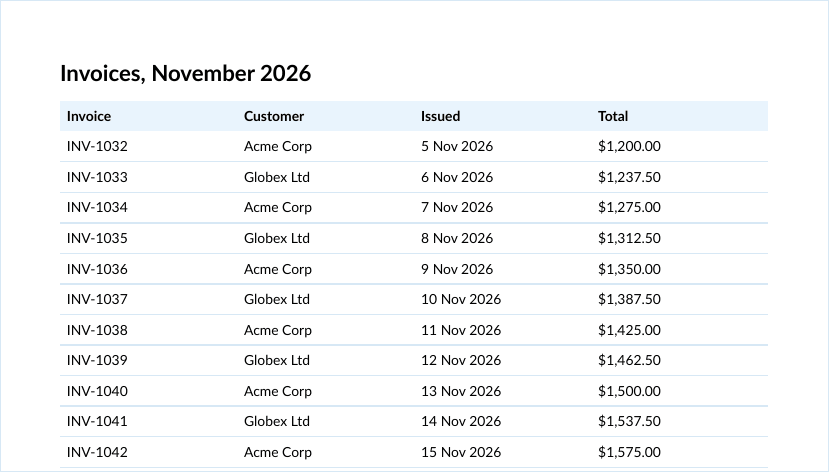
}The 60 rows fill two pages, and QuestPDF repeats the page title and the column headers on the second:
For a DataGridView bound to a DataTable, pass its DataSource. Every column gets the same width here; give RelativeColumn a number, as the invoice table does, to make some wider.
Skip the Infrastructure: One API Call
Every library above runs inside your app, so its license, fonts and, for the HTML route, Chrome come with it. With APITemplate.io’s PDF generation API, the invoice layout lives in a template, made in the visual editor or written in HTML with Jinja2 tags, and your C# code sends only the data. The template’s line items look like this:
<h1>Invoice {{ invoice_number }}</h1>
<table>
  {% for item in items %}
  <tr><td>{{ item.description }}</td><td>{{ item.quantity }}</td><td>{{ item.price }}</td><td>{{ item.amount }}</td></tr>
  {% endfor %}
</table>
<p>Total {{ total }}</p>Then post the invoice as JSON:
using System.Text;
using System.Text.Json;

var invoice = Invoice.Sample;
var json = JsonSerializer.Serialize(new
{
    invoice_number = invoice.Number,
    issued = Fmt.Date(invoice.Issued),
    due = Fmt.Date(invoice.Due),
    from = invoice.From,
    bill_to = invoice.BillTo,
    items = invoice.Items.Select(i => new
    {
        description = i.Description,
        quantity = i.Quantity,
        price = Fmt.Money(i.UnitPrice),
        amount = Fmt.Money(i.Amount),
    }),
    total = Fmt.Money(invoice.Total),
});

using var http = new HttpClient();
http.DefaultRequestHeaders.Add("X-API-KEY", "YOUR_API_KEY");

// export_type=file returns the PDF itself instead of a download URL
var url = "https://rest.apitemplate.io/v2/create-pdf?template_id=YOUR_TEMPLATE_ID&export_type=file";
using var response = await http.PostAsync(url, new StringContent(json, Encoding.UTF8, "application/json"));
response.EnsureSuccessStatusCode();
await File.WriteAllBytesAsync("invoice.pdf", await response.Content.ReadAsByteArrayAsync());StringContent sends the JSON with a Content-Length header. With export_type=file, the response is the PDF itself; leave it out and you get JSON with a download_url instead. We ran this code against a mock of /v2/create-pdf that checked the path, query, X-API-KEY header and body, and rendered the template above with the same JSON. The docs compare the four ways to generate a PDF.
The Free plan includes 50 PDFs a month, and PDF Basic is $24 a month ($19 billed yearly) for 3,000. To convert a single HTML file without code, use the free HTML to PDF converter.
FAQ
What is the best C# library for generating PDFs?
For new documents built in code, QuestPDF: it has the simplest API and handles page breaks and page numbers itself. If you already design in HTML and CSS, PuppeteerSharp prints it with Chrome and is free under the MIT license.
Is QuestPDF free for commercial use?
Yes, if your organization’s annual gross revenue is under $1 million, or you’re a nonprofit or an open-source project. Otherwise the Professional license costs $1,999 and covers the whole company; it’s perpetual, and renewing it each year keeps the updates coming.
Is PDFsharp still free?
Version 6.5.0 and later are free under the AGPL, which requires your project to be open source under the AGPL too. Closed-source apps need the €750 commercial license, or can stay on 6.2.4, the last MIT release.
How do I generate a PDF from HTML in C#?
Load the HTML into headless Chrome with PuppeteerSharp and call page.PdfAsync(), as in step 4. Our C# HTML to PDF guide compares more options, including Playwright.
How do I return a PDF from an ASP.NET Core API?
Generate the PDF as a byte array and return Results.File(bytes, "application/pdf"). Add a file name as the third argument to make the browser download it instead of showing it.
Conclusion
For most new C# projects, QuestPDF is the quickest way to generate a PDF, as long as the Community license fits your company. PuppeteerSharp is the free route for HTML templates, and iText earns its price when you need signatures, forms or PDF/A. If you’d rather not run any of them, a template and one API call do the same job.
Sign up for a free account and generate up to 50 PDFs or images a month for free.
Other Blog Articles
How to Generate PDFs From JSON Data (Node.js, Python and API Examples)
Turn JSON data into PDF documents with code: fill an HTML template with Handlebars or Jinja2 and print it, build the PDF with pdfmake, turn any JSON file into tables, or send the JSON to an API.
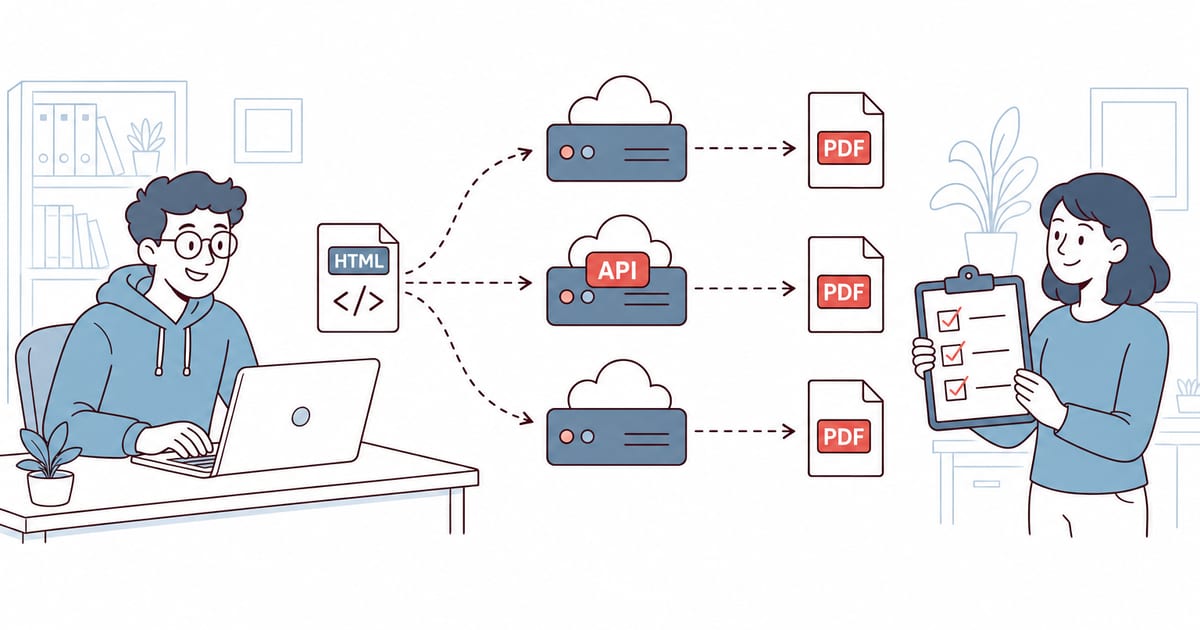
Best HTML to PDF APIs in 2026: Pricing, Rendering and Free Tiers Compared
The best HTML to PDF APIs in 2026, from PDFShift and DocRaptor to self-hosted Gotenberg, compared on rendering engine, free tier and what 1,000 PDFs a month cost.
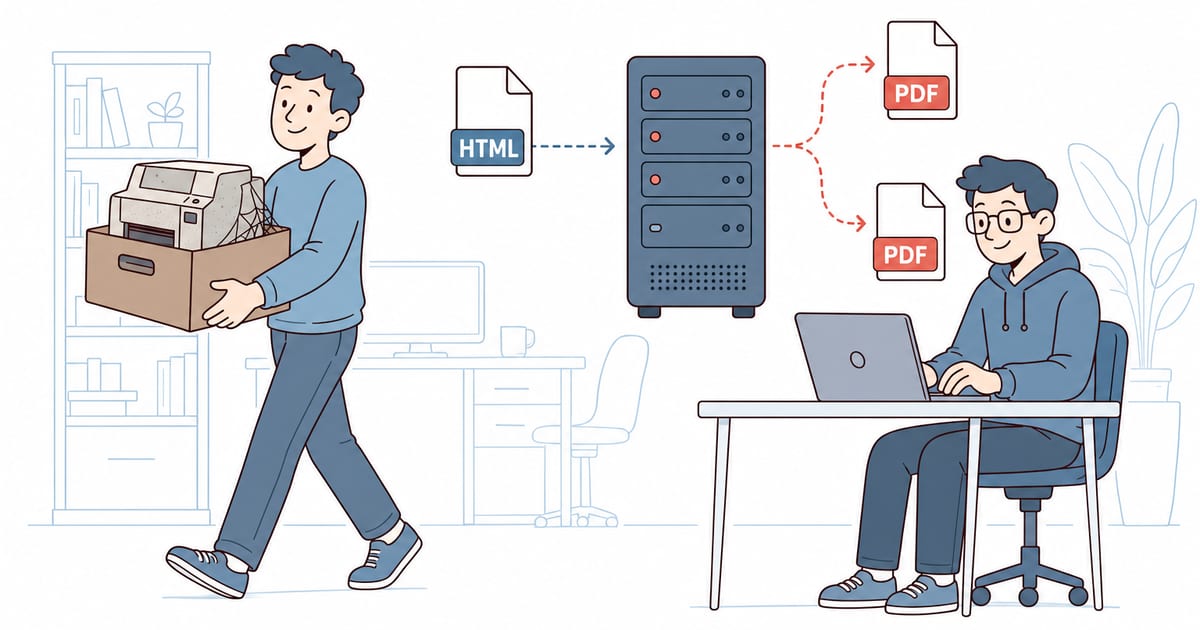
wkhtmltopdf Is Archived: 7 Alternatives for HTML to PDF in 2026
wkhtmltopdf was archived in 2023 and renders with a WebKit from 2012. Here are 7 tested alternatives, each wkhtmltopdf option mapped to Chrome, and migration code for Node.js, Python and C#.