How to Add a Logo and Dynamic Information to Your PDF Header or Footer
Headers and footers are useful for displaying information on every page of a generated PDF — such as logos, page numbers, dates, and other dynamic content. APITemplate.io supports custom HTML headers and footers with full Jinja2 templating.
This guide walks you through setting up custom headers and footers, including images, custom fonts, and background colors.
Settings and custom header
To override the default header, open your HTML template in the editor and navigate to Settings → Custom Header.
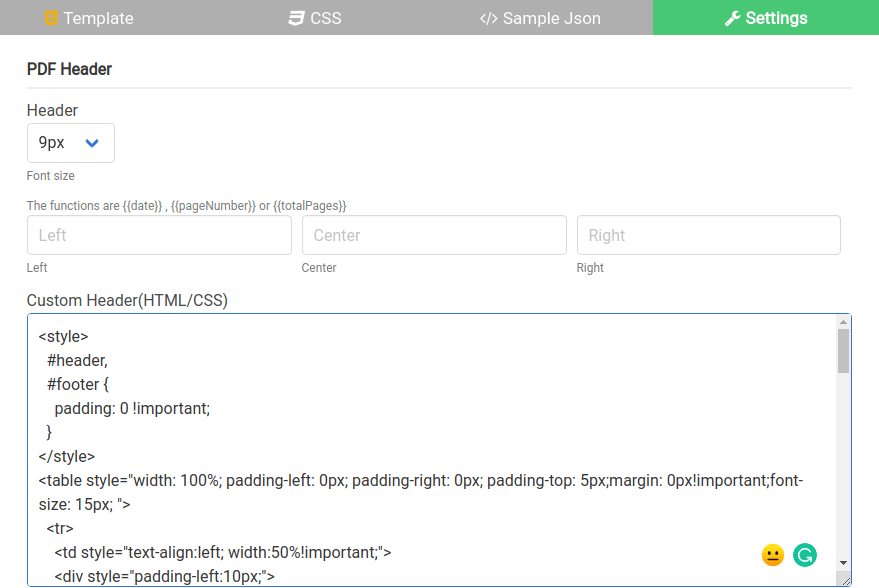
The header and footer accept standard HTML and support Jinja2 variables. Include dynamic values from your JSON data using the {{property_name}} syntax.
Dynamic print values
In addition to your own JSON variables, the template engine injects print-specific values into elements with the following CSS classes:
| Class | Description |
|---|---|
date | Formatted print date |
title | Document title |
url | Document location |
pageNumber | Current page number |
totalPages | Total pages in the document |
Use them inside <span> elements:
<span class="date"></span>         <!-- formatted print date -->
<span class="title"></span>        <!-- document title -->
<span class="url"></span>          <!-- document location -->
<span class="pageNumber"></span>   <!-- current page number -->
<span class="totalPages"></span>   <!-- total pages in the document -->
Including images in headers and footers
There are three ways to include an image in the header or footer.
Option 1: Use an external image
The header and footer support external images via a standard <img> tag. The following snippet creates a header with a logo on the left and page numbers on the right:
<style>
  #header, #footer { padding: 0 !important; }
</style>

<table style="width: 100%; padding: 0 5px; margin: 0 !important; font-size: 15px;">
  <tr>
    <td style="text-align: left; width: 30% !important;">
      <img src="https://your-domain.com/logo.png" width="50" height="50" />
    </td>
    <td style="text-align: center; width: 30% !important;"></td>
    <td style="text-align: right; width: 30% !important;">
      <span class="pageNumber"></span> of <span class="totalPages"></span>
    </td>
  </tr>
</table>
Option 2: Embed an SVG image
You can use an inline SVG directly in the header or footer HTML. This is useful when you want a vector logo without an external dependency:
<style>
  #header, #footer { padding: 0 !important; }
</style>

<table style="width: 100%; padding: 0; margin: 0 !important; font-size: 15px;">
  <tr>
    <td style="text-align: left; width: 50% !important;">
      <div style="padding-left: 10px;">
        <svg height="30" width="30" xmlns="http://www.w3.org/2000/svg">
          <!-- your SVG content here -->
        </svg>
      </div>
    </td>
    <td style="text-align: right; width: 50% !important; font-size: 8px;">
      <div style="padding-right: 10px;">
        {{batchNumber}} REV {{revision}}<br />
        {{header_title}}
      </div>
    </td>
  </tr>
  <tr>
    <td colspan="2" style="text-align: center;">
      <div style="border-bottom: 1px solid #EEEEEE; width: 95%; margin: auto;"></div>
    </td>
  </tr>
</table>
The output PDF with an SVG logo in the header can be downloaded here.
Option 3: Convert your logo to base64
If you do not want to rely on an external image URL, you can embed an image as a base64-encoded string. Use a tool like base64-image.de to perform the conversion. Remember to optimize the image size before converting.
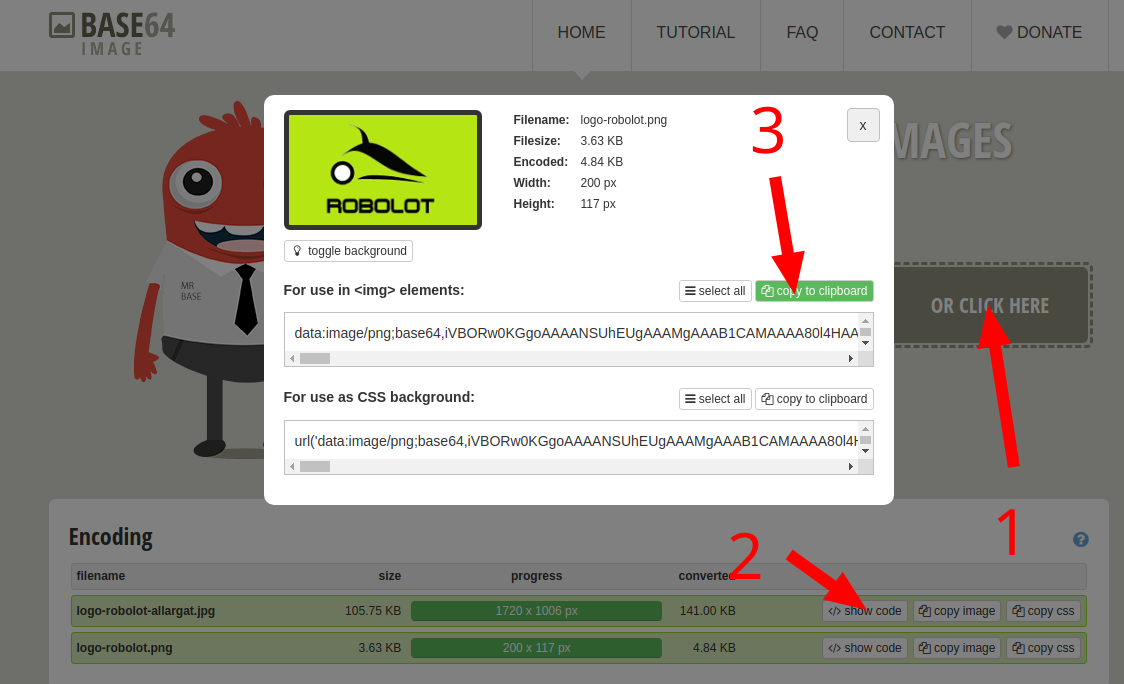
Replace the src value in the <img> tag with the base64 string:
<style>
  #header, #footer { padding: 0 !important; }
</style>

<table style="width: 100%; padding: 0; margin: 0 !important; font-size: 15px;">
  <tr>
    <td style="text-align: left; width: 50% !important;">
      <div style="padding-left: 10px;">
        <img style="width: 75px; height: 40px;"
             src="data:image/png;base64,iVBORw0KGgo..." />
      </div>
    </td>
    <td style="text-align: right; width: 50% !important; font-size: 8px;">
      <div style="padding-right: 10px;">
        {{batchNumber}} REV {{revision}}<br />
        {{header_title}}
      </div>
    </td>
  </tr>
  <tr>
    <td colspan="2" style="text-align: center;">
      <div style="border-bottom: 1px solid #EEEEEE; width: 95%; margin: auto;"></div>
    </td>
  </tr>
</table>
Custom fonts in headers and footers
To load a custom font, use the <custom-font> tag. Only TrueType Font (TTF) format is supported.
<custom-font src="https://your-domain.com/fonts/georgia-bold.ttf"></custom-font>

<style>
  #header, #footer { padding: 0 !important; }
  .myfont {
    font-family: 'georgia';
  }
  .mytable {
    width: 100%;
    padding: 0 5px;
    margin: 0 !important;
    font-size: 15px;
  }
</style>

<table class="mytable">
  <tr>
    <td style="text-align: left; width: 50% !important;" class="myfont">
      <span class="date"></span>
    </td>
    <td style="text-align: right; width: 50% !important;" class="myfont">
      <span class="pageNumber"></span> of <span class="totalPages"></span>
    </td>
  </tr>
</table>
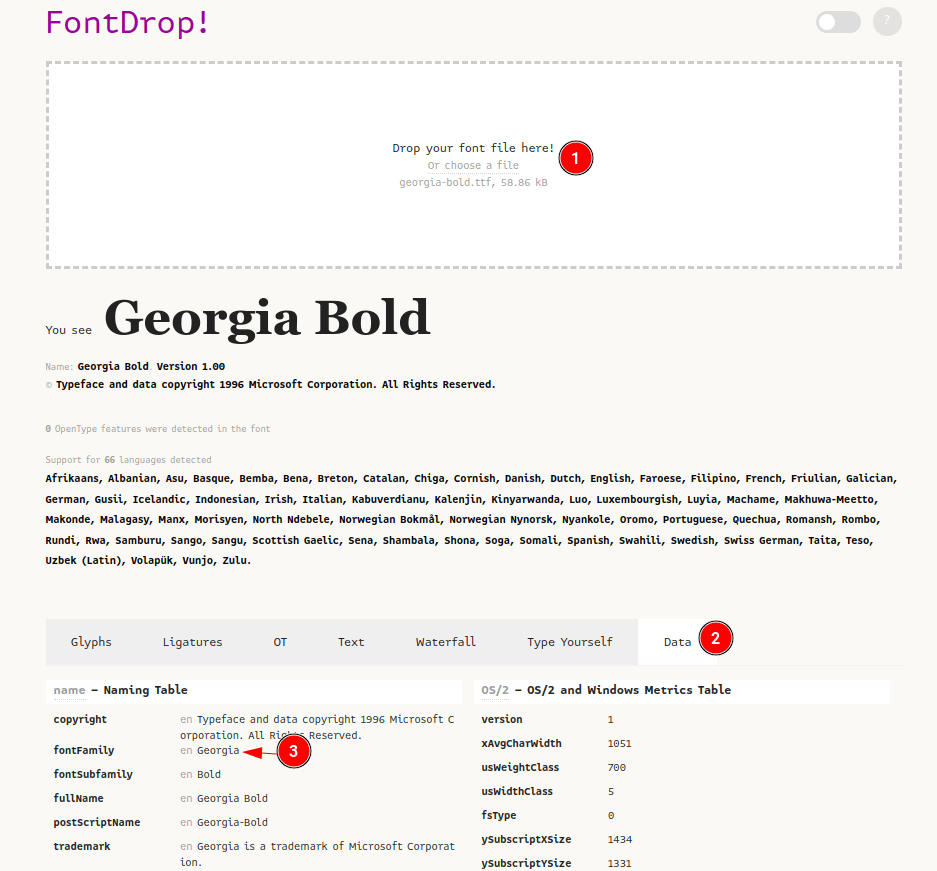
To find the correct font-family name for a TTF file, visit fontdrop.info.
Background color in headers and footers
To render background colors in the header or footer, you must enable the -webkit-print-color-adjust property. Without it, browsers may strip background colors during PDF generation.
<style>
  html {
    -webkit-print-color-adjust: exact;
  }
  #header, #footer { padding: 0 !important; }
</style>

<table style="width: 100%; margin: 0 !important; font-size: 15px; background-color: green;">
  <tr>
    <td style="text-align: left; width: 50% !important;">
      <span class="date"></span>
    </td>
    <td style="text-align: right; width: 50% !important;">
      <span class="pageNumber"></span> of <span class="totalPages"></span>
    </td>
  </tr>
</table>