Create Your First Template
Templates are the foundation of APITemplate.io. You design a template once, then reuse it by passing in different data each time.
Create a new template
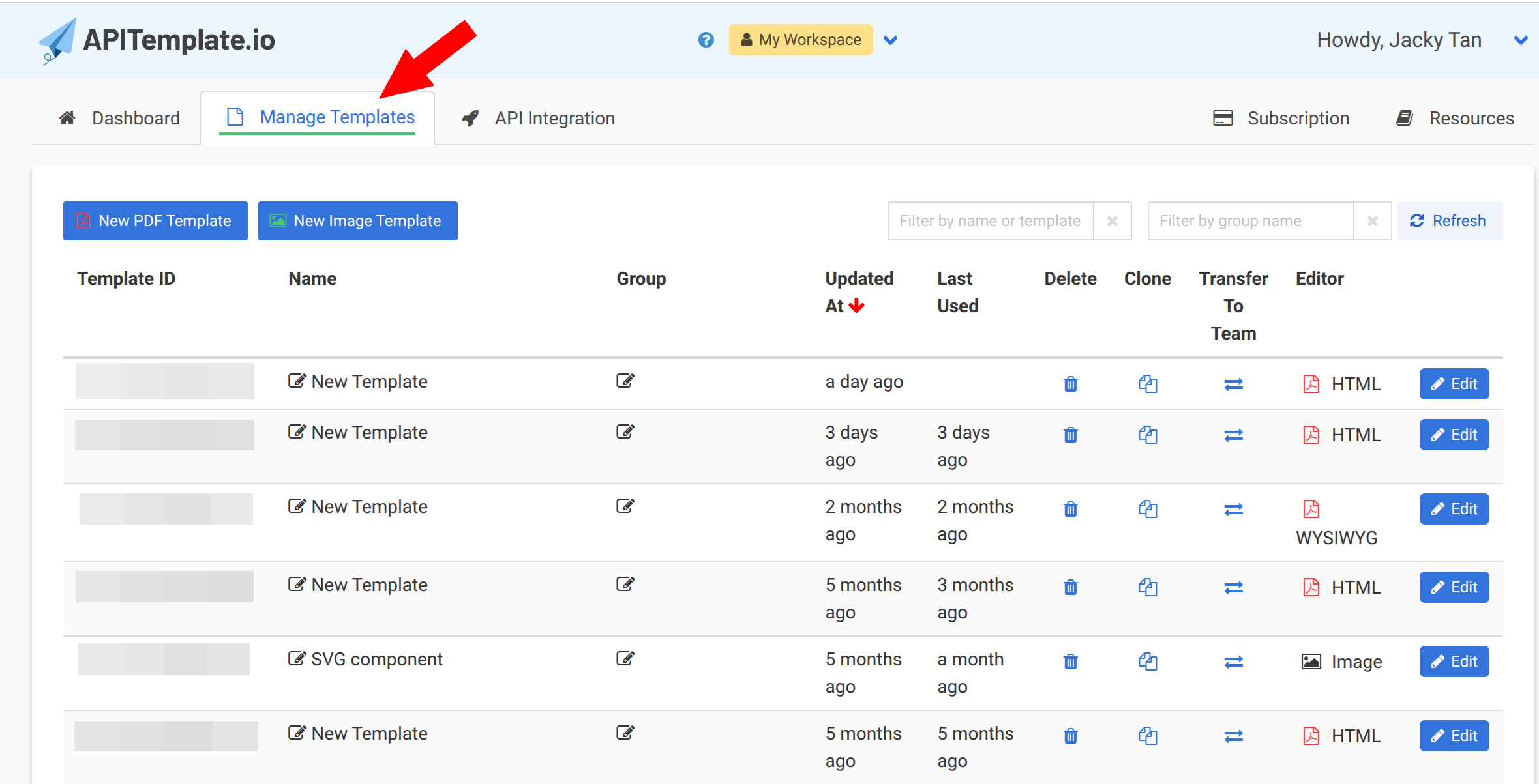
- Log in and go to Manage Templates in the left sidebar
- Click the New PDF Template or New Image Template button
For PDF templates
You'll be asked to choose an editor:
- HTML Editor — write HTML, CSS, and use Jinja2 template syntax for full control
- Visual (WYSIWYG) Editor — drag-and-drop editing, no coding needed
Pick whichever fits your comfort level. You can always create more templates with the other editor later.
Using dynamic variables
In your template, use double curly braces to insert dynamic values:
<h1>Invoice for {{company_name}}</h1>
<p>Amount due: {{amount}}</p>
When you call the API, you'll pass JSON data like:
{
  "company_name": "Acme Corp",
  "amount": "$1,250.00"
}
And the generated PDF will show "Invoice for Acme Corp" with the amount filled in.
For image templates
The image editor is a drag-and-drop canvas. You can add text, images, shapes, QR codes, and more. Each element gets a name that maps to a JSON property.
- Select a preset template or start from a blank canvas
- Add and arrange your elements
- Give your dynamic elements meaningful names (like
title,subtitle,background_image) - Use the API Console tab to test with sample JSON
Preview your template
Both editors have a preview feature:
- Quick Preview (Ctrl+Q) — renders the template instantly in the browser
- Generate PDF / Live Preview — produces the actual output file with headers, footers, and full styling
Next steps
Template ready? Let's make your first API request.