How to Set Custom Size and Margin per PDF Page
Every page of a PDF normally uses the Paper Size, Orientation and Margins from the template's Settings tab. When one document needs more than one format - a landscape page for a wide table, a cover page with no margins, a receipt-width page inside an A4 report - use the CSS @page at-rule instead.
An HTML template with PDF output, on Rendering Engine version 153. The visual (WYSIWYG) editor is not supported.
Step 1: Enable the setting
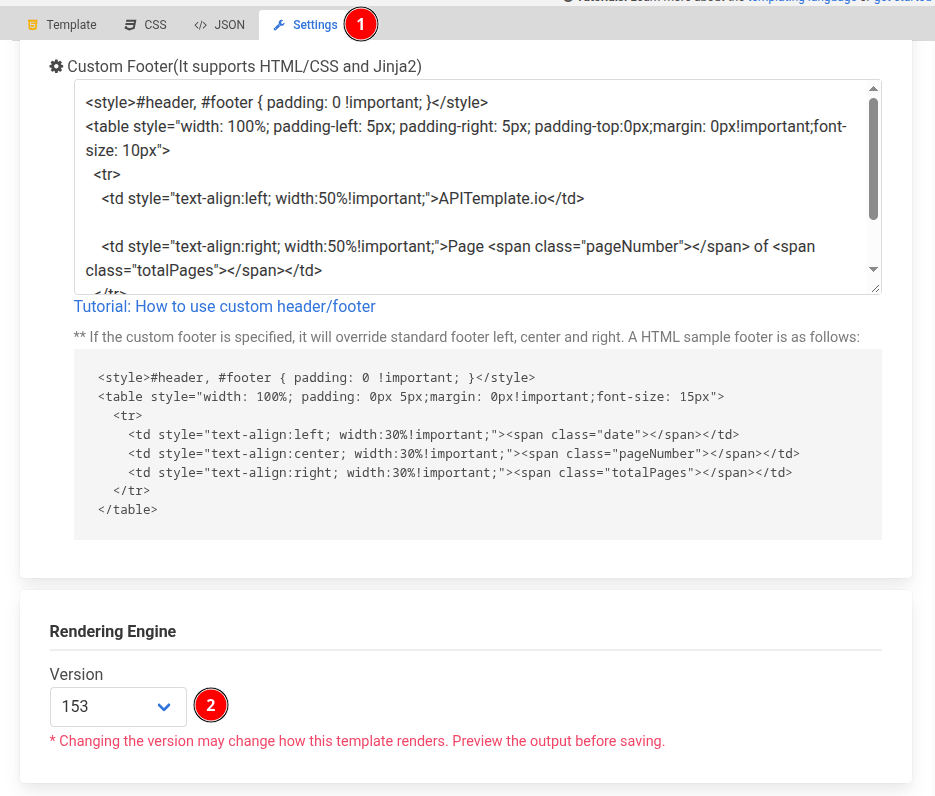
In the Settings tab, under Rendering Engine: set Version to 153.
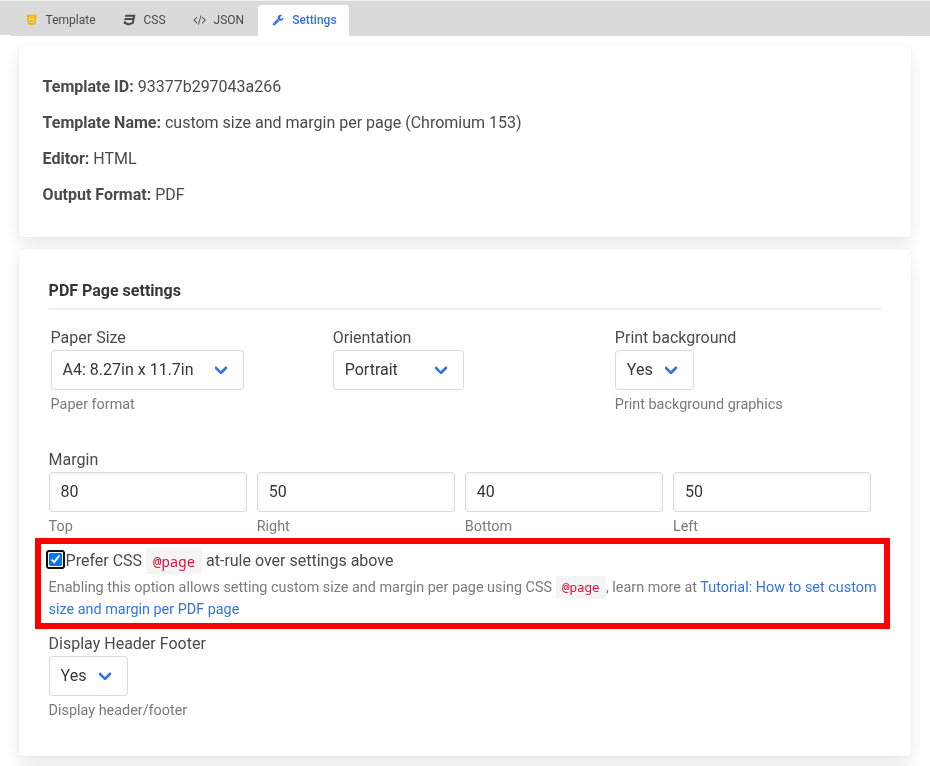
Tick Prefer CSS @page at-rule over settings above, then Save.
Using the REST API? See API usage below.
The CSS tab holds your document's <head> markup, so it already contains a <style> block - put the @page rules inside it. The API's css field works the same way, so wrap your CSS in <style>...</style> there too.
Step 2: One size for the whole document
An @page rule without a name applies to every page.
CSS tab
@page {
  size: 8.5in 9in; /* width height */
  margin: 1in 0.5in; /* top/bottom  left/right */
}
Every page is now 8.5in x 9in, even if the Settings tab says A4.
Step 3: A different size for some pages
Give the rule a named page, then point an element at it with the page property.
CSS tab
@page {
  size: A4 portrait;
  margin: 20mm;
}

/* Used by any element with page: wide */
@page wide {
  size: A4 landscape;
  margin: 10mm;
}

.wide {
  /* print these on the "wide" page */
  page: wide;
}
HTML tab
<section><h1>Portrait page</h1></section>
<section class="wide"><h1>Landscape page for a wide table</h1></section>
<section><h1>Back to portrait</h1></section>
A new page starts automatically wherever the page name changes, so you do not need page-break-before at the boundary. page works on block elements (section, div, table) only - setting it on a <span> does nothing.
Choosing a size
@page {
  size: A4; /* paper keyword */
}
@page {
  size: A4 landscape; /* keyword + orientation */
}
@page {
  size: 80mm 200mm; /* width height */
}
- Keywords:
A5,A4,A3,B5,B4,JIS-B5,JIS-B4,letter,legal,ledger- see MDN:@page/size. - Lengths: any absolute CSS unit -
in,cm,mm,pt,pc,px- see MDN:<length>. - Orientation belongs in the CSS. A
sizewithout thelandscapekeyword is portrait, and it overrides the Orientation setting.
Which setting wins?
| Priority | Declared in | Applies to |
|---|---|---|
| 1 (highest) | @page name { ... }, used through page: name | the pages of that element |
| 2 | @page { ... } (no name) | every page not covered by a named rule |
| 3 (lowest) | Settings tab: Paper Size, Orientation, Margins | anything the CSS leaves unspecified |
They combine per property: set margin-top only, and the size and the other three margins still come from the Settings tab.
@page rule in the CSS tabThe browser applies @page rules one stylesheet at a time, and a later stylesheet wins even over a named rule in an earlier one. A <style> block in the HTML tab - or inject_css - counts as a later stylesheet, so an @page { size: A4 } there silently switches off every named size declared in the CSS tab. Keep the rules together, unnamed rule first.
Examples
Each example is complete: paste the CSS block inside the <style> block in the CSS tab, and the HTML block into the HTML tab.
A full-bleed cover page
A named page with margin: 0 lets the background reach the paper edge. Select Yes for Print Background in the Settings tab so the colour prints.
CSS tab
/* Without this, the full-height cover spills onto a blank second page. */
html,
body {
  margin: 0;
}

@page {
  size: A4;
  margin: 20mm;
}

@page cover {
  size: A4;
  margin: 0;
}

.cover {
  page: cover;
  box-sizing: border-box;
  height: 100vh; /* exactly one page */
  padding: 20mm; /* keeps the text off the paper edge */
  background: #1e3a5f;
  color: white;
}
HTML tab
<section class="cover">
  <h1>Annual Report 2026</h1>
</section>

<section>
  <h1>Contents</h1>
  <p>A normal A4 page with 20mm margins.</p>
</section>
Result: two A4 pages, the first one filled edge to edge with the background colour.
A receipt-width page inside an A4 document
A named page can use any size, not just a paper keyword.
CSS tab
@page {
  size: A4;
  margin: 20mm;
}

@page receipt {
  size: 80mm 200mm;
  margin: 5mm;
}

.receipt {
  page: receipt;
  font-family: monospace;
}
HTML tab
<section>
  <h1>Order confirmation</h1>
  <p>Thank you for your order.</p>
</section>

<section class="receipt">
  <p>Item A ....... 12.00</p>
  <p>Total ........ 12.00</p>
</section>
Result: an A4 page, then an 80mm x 200mm page.
Extra space on the first page only
The :first pseudo-class styles the first page without naming it, which is handy for leaving room for a printed letterhead.
CSS tab
@page {
  size: A4;
  margin: 20mm;
}

@page :first {
  margin-top: 80mm;
}
HTML tab
<p>The first page starts lower, leaving room for a printed letterhead.</p>
<p style="page-break-before: always">The second page uses the normal 20mm top margin.</p>
Result: two A4 pages, the first with an 80mm top margin and the second with 20mm.
Only change the margins
@page does not have to set a size. This keeps the Paper Size from the Settings tab and overrides the top margin alone.
CSS tab
@page {
  margin-top: 4in;
}
HTML tab
<p>The Paper Size still comes from the Settings tab.</p>
Result: one page in the Settings-tab size, with the text starting 4in down. The other three margins still come from the Settings tab.
Good to know
@pagemargins are applied whether or not the checkbox is ticked. The checkbox is what makessizetake effect.- Headers and footers are printed inside the page margin, so a page with
margin: 0shows neither. See Headers and Footers. - Do not combine this with the "single continuous page" mode (custom paper size with height
0): a CSS@pagesize overrides the measured height. @pagecontrols size and margins only. Page breaks are stillpage-break-before,page-break-afterandpage-break-inside- see Advanced PDF Topics.
API usage
Set rendering_engine_version to "153" and preferCSSPageSize to true in the settings object of create-pdf-from-html or any other PDF endpoint. For a saved template both come from its Settings tab instead.
curl -X POST "https://rest.apitemplate.io/v2/create-pdf-from-html" \
  -H "X-API-KEY: YOUR_API_KEY" \
  -H "Content-Type: application/json" \
  -d '{
    "body": "<section><h1>Portrait</h1></section><section class=\"wide\"><h1>Landscape</h1></section>",
    "css": "<style>@page { size: A4; margin: 20mm; } @page wide { size: A4 landscape; margin: 10mm; } .wide { page: wide; }</style>",
    "settings": {
      "rendering_engine_version": "153",
      "preferCSSPageSize": true,
      "paper_size": "A4",
      "orientation": "1"
    }
  }'
Troubleshooting
| Symptom | Fix |
|---|---|
| Every page still uses the Settings-tab size | Set Version to 153, tick the checkbox, save |
| The CSS is printed as text in the PDF | Wrap the rules in <style>...</style> |
| A named page has no effect | Put page: on a block element, not a <span> |
| A named page prints at the default size | Move every @page rule into the CSS tab, unnamed rule first |
| The page is portrait although Orientation is Landscape | Write size: A4 landscape |
| Changing Margins in the Settings tab does nothing | Edit the @page margin instead |
| A header or footer is missing on one page | Give that @page rule a top/bottom margin |
| A full-height element adds a blank page | Set html, body { margin: 0; } |